
<?xml version="1.0" encoding="UTF-8"?><rss version="2.0"
	xmlns:content="http://purl.org/rss/1.0/modules/content/"
	xmlns:wfw="http://wellformedweb.org/CommentAPI/"
	xmlns:dc="http://purl.org/dc/elements/1.1/"
	xmlns:atom="http://www.w3.org/2005/Atom"
	xmlns:sy="http://purl.org/rss/1.0/modules/syndication/"
	xmlns:slash="http://purl.org/rss/1.0/modules/slash/"
	>

<channel>
	<title>texto | Ildefonso Segura</title>
	<atom:link href="https://ildefonsosegura.es/tag/texto/feed/" rel="self" type="application/rss+xml" />
	<link>https://ildefonsosegura.es</link>
	<description>Tutoriales de diseño y animación</description>
	<lastBuildDate>Sat, 26 Nov 2022 13:42:24 +0000</lastBuildDate>
	<language>es</language>
	<sy:updatePeriod>
	hourly	</sy:updatePeriod>
	<sy:updateFrequency>
	1	</sy:updateFrequency>
	<generator>https://wordpress.org/?v=6.9.4</generator>

<image>
	<url>https://ildefonsosegura.es/wp-content/uploads/cropped-Favicon-new-logo-website-32x32.png</url>
	<title>texto | Ildefonso Segura</title>
	<link>https://ildefonsosegura.es</link>
	<width>32</width>
	<height>32</height>
</image> 
	<item>
		<title>Como hacer un texto estilo roca realista con Photoshop</title>
		<link>https://ildefonsosegura.es/como-hacer-un-texto-estilo-roca-realista-con-photoshop/</link>
					<comments>https://ildefonsosegura.es/como-hacer-un-texto-estilo-roca-realista-con-photoshop/#comments</comments>
		
		<dc:creator><![CDATA[Ildefonso Segura]]></dc:creator>
		<pubDate>Mon, 06 Sep 2021 15:01:55 +0000</pubDate>
				<category><![CDATA[Editable]]></category>
		<category><![CDATA[Efectos]]></category>
		<category><![CDATA[Photoshop]]></category>
		<category><![CDATA[Textos]]></category>
		<category><![CDATA[Textura]]></category>
		<category><![CDATA[Tutoriales]]></category>
		<category><![CDATA[Video]]></category>
		<category><![CDATA[Wallpaper]]></category>
		<category><![CDATA[adobe]]></category>
		<category><![CDATA[cc2021]]></category>
		<category><![CDATA[creatividad]]></category>
		<category><![CDATA[diseño]]></category>
		<category><![CDATA[efecto]]></category>
		<category><![CDATA[estilo]]></category>
		<category><![CDATA[ildefonsosegura]]></category>
		<category><![CDATA[photoshop]]></category>
		<category><![CDATA[ps]]></category>
		<category><![CDATA[stone]]></category>
		<category><![CDATA[tecnicas]]></category>
		<category><![CDATA[texto]]></category>
		<category><![CDATA[texto realista]]></category>
		<category><![CDATA[textura]]></category>
		<category><![CDATA[textura texto]]></category>
		<category><![CDATA[tuto]]></category>
		<category><![CDATA[tutorial]]></category>
		<category><![CDATA[VIDEOTUTORIAL]]></category>
		<category><![CDATA[wallpaper]]></category>
		<category><![CDATA[youtube]]></category>
		<guid isPermaLink="false">https://ildefonsosegura.es/?p=113777</guid>

					<description><![CDATA[<p>En este tutorial de Photoshop veremos como conseguir una textura de roca realista en un texto. El tutorial está inspirado en un tutorial en inglés que puedes encontrar en el canal TEXTURELABS.ORG de YouTube. En mi caso, he usado texturas diferentes y al final le he dado una aplicación interesante sumergiendo el texto y animándolo [&#8230;]</p>
La entrada <a href="https://ildefonsosegura.es/como-hacer-un-texto-estilo-roca-realista-con-photoshop/">Como hacer un texto estilo roca realista con Photoshop</a> apareció primero en <a href="https://ildefonsosegura.es">Ildefonso Segura</a>.]]></description>
										<content:encoded><![CDATA[<div data-elementor-type="wp-post" data-elementor-id="113777" class="elementor elementor-113777">
						<section class="elementor-section elementor-top-section elementor-element elementor-element-b7471a2 elementor-section-boxed elementor-section-height-default elementor-section-height-default" data-id="b7471a2" data-element_type="section" data-e-type="section">
						<div class="elementor-container elementor-column-gap-default">
					<div class="elementor-column elementor-col-100 elementor-top-column elementor-element elementor-element-5e938f2" data-id="5e938f2" data-element_type="column" data-e-type="column">
			<div class="elementor-widget-wrap elementor-element-populated">
						<div class="elementor-element elementor-element-7cf2e12 elementor-widget elementor-widget-text-editor" data-id="7cf2e12" data-element_type="widget" data-e-type="widget" data-widget_type="text-editor.default">
				<div class="elementor-widget-container">
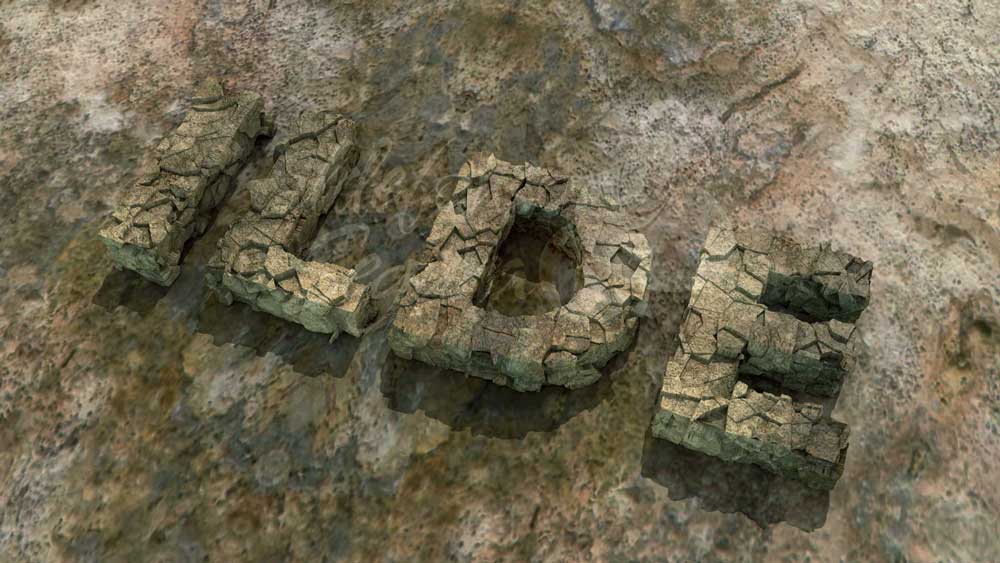
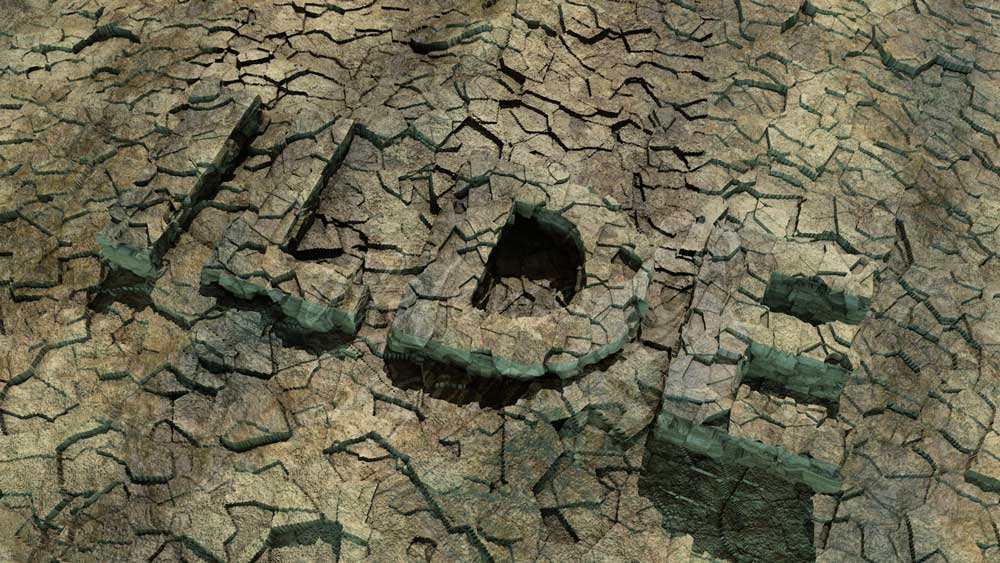
									<p align="justify">En este tutorial de Photoshop veremos como conseguir una textura de roca realista en un texto.</p>
<p align="justify">El tutorial está inspirado en un <a href="https://texturelabs.org/tutorials/3d-stone-concrete-text-effect/" target="_blank" rel="noopener"><strong><span style="color: #800000;">tutorial en inglés</span></strong></a> que puedes encontrar en el canal <strong><a href="https://www.youtube.com/channel/UCBxd0ZwoptXc676LSaxCP5Q" target="_blank" rel="noopener">TEXTURELABS.ORG</a></strong> de YouTube.

</p><p align="justify">En mi caso, he usado texturas diferentes y al final le he dado una aplicación interesante sumergiendo el texto y animándolo una escena en el fondo del mar.  Te dejo la animación por aquí:

</p>								</div>
				</div>
					</div>
		</div>
					</div>
		</section>
				<section class="elementor-section elementor-top-section elementor-element elementor-element-52bc9d1 elementor-section-boxed elementor-section-height-default elementor-section-height-default" data-id="52bc9d1" data-element_type="section" data-e-type="section">
						<div class="elementor-container elementor-column-gap-default">
					<div class="elementor-column elementor-col-100 elementor-top-column elementor-element elementor-element-5023aa6" data-id="5023aa6" data-element_type="column" data-e-type="column">
			<div class="elementor-widget-wrap elementor-element-populated">
						<div class="elementor-element elementor-element-b3b61d6 elementor-widget elementor-widget-video" data-id="b3b61d6" data-element_type="widget" data-e-type="widget" data-settings="{&quot;youtube_url&quot;:&quot;https:\/\/youtu.be\/Oc1UXuJkm5U&quot;,&quot;video_type&quot;:&quot;youtube&quot;,&quot;controls&quot;:&quot;yes&quot;}" data-widget_type="video.default">
				<div class="elementor-widget-container">
							<div class="elementor-wrapper elementor-open-inline">
			<div class="elementor-video"></div>		</div>
						</div>
				</div>
					</div>
		</div>
					</div>
		</section>
				<section class="elementor-section elementor-top-section elementor-element elementor-element-8eec0a1 elementor-section-boxed elementor-section-height-default elementor-section-height-default" data-id="8eec0a1" data-element_type="section" data-e-type="section">
						<div class="elementor-container elementor-column-gap-default">
					<div class="elementor-column elementor-col-100 elementor-top-column elementor-element elementor-element-761f29f" data-id="761f29f" data-element_type="column" data-e-type="column">
			<div class="elementor-widget-wrap elementor-element-populated">
						<div class="elementor-element elementor-element-11a3fbd elementor-widget elementor-widget-text-editor" data-id="11a3fbd" data-element_type="widget" data-e-type="widget" data-widget_type="text-editor.default">
				<div class="elementor-widget-container">
									<p align="justify"> También puedes ver el antes y el después de la edición del texto en este comparador de imágenes.</p>
								</div>
				</div>
					</div>
		</div>
					</div>
		</section>
				<section class="elementor-section elementor-top-section elementor-element elementor-element-acfc913 elementor-section-boxed elementor-section-height-default elementor-section-height-default" data-id="acfc913" data-element_type="section" data-e-type="section">
						<div class="elementor-container elementor-column-gap-default">
					<div class="elementor-column elementor-col-100 elementor-top-column elementor-element elementor-element-03b0344" data-id="03b0344" data-element_type="column" data-e-type="column">
			<div class="elementor-widget-wrap elementor-element-populated">
						<div class="elementor-element elementor-element-e35cdaf elementor-widget-divider--view-line_icon elementor-view-default elementor-widget-divider--element-align-center elementor-widget elementor-widget-divider" data-id="e35cdaf" data-element_type="widget" data-e-type="widget" data-widget_type="divider.default">
				<div class="elementor-widget-container">
							<div class="elementor-divider">
			<span class="elementor-divider-separator">
							<div class="elementor-icon elementor-divider__element">
					<i aria-hidden="true" class="fas fa-star"></i></div>
						</span>
		</div>
						</div>
				</div>
					</div>
		</div>
					</div>
		</section>
				<section class="elementor-section elementor-top-section elementor-element elementor-element-2c7c284 elementor-section-boxed elementor-section-height-default elementor-section-height-default" data-id="2c7c284" data-element_type="section" data-e-type="section">
						<div class="elementor-container elementor-column-gap-default">
					<div class="elementor-column elementor-col-100 elementor-top-column elementor-element elementor-element-4960e8a" data-id="4960e8a" data-element_type="column" data-e-type="column">
			<div class="elementor-widget-wrap elementor-element-populated">
						<div class="elementor-element elementor-element-f9f5533 elementor-widget-divider--view-line_icon elementor-view-default elementor-widget-divider--element-align-center elementor-widget elementor-widget-divider" data-id="f9f5533" data-element_type="widget" data-e-type="widget" data-widget_type="divider.default">
				<div class="elementor-widget-container">
							<div class="elementor-divider">
			<span class="elementor-divider-separator">
							<div class="elementor-icon elementor-divider__element">
					<i aria-hidden="true" class="fas fa-star"></i></div>
						</span>
		</div>
						</div>
				</div>
					</div>
		</div>
					</div>
		</section>
				<section class="elementor-section elementor-top-section elementor-element elementor-element-2ca6aa6 elementor-section-boxed elementor-section-height-default elementor-section-height-default" data-id="2ca6aa6" data-element_type="section" data-e-type="section">
						<div class="elementor-container elementor-column-gap-default">
					<div class="elementor-column elementor-col-100 elementor-top-column elementor-element elementor-element-e61067e" data-id="e61067e" data-element_type="column" data-e-type="column">
			<div class="elementor-widget-wrap elementor-element-populated">
						<div class="elementor-element elementor-element-ce763dd elementor-widget-divider--view-line_icon elementor-view-default elementor-widget-divider--element-align-center elementor-widget elementor-widget-divider" data-id="ce763dd" data-element_type="widget" data-e-type="widget" data-widget_type="divider.default">
				<div class="elementor-widget-container">
							<div class="elementor-divider">
			<span class="elementor-divider-separator">
							<div class="elementor-icon elementor-divider__element">
					<i aria-hidden="true" class="fas fa-star"></i></div>
						</span>
		</div>
						</div>
				</div>
					</div>
		</div>
					</div>
		</section>
				<section class="elementor-section elementor-top-section elementor-element elementor-element-4ecb01f elementor-section-boxed elementor-section-height-default elementor-section-height-default" data-id="4ecb01f" data-element_type="section" data-e-type="section">
						<div class="elementor-container elementor-column-gap-default">
					<div class="elementor-column elementor-col-100 elementor-top-column elementor-element elementor-element-00dfe98" data-id="00dfe98" data-element_type="column" data-e-type="column">
			<div class="elementor-widget-wrap elementor-element-populated">
						<div class="elementor-element elementor-element-af4e04c elementor-widget elementor-widget-text-editor" data-id="af4e04c" data-element_type="widget" data-e-type="widget" data-widget_type="text-editor.default">
				<div class="elementor-widget-container">
									<p align="justify">Te dejo mi referencia en Instagram para que chequees este post y otros que te pueden interesar <a href="http://instagram.com/ildefonsosegura" target="_blank" rel="noopener"><span style="color: #800000;"><strong>INSTAGRAM DE @IldefonsoSegura</strong></span></a></p>								</div>
				</div>
				<div class="elementor-element elementor-element-a2d52fd elementor-widget elementor-widget-text-editor" data-id="a2d52fd" data-element_type="widget" data-e-type="widget" data-widget_type="text-editor.default">
				<div class="elementor-widget-container">
									<p align="justify">Lo impactante de este tutorial, o por lo menos a mí me lo parece, es el efecto de rotura que conseguirnos en la parte más frontal  del texto tan sólo aplicando un filtro de «cristalizar» y después un estilo de capa con relleno del 0%.</p><p align="justify">Luego daremos más profundidad al texto y para ello mostraremos como se hace una ACCIÓN en Photoshop para automatizar tareas que hacen más eficientes el trabajo de manipulación y composición.</p><p align="justify">Posteriormente superpondremos texturas a la extrusión creada y aplicaremos sombras e iluminaciones que conseguirán este realismo de parecido a roca en texto.</p>								</div>
				</div>
					</div>
		</div>
					</div>
		</section>
				<section class="elementor-section elementor-top-section elementor-element elementor-element-65f8937 elementor-section-boxed elementor-section-height-default elementor-section-height-default" data-id="65f8937" data-element_type="section" data-e-type="section">
						<div class="elementor-container elementor-column-gap-default">
					<div class="elementor-column elementor-col-100 elementor-top-column elementor-element elementor-element-06442b8" data-id="06442b8" data-element_type="column" data-e-type="column">
			<div class="elementor-widget-wrap elementor-element-populated">
						<div class="elementor-element elementor-element-8f5fb7d elementor-widget elementor-widget-text-editor" data-id="8f5fb7d" data-element_type="widget" data-e-type="widget" data-widget_type="text-editor.default">
				<div class="elementor-widget-container">
									<p align="justify">Espero que el tutorial texto estilo roca realista con Photoshop sea funcional para ti y puedas aprender algo que a la vez puedas aplicar en otras composiciones.</p>
<p align="justify">Muchas gracias al canal TextureLabs.org por su aporte en inglés sobre estas técnicas y por tanto no dejéis de visitarlo y suscribiros si os gusta. Gracias <a href="https://texturelabs.org/about/" target="_blank" rel="noopener">Brady</a></p>
<p align="justify">Después de todo esta introducción, aquí puedes ver el tutorial y no dejes de compartir el post y darle «like» / «dedo arriba» al vídeo.</p>

<h3 align="justify"><strong><span style="color: #800000;">TABLA DE CONTENIDOS:</span></strong></h3>
<ul>
 	<li>0:00 Presentación del tutorial</li>
 	<li>0:25 Animación del resultado</li>
 	<li>0:45 Referencia al tutorial en inglés</li>
 	<li>0:56 Textura al texto principal</li>
 	<li>3:26 Roturas en superficie</li>
 	<li>6:30 Extrusión del texto</li>
 	<li>8:21 Textura en extrusión</li>
 	<li>9:37 Técnicas para incluir contraste</li>
 	<li>12:12 Inclusión de Background</li>
 	<li>12:41 Luces y Sombras</li>
 	<li>15:45 Añadimos detalles adicionales</li>
 	<li>16:57 Despedida</li>
</ul>
<h6 class="single-post-title entry-title">«Cómo hacer texto estilo roca realista con Photoshop»</h6>
<p align="justify"></p>								</div>
				</div>
					</div>
		</div>
					</div>
		</section>
				<section class="elementor-section elementor-top-section elementor-element elementor-element-4d24a2e elementor-section-boxed elementor-section-height-default elementor-section-height-default" data-id="4d24a2e" data-element_type="section" data-e-type="section">
						<div class="elementor-container elementor-column-gap-default">
					<div class="elementor-column elementor-col-100 elementor-top-column elementor-element elementor-element-1cd2633" data-id="1cd2633" data-element_type="column" data-e-type="column">
			<div class="elementor-widget-wrap elementor-element-populated">
						<div class="elementor-element elementor-element-f6de5d4 elementor-widget elementor-widget-video" data-id="f6de5d4" data-element_type="widget" data-e-type="widget" data-settings="{&quot;youtube_url&quot;:&quot;https:\/\/youtu.be\/e78oY5EnaGs&quot;,&quot;video_type&quot;:&quot;youtube&quot;,&quot;controls&quot;:&quot;yes&quot;}" data-widget_type="video.default">
				<div class="elementor-widget-container">
							<div class="elementor-wrapper elementor-open-inline">
			<div class="elementor-video"></div>		</div>
						</div>
				</div>
					</div>
		</div>
					</div>
		</section>
				<section class="elementor-section elementor-top-section elementor-element elementor-element-d99fc3a elementor-section-boxed elementor-section-height-default elementor-section-height-default" data-id="d99fc3a" data-element_type="section" data-e-type="section">
						<div class="elementor-container elementor-column-gap-default">
					<div class="elementor-column elementor-col-50 elementor-top-column elementor-element elementor-element-806be6a" data-id="806be6a" data-element_type="column" data-e-type="column">
			<div class="elementor-widget-wrap">
							</div>
		</div>
				<div class="elementor-column elementor-col-50 elementor-top-column elementor-element elementor-element-de98a7c" data-id="de98a7c" data-element_type="column" data-e-type="column">
			<div class="elementor-widget-wrap">
							</div>
		</div>
					</div>
		</section>
				<section class="elementor-section elementor-top-section elementor-element elementor-element-fb28f3b elementor-section-boxed elementor-section-height-default elementor-section-height-default" data-id="fb28f3b" data-element_type="section" data-e-type="section">
						<div class="elementor-container elementor-column-gap-default">
					<div class="elementor-column elementor-col-50 elementor-top-column elementor-element elementor-element-324f879" data-id="324f879" data-element_type="column" data-e-type="column">
			<div class="elementor-widget-wrap elementor-element-populated">
						<div class="elementor-element elementor-element-ea3b0ee elementor-widget elementor-widget-image" data-id="ea3b0ee" data-element_type="widget" data-e-type="widget" data-widget_type="image.default">
				<div class="elementor-widget-container">
															<img fetchpriority="high" decoding="async" width="300" height="205" src="https://ildefonsosegura.es/wp-content/uploads/regalos-300x205.png" class="attachment-medium size-medium wp-image-4460" alt="" srcset="https://ildefonsosegura.es/wp-content/uploads/regalos-300x205.png 300w, https://ildefonsosegura.es/wp-content/uploads/regalos-e1535194274619.png 350w" sizes="(max-width: 300px) 100vw, 300px" />															</div>
				</div>
					</div>
		</div>
				<div class="elementor-column elementor-col-50 elementor-top-column elementor-element elementor-element-8132854" data-id="8132854" data-element_type="column" data-e-type="column">
			<div class="elementor-widget-wrap elementor-element-populated">
						<div class="elementor-element elementor-element-31fe259 elementor-widget elementor-widget-text-editor" data-id="31fe259" data-element_type="widget" data-e-type="widget" data-widget_type="text-editor.default">
				<div class="elementor-widget-container">
									<p align="justify">Si quieres ir a tu ritmo, puedes ir chequeando el vídeo en cámara lenta y comprobando en el editable que te regalo, los pasos seguidos</p>								</div>
				</div>
				<div class="elementor-element elementor-element-b52ca5d elementor-align-center elementor-widget elementor-widget-button" data-id="b52ca5d" data-element_type="widget" data-e-type="widget" data-widget_type="button.default">
				<div class="elementor-widget-container">
									<div class="elementor-button-wrapper">
					<a class="elementor-button elementor-button-link elementor-size-sm" href="https://ildefonsosegura.es/regalos/">
						<span class="elementor-button-content-wrapper">
						<span class="elementor-button-icon">
				<i aria-hidden="true" class="fas fa-atlas"></i>			</span>
									<span class="elementor-button-text">ARCHIVO PSD TEXTO ROCA</span>
					</span>
					</a>
				</div>
								</div>
				</div>
					</div>
		</div>
					</div>
		</section>
				<section class="elementor-section elementor-top-section elementor-element elementor-element-b82598e elementor-section-boxed elementor-section-height-default elementor-section-height-default" data-id="b82598e" data-element_type="section" data-e-type="section">
						<div class="elementor-container elementor-column-gap-default">
					<div class="elementor-column elementor-col-100 elementor-top-column elementor-element elementor-element-56153d8" data-id="56153d8" data-element_type="column" data-e-type="column">
			<div class="elementor-widget-wrap elementor-element-populated">
						<div class="elementor-element elementor-element-5927092 elementor-widget elementor-widget-text-editor" data-id="5927092" data-element_type="widget" data-e-type="widget" data-widget_type="text-editor.default">
				<div class="elementor-widget-container">
									<p>Recuerda también que posteo trabajos e información en  <a href="https://www.facebook.com/IldefonsoSeguraPage" target="_blank" rel="noopener"><strong><span style="color: #800000;">Facebook</span> </strong></a></p><p>Igualmente, si quieres ver mis tutoriales de <strong><span style="color: #800000;">wallpapers</span></strong>, puedes verlos haciendo <span style="color: #800000;"><a style="color: #800000;" href="https://ildefonsosegura.es/category/wallpaper/"><strong>CLIC</strong></a></span> pero no olvides comentar este post antes de irte. Gracias</p>								</div>
				</div>
					</div>
		</div>
					</div>
		</section>
				<section class="elementor-section elementor-top-section elementor-element elementor-element-742276ff elementor-section-full_width elementor-section-height-default elementor-section-height-default" data-id="742276ff" data-element_type="section" data-e-type="section">
						<div class="elementor-container elementor-column-gap-default">
					<div class="elementor-column elementor-col-100 elementor-top-column elementor-element elementor-element-261106a3" data-id="261106a3" data-element_type="column" data-e-type="column">
			<div class="elementor-widget-wrap elementor-element-populated">
						<div class="elementor-element elementor-element-37781cfc elementor-widget elementor-widget-text-editor" data-id="37781cfc" data-element_type="widget" data-e-type="widget" data-widget_type="text-editor.default">
				<div class="elementor-widget-container">
									<div><div align="center"><center><strong style="color: #ff0000;">Suscríbete a mi canal de Youtube:</strong></center><div><div><div align="center"><p><script src="https://apis.google.com/js/platform.js"></script></p><div class="g-ytsubscribe" data-channel="ildefonsosegura" data-layout="full" data-count="default"> </div></div></div><p> </p><p style="text-align: center;">No te lo pierdas y comparte tus trabajos en mi página de facebook (<span style="color: #0000ff;"><strong><a style="color: #0000ff;" href="http://www.facebook.com/IldefonsoSeguraPage" target="_blank" rel="noopener noreferrer">IldefonsoSeguraPage</a></strong></span>)<br />Espero que te guste y compartas el vídeo. No dejes de compartir este post.</p><p style="text-align: center;">Así es como me puedes ayudar 🙂 Gracias</p></div></div></div>								</div>
				</div>
					</div>
		</div>
					</div>
		</section>
				</div>La entrada <a href="https://ildefonsosegura.es/como-hacer-un-texto-estilo-roca-realista-con-photoshop/">Como hacer un texto estilo roca realista con Photoshop</a> apareció primero en <a href="https://ildefonsosegura.es">Ildefonso Segura</a>.]]></content:encoded>
					
					<wfw:commentRss>https://ildefonsosegura.es/como-hacer-un-texto-estilo-roca-realista-con-photoshop/feed/</wfw:commentRss>
			<slash:comments>2</slash:comments>
		
		
			</item>
		<item>
		<title>Aparición de texto en llamas con After Effects by @ildefonsosegura</title>
		<link>https://ildefonsosegura.es/aparicion-de-texto-en-llamas-con-after-effects-by-ildefonsosegura/</link>
		
		<dc:creator><![CDATA[Ildefonso Segura]]></dc:creator>
		<pubDate>Mon, 09 Dec 2019 15:05:58 +0000</pubDate>
				<category><![CDATA[After Effects]]></category>
		<category><![CDATA[Editable]]></category>
		<category><![CDATA[Efectos]]></category>
		<category><![CDATA[Intro]]></category>
		<category><![CDATA[Tecnicas]]></category>
		<category><![CDATA[Tutoriales]]></category>
		<category><![CDATA[Video]]></category>
		<category><![CDATA[adobe]]></category>
		<category><![CDATA[after]]></category>
		<category><![CDATA[after effects]]></category>
		<category><![CDATA[aparición]]></category>
		<category><![CDATA[cabecera]]></category>
		<category><![CDATA[cc2019]]></category>
		<category><![CDATA[cc2020]]></category>
		<category><![CDATA[corazón]]></category>
		<category><![CDATA[editable]]></category>
		<category><![CDATA[efectos]]></category>
		<category><![CDATA[effects]]></category>
		<category><![CDATA[fire]]></category>
		<category><![CDATA[fire reveal]]></category>
		<category><![CDATA[fuego]]></category>
		<category><![CDATA[ildefonsosegura]]></category>
		<category><![CDATA[intro]]></category>
		<category><![CDATA[latido]]></category>
		<category><![CDATA[opener]]></category>
		<category><![CDATA[opening]]></category>
		<category><![CDATA[presentación]]></category>
		<category><![CDATA[regalo]]></category>
		<category><![CDATA[reveal]]></category>
		<category><![CDATA[text fire reveal]]></category>
		<category><![CDATA[texto]]></category>
		<category><![CDATA[texto de fuego]]></category>
		<category><![CDATA[tuto]]></category>
		<category><![CDATA[tutorial]]></category>
		<category><![CDATA[vfx]]></category>
		<category><![CDATA[vídeo]]></category>
		<category><![CDATA[VIDEOTUTORIAL]]></category>
		<category><![CDATA[youtube]]></category>
		<guid isPermaLink="false">http://ildefonsosegura.es/?p=61216</guid>

					<description><![CDATA[<p>Este tutorial es especial para mi porque cree la intro que muestro intentando poner una cabecera a un vídeo que realicé con Google Earth Studio y After Effects. Publiqué un vídeo promocionando la ciudad de Valencia (España) en el que mostraba vistas aéreas dinámicas de la ciudad usando esta herramienta. El vídeo es este&#8230; &#60;span [&#8230;]</p>
La entrada <a href="https://ildefonsosegura.es/aparicion-de-texto-en-llamas-con-after-effects-by-ildefonsosegura/">Aparición de texto en llamas con After Effects by @ildefonsosegura</a> apareció primero en <a href="https://ildefonsosegura.es">Ildefonso Segura</a>.]]></description>
										<content:encoded><![CDATA[<div data-elementor-type="wp-post" data-elementor-id="61216" class="elementor elementor-61216">
						<section class="elementor-section elementor-top-section elementor-element elementor-element-26346caf elementor-section-boxed elementor-section-height-default elementor-section-height-default" data-id="26346caf" data-element_type="section" data-e-type="section">
						<div class="elementor-container elementor-column-gap-default">
					<div class="elementor-column elementor-col-100 elementor-top-column elementor-element elementor-element-6d276e0e" data-id="6d276e0e" data-element_type="column" data-e-type="column">
			<div class="elementor-widget-wrap elementor-element-populated">
						<div class="elementor-element elementor-element-64234096 elementor-widget elementor-widget-text-editor" data-id="64234096" data-element_type="widget" data-e-type="widget" data-widget_type="text-editor.default">
				<div class="elementor-widget-container">
									<p style="text-align: justify;">Este tutorial es especial para mi porque cree la intro que muestro intentando poner una cabecera a un vídeo que realicé con <strong>Google Earth Studio</strong> y <strong>After Effects</strong>. Publiqué un vídeo promocionando la ciudad de Valencia (España) en el que mostraba vistas aéreas dinámicas de la ciudad usando esta herramienta. El vídeo es este&#8230;</p><center><iframe src="https://www.youtube.com/embed/h60K0FQxcEY" width="640" height="420" frameborder="0" allowfullscreen="allowfullscreen">&lt;span data-mce-type=»bookmark» style=»display: inline-block; width: 0px; overflow: hidden; line-height: 0;» class=»mce_SELRES_start»&gt;&lt;/span&gt;</iframe></center><p style="text-align: justify;">Veréis que la intro del vídeo es justamente el efecto que realizo con el texto apareciendo en llamas. Esta intro u opening que ilustro con un sonido de efectos increíble es este&#8230;</p><center><iframe src="https://www.youtube.com/embed/7S1LZTd5XFQ" width="640" height="420" frameborder="0" allowfullscreen="allowfullscreen">&lt;span data-mce-type=»bookmark» style=»display: inline-block; width: 0px; overflow: hidden; line-height: 0;» class=»mce_SELRES_start»&gt;&lt;/span&gt;</iframe></center><p style="text-align: justify;">En el tutorial te mostraré algunos trucos que te pueden ser útiles:</p><ul><li>Usar mates de seguimiento</li><li>Crear un efecto de aparición de objetos coordinado con la aparición de partículas (en este caso de chispas)</li><li>Crear dinámicas en las simulaciones de humo y llamas</li><li>Crear un efecto de latido de corazón</li></ul><p style="text-align: justify;">En definitiva podrás disfrutar de la creación de una intro/opening fácilmente. Si te es complicado seguir el tuto siempre tienes el <strong>EDITABLE</strong> que facilito (descárgalo desde el botón debajo del tutorial)</p><center><strong><span style="color: #800000;"><span style="color: #800000;">TUTORIAL APARICIÓN DE TEXTO EN LLAMAS</span></span></strong></center><center><iframe src="https://www.youtube.com/embed/j9ZcxthAme0" width="640" height="420" frameborder="0" allowfullscreen="allowfullscreen">&lt;span data-mce-type=»bookmark» style=»display: inline-block; width: 0px; overflow: hidden; line-height: 0;» class=»mce_SELRES_start»&gt;&lt;/span&gt;</iframe></center><div><div><div align="center"><div><p style="text-align: left;"> </p></div></div></div></div>								</div>
				</div>
					</div>
		</div>
					</div>
		</section>
				<section class="elementor-section elementor-top-section elementor-element elementor-element-9b27ea3 elementor-section-boxed elementor-section-height-default elementor-section-height-default" data-id="9b27ea3" data-element_type="section" data-e-type="section">
						<div class="elementor-container elementor-column-gap-default">
					<div class="elementor-column elementor-col-100 elementor-top-column elementor-element elementor-element-e09d58e" data-id="e09d58e" data-element_type="column" data-e-type="column">
			<div class="elementor-widget-wrap elementor-element-populated">
						<div class="elementor-element elementor-element-452d398 elementor-widget-divider--view-line elementor-widget elementor-widget-divider" data-id="452d398" data-element_type="widget" data-e-type="widget" data-widget_type="divider.default">
				<div class="elementor-widget-container">
							<div class="elementor-divider">
			<span class="elementor-divider-separator">
						</span>
		</div>
						</div>
				</div>
					</div>
		</div>
					</div>
		</section>
				<section class="elementor-section elementor-top-section elementor-element elementor-element-4bd76aff elementor-section-full_width elementor-section-height-default elementor-section-height-default" data-id="4bd76aff" data-element_type="section" data-e-type="section">
						<div class="elementor-container elementor-column-gap-default">
					<div class="elementor-column elementor-col-50 elementor-top-column elementor-element elementor-element-7ca1cf72" data-id="7ca1cf72" data-element_type="column" data-e-type="column">
			<div class="elementor-widget-wrap elementor-element-populated">
						<div class="elementor-element elementor-element-66846019 elementor-align-right elementor-invisible elementor-widget elementor-widget-button" data-id="66846019" data-element_type="widget" data-e-type="widget" data-settings="{&quot;_animation&quot;:&quot;shake&quot;}" data-widget_type="button.default">
				<div class="elementor-widget-container">
									<div class="elementor-button-wrapper">
					<a class="elementor-button elementor-button-link elementor-size-sm elementor-animation-grow" href="https://ildefonsosegura.es/regalos/">
						<span class="elementor-button-content-wrapper">
									<span class="elementor-button-text">BAJATE EL EDITABLE</span>
					</span>
					</a>
				</div>
								</div>
				</div>
					</div>
		</div>
				<div class="elementor-column elementor-col-50 elementor-top-column elementor-element elementor-element-30efeefe" data-id="30efeefe" data-element_type="column" data-e-type="column">
			<div class="elementor-widget-wrap elementor-element-populated">
						<div class="elementor-element elementor-element-35cb5ca2 elementor-widget elementor-widget-html" data-id="35cb5ca2" data-element_type="widget" data-e-type="widget" data-settings="{&quot;_animation&quot;:&quot;none&quot;}" data-widget_type="html.default">
				<div class="elementor-widget-container">
					<form action="https://www.paypal.com/cgi-bin/webscr" method="post" target="_blank">
<input type="hidden" name="cmd" value="_donations">
<input type="hidden" name="business" value="ildefonsosegura@gmail.com">
<input type="hidden" name="lc" value="ES">
<input type="hidden" name="item_name" value="MANTENIMIENTO DE LA PAGINA DE ILDEFONSOSEGURA">
<input type="hidden" name="no_note" value="0">
<input type="hidden" name="currency_code" value="EUR">
<input type="hidden" name="bn" value="PP-DonationsBF:paypal1.jpg:NonHostedGuest">
<input type="image" src="http://ildefonsosegura.es/wp-content/uploads/paypal-updated-1.png" border="0" name="submit" alt="PayPal. La forma rápida y segura de pagar en Internet.">
<img decoding="async" alt="" border="0" src="https://www.paypalobjects.com/es_ES/i/scr/pixel.gif" width="1" height="1">
</form>				</div>
				</div>
					</div>
		</div>
					</div>
		</section>
				<section class="elementor-section elementor-top-section elementor-element elementor-element-686755a8 elementor-section-boxed elementor-section-height-default elementor-section-height-default" data-id="686755a8" data-element_type="section" data-e-type="section">
						<div class="elementor-container elementor-column-gap-default">
					<div class="elementor-column elementor-col-100 elementor-top-column elementor-element elementor-element-6bd14659" data-id="6bd14659" data-element_type="column" data-e-type="column">
			<div class="elementor-widget-wrap elementor-element-populated">
						<div class="elementor-element elementor-element-4893e40 elementor-widget-divider--view-line elementor-widget elementor-widget-divider" data-id="4893e40" data-element_type="widget" data-e-type="widget" data-widget_type="divider.default">
				<div class="elementor-widget-container">
							<div class="elementor-divider">
			<span class="elementor-divider-separator">
						</span>
		</div>
						</div>
				</div>
				<div class="elementor-element elementor-element-a13aeb3 elementor-widget elementor-widget-html" data-id="a13aeb3" data-element_type="widget" data-e-type="widget" data-widget_type="html.default">
				<div class="elementor-widget-container">
					&nbsp;
<center><span style="color: #333333;"><strong>SUSCRÍBETE A MI CANAL DE YouTube</strong></span></center>&nbsp;
<div>
<div>
<div align="center">


<script src="https://apis.google.com/js/platform.js"></script>

<div class="g-ytsubscribe" data-channel="ildefonsosegura" data-layout="full" data-count="default"></div>
</div>
</div>
&nbsp;<p style="text-align: left;">No te lo pierdas y comparte tus trabajos en mi página de facebook (<span style="color: #ff0000;"><strong><a style="color: #ff0000;" href="http://www.facebook.com/IldefonsoSeguraPage" target="_blank" rel="noopener noreferrer">IldefonsoSeguraPage</a></strong></span>)</p>
Espero que te guste y compartas el vídeo. No dejes de compartir este post.
<p style="text-align: left;">Así es como me puedes ayudar 🙂 Gracias</p>

</div>				</div>
				</div>
					</div>
		</div>
					</div>
		</section>
				</div>La entrada <a href="https://ildefonsosegura.es/aparicion-de-texto-en-llamas-con-after-effects-by-ildefonsosegura/">Aparición de texto en llamas con After Effects by @ildefonsosegura</a> apareció primero en <a href="https://ildefonsosegura.es">Ildefonso Segura</a>.]]></content:encoded>


			</item>
		<item>
		<title>Tutorial After Effects integración de texto e imágenes en animación creada con Google Earth Studio by @ildefonsosegura</title>
		<link>https://ildefonsosegura.es/tutorial-after-effects-integracion-de-texto-e-imagenes-en-animacion-creada-con-google-earth-studio-by-ildefonsosegura/</link>
					<comments>https://ildefonsosegura.es/tutorial-after-effects-integracion-de-texto-e-imagenes-en-animacion-creada-con-google-earth-studio-by-ildefonsosegura/#respond</comments>
		
		<dc:creator><![CDATA[Ildefonso Segura]]></dc:creator>
		<pubDate>Mon, 25 Nov 2019 15:00:51 +0000</pubDate>
				<category><![CDATA[3D]]></category>
		<category><![CDATA[After Effects]]></category>
		<category><![CDATA[Editable]]></category>
		<category><![CDATA[Efectos]]></category>
		<category><![CDATA[Tecnicas]]></category>
		<category><![CDATA[Textos]]></category>
		<category><![CDATA[Tutoriales]]></category>
		<category><![CDATA[Video]]></category>
		<category><![CDATA[adobe]]></category>
		<category><![CDATA[after effects]]></category>
		<category><![CDATA[aftereffects]]></category>
		<category><![CDATA[animación]]></category>
		<category><![CDATA[coliseo]]></category>
		<category><![CDATA[dron]]></category>
		<category><![CDATA[efecto 3D]]></category>
		<category><![CDATA[foto satélite]]></category>
		<category><![CDATA[fotografía integrada]]></category>
		<category><![CDATA[gloogle earth studio]]></category>
		<category><![CDATA[gloriasanis]]></category>
		<category><![CDATA[google earth]]></category>
		<category><![CDATA[ildefonsosegura]]></category>
		<category><![CDATA[imágen integrada]]></category>
		<category><![CDATA[integración]]></category>
		<category><![CDATA[monumento]]></category>
		<category><![CDATA[recuerdo]]></category>
		<category><![CDATA[roma]]></category>
		<category><![CDATA[studio]]></category>
		<category><![CDATA[texto]]></category>
		<category><![CDATA[texto integrado]]></category>
		<category><![CDATA[tour]]></category>
		<category><![CDATA[vfx]]></category>
		<category><![CDATA[viaje]]></category>
		<category><![CDATA[vista aérea]]></category>
		<category><![CDATA[vuelo]]></category>
		<guid isPermaLink="false">http://ildefonsosegura.es/?p=61174</guid>

					<description><![CDATA[<p>Ya mostré en un post previo las posibilidades de la combinación de Google Earth Studio y After Effects. Publiqué un vídeo promocionando la ciudad de Valencia (España) en el que mostraba vistas aéreas dinámicas de la ciudad usando esta herramienta que facilita fotografías de satélite e imágenes de google. Ahora os presento un tutorial donde [&#8230;]</p>
La entrada <a href="https://ildefonsosegura.es/tutorial-after-effects-integracion-de-texto-e-imagenes-en-animacion-creada-con-google-earth-studio-by-ildefonsosegura/">Tutorial After Effects integración de texto e imágenes en animación creada con Google Earth Studio by @ildefonsosegura</a> apareció primero en <a href="https://ildefonsosegura.es">Ildefonso Segura</a>.]]></description>
										<content:encoded><![CDATA[<div data-elementor-type="wp-post" data-elementor-id="61174" class="elementor elementor-61174">
						<section class="elementor-section elementor-top-section elementor-element elementor-element-3559dd0d elementor-section-boxed elementor-section-height-default elementor-section-height-default" data-id="3559dd0d" data-element_type="section" data-e-type="section">
						<div class="elementor-container elementor-column-gap-default">
					<div class="elementor-column elementor-col-100 elementor-top-column elementor-element elementor-element-5f9988f5" data-id="5f9988f5" data-element_type="column" data-e-type="column">
			<div class="elementor-widget-wrap elementor-element-populated">
						<div class="elementor-element elementor-element-3607ade0 elementor-widget elementor-widget-text-editor" data-id="3607ade0" data-element_type="widget" data-e-type="widget" data-widget_type="text-editor.default">
				<div class="elementor-widget-container">
									<p style="text-align: justify;">Ya mostré en un post previo las posibilidades de la combinación de <strong>Google Earth Studio</strong> y <strong>After Effects</strong>. Publiqué un vídeo promocionando la ciudad de Valencia (España) en el que mostraba vistas aéreas dinámicas de la ciudad usando esta herramienta que facilita fotografías de satélite e imágenes de google. Ahora os presento un tutorial donde enseño cómo integrar imágenes y/o textos en la animación creada con <strong>Google Earth Studio</strong> pero con Adobe <strong>After Effects</strong>.</p><p style="text-align: justify;">Desde <strong>Google Earth Studio</strong> creamos puntos de referencia que, una vez renderizada la animación, sirven como nulos en <strong>After Effects</strong>. Estos nulos continenen información de posición, rotación y dimensión geográfica dentro de la animación exportada.</p><p>El proceso de exportación desde Google Earth Studio a After Effects es muy sencillo. El resultado es un «script» que se abre en adobe After Effects creando una capa nulo y texto por cada punto de referencia, una cámara y una capa que reúne todos las imágenes por fotograma que representa el movimiento y dinámica de la animación creada. Es alucinante.</p><p>El resultado es evidentemente atractivo y como has visto en mi vídeo de muestra, invita incluso a visitar la localización o localizaciones que muestras. Espero que vengas a Valencia.</p><p>Para usar <span style="color: #ff0000;"><strong>Google Earth Studio</strong></span> primero tienes que solicitar autorización. Para ello debes visitar este sitio y <span style="color: #ff0000;"><strong>rellenar el formulario de solicitud</strong></span>. En mi vídeo muestro cómo lo hice yo y me funcionó.</p><p>Pronto publicaré algún tutorial para mostrar cómo se hacen algunas otras cosas del vídeo para que vosotros podáis crear vuestras propias producciones. Os dejo primero el vídeo y después el tutorial. Disfruta por un ratito:</p><center><strong><span style="color: #800000;">VIDEO GOOGLE EARTH STUDIO Y AFTER EFFECTS</span></strong></center><center><iframe src="https://www.youtube.com/embed/h60K0FQxcEY" width="640" height="420" frameborder="0" allowfullscreen="allowfullscreen">&lt;span data-mce-type=»bookmark» style=»display: inline-block; width: 0px; overflow: hidden; line-height: 0;» class=»mce_SELRES_start»&gt;&lt;/span&gt;</iframe></center>								</div>
				</div>
					</div>
		</div>
					</div>
		</section>
				<section class="elementor-section elementor-top-section elementor-element elementor-element-84423cf elementor-section-boxed elementor-section-height-default elementor-section-height-default" data-id="84423cf" data-element_type="section" data-e-type="section">
						<div class="elementor-container elementor-column-gap-default">
					<div class="elementor-column elementor-col-100 elementor-top-column elementor-element elementor-element-086529f" data-id="086529f" data-element_type="column" data-e-type="column">
			<div class="elementor-widget-wrap elementor-element-populated">
						<div class="elementor-element elementor-element-4a68e28 elementor-widget elementor-widget-heading" data-id="4a68e28" data-element_type="widget" data-e-type="widget" data-widget_type="heading.default">
				<div class="elementor-widget-container">
					<h1 class="elementor-heading-title elementor-size-default">TUTORIAL INTEGRACIÓN TEXTO E IMÁGENES EN ANIMACIÓN DE GOOGLE EARTH STUDIO</h1>				</div>
				</div>
					</div>
		</div>
					</div>
		</section>
				<section class="elementor-section elementor-top-section elementor-element elementor-element-13c5a6e elementor-section-boxed elementor-section-height-default elementor-section-height-default" data-id="13c5a6e" data-element_type="section" data-e-type="section">
						<div class="elementor-container elementor-column-gap-default">
					<div class="elementor-column elementor-col-100 elementor-top-column elementor-element elementor-element-df98d33" data-id="df98d33" data-element_type="column" data-e-type="column">
			<div class="elementor-widget-wrap elementor-element-populated">
						<div class="elementor-element elementor-element-767f2f3 elementor-widget elementor-widget-video" data-id="767f2f3" data-element_type="widget" data-e-type="widget" data-settings="{&quot;youtube_url&quot;:&quot;https:\/\/youtu.be\/GiChfLwiKhM&quot;,&quot;video_type&quot;:&quot;youtube&quot;,&quot;controls&quot;:&quot;yes&quot;}" data-widget_type="video.default">
				<div class="elementor-widget-container">
							<div class="elementor-wrapper elementor-open-inline">
			<div class="elementor-video"></div>		</div>
						</div>
				</div>
					</div>
		</div>
					</div>
		</section>
				<section class="elementor-section elementor-top-section elementor-element elementor-element-1e8ed87 elementor-section-boxed elementor-section-height-default elementor-section-height-default" data-id="1e8ed87" data-element_type="section" data-e-type="section">
						<div class="elementor-container elementor-column-gap-default">
					<div class="elementor-column elementor-col-100 elementor-top-column elementor-element elementor-element-152e0d4" data-id="152e0d4" data-element_type="column" data-e-type="column">
			<div class="elementor-widget-wrap elementor-element-populated">
						<div class="elementor-element elementor-element-ef6b5e2 elementor-widget-divider--view-line elementor-widget elementor-widget-divider" data-id="ef6b5e2" data-element_type="widget" data-e-type="widget" data-widget_type="divider.default">
				<div class="elementor-widget-container">
							<div class="elementor-divider">
			<span class="elementor-divider-separator">
						</span>
		</div>
						</div>
				</div>
					</div>
		</div>
					</div>
		</section>
				<section class="elementor-section elementor-top-section elementor-element elementor-element-258e6b43 elementor-section-full_width elementor-section-height-default elementor-section-height-default" data-id="258e6b43" data-element_type="section" data-e-type="section">
						<div class="elementor-container elementor-column-gap-default">
					<div class="elementor-column elementor-col-50 elementor-top-column elementor-element elementor-element-6100a72" data-id="6100a72" data-element_type="column" data-e-type="column">
			<div class="elementor-widget-wrap elementor-element-populated">
						<div class="elementor-element elementor-element-7d3e2cef elementor-align-right elementor-invisible elementor-widget elementor-widget-button" data-id="7d3e2cef" data-element_type="widget" data-e-type="widget" data-settings="{&quot;_animation&quot;:&quot;shake&quot;}" data-widget_type="button.default">
				<div class="elementor-widget-container">
									<div class="elementor-button-wrapper">
					<a class="elementor-button elementor-button-link elementor-size-sm elementor-animation-grow" href="https://ildefonsosegura.es/regalos/">
						<span class="elementor-button-content-wrapper">
									<span class="elementor-button-text">BAJATE EL EDITABLE</span>
					</span>
					</a>
				</div>
								</div>
				</div>
					</div>
		</div>
				<div class="elementor-column elementor-col-50 elementor-top-column elementor-element elementor-element-59fefd46" data-id="59fefd46" data-element_type="column" data-e-type="column">
			<div class="elementor-widget-wrap elementor-element-populated">
						<div class="elementor-element elementor-element-11d22559 elementor-widget elementor-widget-html" data-id="11d22559" data-element_type="widget" data-e-type="widget" data-settings="{&quot;_animation&quot;:&quot;none&quot;}" data-widget_type="html.default">
				<div class="elementor-widget-container">
					<form action="https://www.paypal.com/cgi-bin/webscr" method="post" target="_blank">
<input type="hidden" name="cmd" value="_donations">
<input type="hidden" name="business" value="ildefonsosegura@gmail.com">
<input type="hidden" name="lc" value="ES">
<input type="hidden" name="item_name" value="MANTENIMIENTO DE LA PAGINA DE ILDEFONSOSEGURA">
<input type="hidden" name="no_note" value="0">
<input type="hidden" name="currency_code" value="EUR">
<input type="hidden" name="bn" value="PP-DonationsBF:paypal1.jpg:NonHostedGuest">
<input type="image" src="http://ildefonsosegura.es/wp-content/uploads/paypal-updated-1.png" border="0" name="submit" alt="PayPal. La forma rápida y segura de pagar en Internet.">
<img decoding="async" alt="" border="0" src="https://www.paypalobjects.com/es_ES/i/scr/pixel.gif" width="1" height="1">
</form>				</div>
				</div>
					</div>
		</div>
					</div>
		</section>
				<section class="elementor-section elementor-top-section elementor-element elementor-element-897f9ec elementor-section-boxed elementor-section-height-default elementor-section-height-default" data-id="897f9ec" data-element_type="section" data-e-type="section">
						<div class="elementor-container elementor-column-gap-default">
					<div class="elementor-column elementor-col-100 elementor-top-column elementor-element elementor-element-7e0bfbe" data-id="7e0bfbe" data-element_type="column" data-e-type="column">
			<div class="elementor-widget-wrap elementor-element-populated">
						<div class="elementor-element elementor-element-9415d6c elementor-widget-divider--view-line elementor-widget elementor-widget-divider" data-id="9415d6c" data-element_type="widget" data-e-type="widget" data-widget_type="divider.default">
				<div class="elementor-widget-container">
							<div class="elementor-divider">
			<span class="elementor-divider-separator">
						</span>
		</div>
						</div>
				</div>
					</div>
		</div>
					</div>
		</section>
				<section class="elementor-section elementor-top-section elementor-element elementor-element-374315a1 elementor-section-boxed elementor-section-height-default elementor-section-height-default" data-id="374315a1" data-element_type="section" data-e-type="section">
						<div class="elementor-container elementor-column-gap-default">
					<div class="elementor-column elementor-col-100 elementor-top-column elementor-element elementor-element-69f1053a" data-id="69f1053a" data-element_type="column" data-e-type="column">
			<div class="elementor-widget-wrap elementor-element-populated">
						<div class="elementor-element elementor-element-4de7b22d elementor-widget elementor-widget-html" data-id="4de7b22d" data-element_type="widget" data-e-type="widget" data-widget_type="html.default">
				<div class="elementor-widget-container">
					&nbsp;
<center><span style="color: #333333;"><strong>SUSCRÍBETE A MI CANAL DE YouTube</strong></span></center>&nbsp;
<div>
<div>
<div align="center">


<script src="https://apis.google.com/js/platform.js"></script>

<div class="g-ytsubscribe" data-channel="ildefonsosegura" data-layout="full" data-count="default"></div>
</div>
</div>
&nbsp;<p style="text-align: left;">No te lo pierdas y comparte tus trabajos en mi página de facebook (<span style="color: #ff0000;"><strong><a style="color: #ff0000;" href="http://www.facebook.com/IldefonsoSeguraPage" target="_blank" rel="noopener noreferrer">IldefonsoSeguraPage</a></strong></span>)</p>
Espero que te guste y compartas el vídeo. No dejes de compartir este post.
<p style="text-align: left;">Así es como me puedes ayudar 🙂 Gracias</p>

</div>				</div>
				</div>
					</div>
		</div>
					</div>
		</section>
				</div>La entrada <a href="https://ildefonsosegura.es/tutorial-after-effects-integracion-de-texto-e-imagenes-en-animacion-creada-con-google-earth-studio-by-ildefonsosegura/">Tutorial After Effects integración de texto e imágenes en animación creada con Google Earth Studio by @ildefonsosegura</a> apareció primero en <a href="https://ildefonsosegura.es">Ildefonso Segura</a>.]]></content:encoded>
					
					<wfw:commentRss>https://ildefonsosegura.es/tutorial-after-effects-integracion-de-texto-e-imagenes-en-animacion-creada-con-google-earth-studio-by-ildefonsosegura/feed/</wfw:commentRss>
			<slash:comments>0</slash:comments>
		
		
			</item>
		<item>
		<title>#Tutorial #Photoshop texto estilo globo, plástico, látex by @ildefonsosegura (incluye editable psd con estilo)</title>
		<link>https://ildefonsosegura.es/tutorial-photoshop-texto-estilo-globo-by-ildefonsosegura-incluye-editable/</link>
					<comments>https://ildefonsosegura.es/tutorial-photoshop-texto-estilo-globo-by-ildefonsosegura-incluye-editable/#respond</comments>
		
		<dc:creator><![CDATA[Ildefonso Segura]]></dc:creator>
		<pubDate>Tue, 30 Jul 2019 10:00:06 +0000</pubDate>
				<category><![CDATA[Editable]]></category>
		<category><![CDATA[Estilos]]></category>
		<category><![CDATA[Photoshop]]></category>
		<category><![CDATA[Tecnicas]]></category>
		<category><![CDATA[Textos]]></category>
		<category><![CDATA[Tutorial Escrito]]></category>
		<category><![CDATA[Tutoriales]]></category>
		<category><![CDATA[capas]]></category>
		<category><![CDATA[descarga]]></category>
		<category><![CDATA[editable]]></category>
		<category><![CDATA[efecto]]></category>
		<category><![CDATA[efectos]]></category>
		<category><![CDATA[estilo]]></category>
		<category><![CDATA[estilos]]></category>
		<category><![CDATA[fondo]]></category>
		<category><![CDATA[fusion]]></category>
		<category><![CDATA[globo]]></category>
		<category><![CDATA[gloriasanis]]></category>
		<category><![CDATA[ildefonso]]></category>
		<category><![CDATA[ildefonsosegura]]></category>
		<category><![CDATA[latex]]></category>
		<category><![CDATA[material]]></category>
		<category><![CDATA[materiales]]></category>
		<category><![CDATA[photoshop]]></category>
		<category><![CDATA[plastico]]></category>
		<category><![CDATA[style]]></category>
		<category><![CDATA[text]]></category>
		<category><![CDATA[texto]]></category>
		<category><![CDATA[textura]]></category>
		<category><![CDATA[tuto]]></category>
		<category><![CDATA[tutorial]]></category>
		<category><![CDATA[youtube]]></category>
		<guid isPermaLink="false">http://ildefonsosegura.es/?p=2945</guid>

					<description><![CDATA[<p>Con este tutorial aprenderemos a usar los estilos de capa para emular un efecto de material de globo, plástico o latex. Si usas variaciones sencillas del ejemplo, puedes conseguir otros efectos que harán que el texto parezca otro material. En cualquier caso, abajo te dejo el editable, estilo y la fuente para que puedas tener [&#8230;]</p>
La entrada <a href="https://ildefonsosegura.es/tutorial-photoshop-texto-estilo-globo-by-ildefonsosegura-incluye-editable/">#Tutorial #Photoshop texto estilo globo, plástico, látex by @ildefonsosegura (incluye editable psd con estilo)</a> apareció primero en <a href="https://ildefonsosegura.es">Ildefonso Segura</a>.]]></description>
										<content:encoded><![CDATA[<div data-elementor-type="wp-post" data-elementor-id="2945" class="elementor elementor-2945">
						<section class="elementor-section elementor-top-section elementor-element elementor-element-70f89c23 elementor-section-boxed elementor-section-height-default elementor-section-height-default" data-id="70f89c23" data-element_type="section" data-e-type="section">
						<div class="elementor-container elementor-column-gap-default">
					<div class="elementor-column elementor-col-100 elementor-top-column elementor-element elementor-element-2387411d" data-id="2387411d" data-element_type="column" data-e-type="column">
			<div class="elementor-widget-wrap elementor-element-populated">
						<div class="elementor-element elementor-element-1905c002 elementor-widget elementor-widget-text-editor" data-id="1905c002" data-element_type="widget" data-e-type="widget" data-widget_type="text-editor.default">
				<div class="elementor-widget-container">
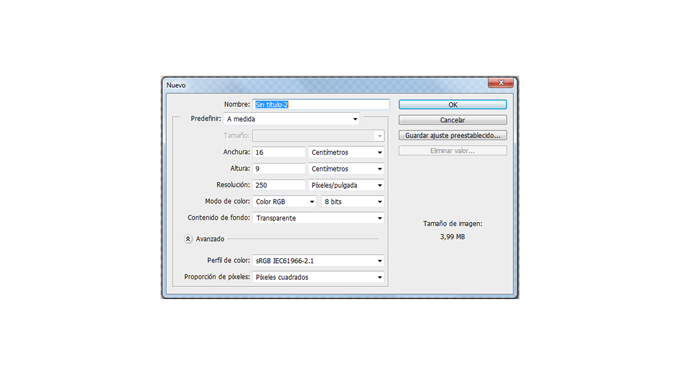
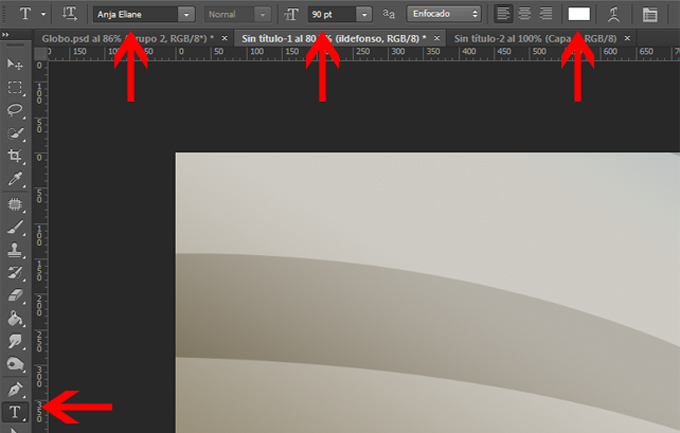
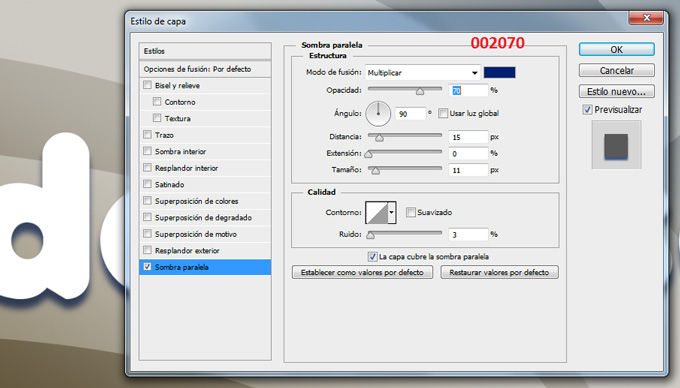
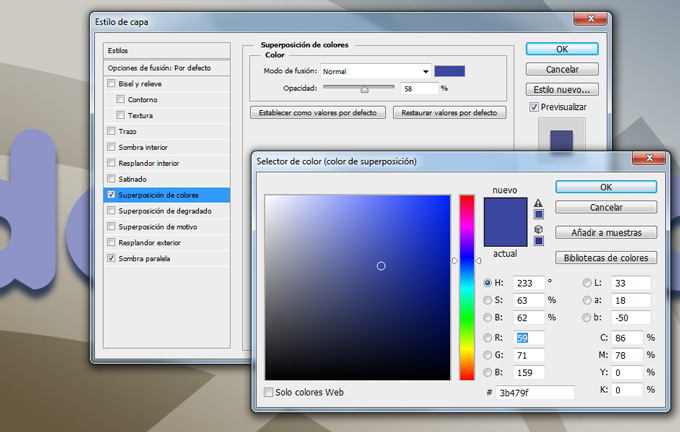
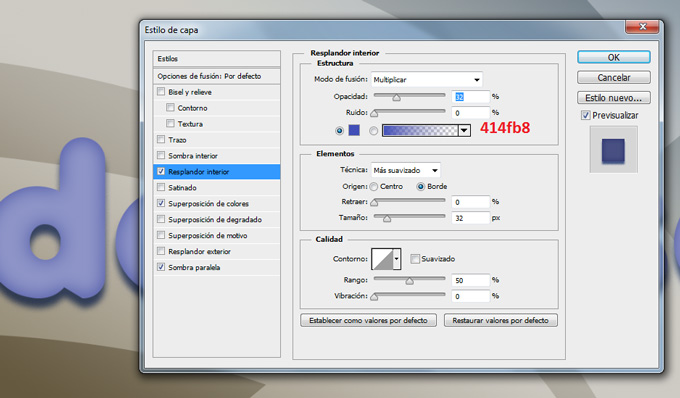
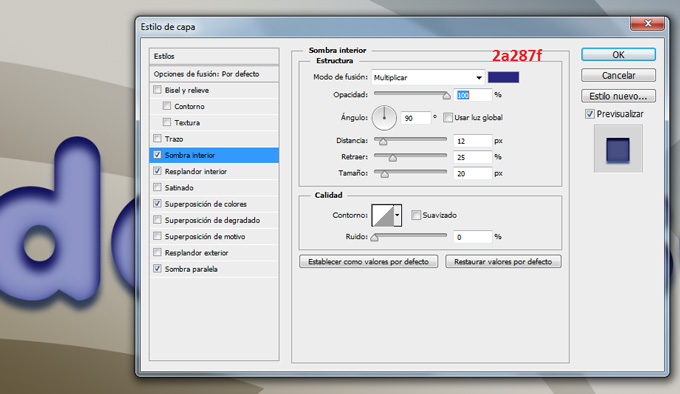
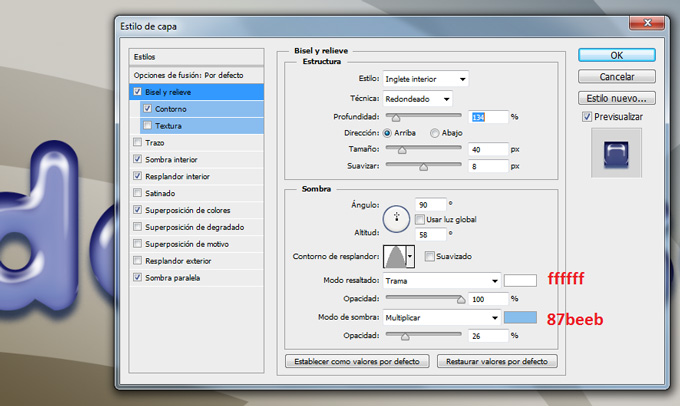
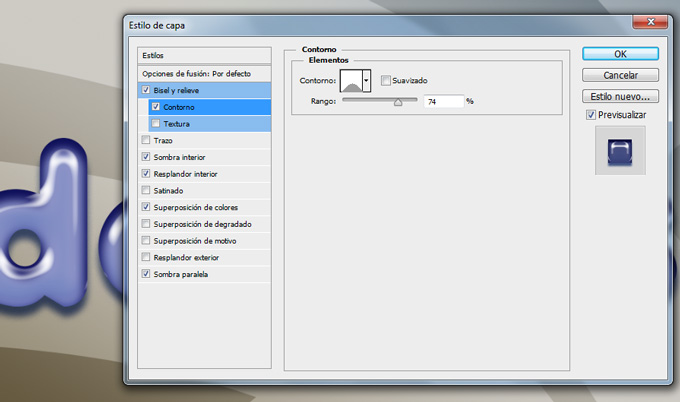
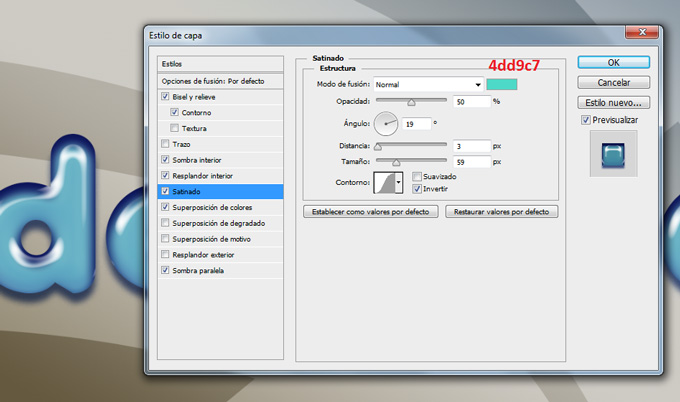
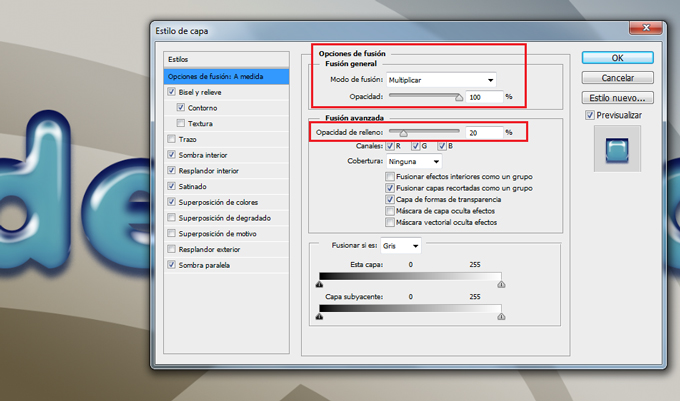
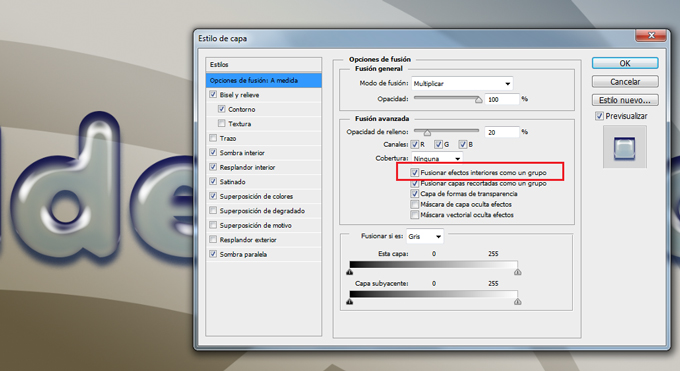
									<p><a href="https://ildefonsosegura.es/tutorial-photoshop-texto-estilo-globo-by-ildefonsosegura-incluye-editable/globo-15/" rel="attachment wp-att-2960"><img decoding="async" class="aligncenter" src="https://ildefonsosegura.es/wp-content/uploads/globo-15.jpg" alt="globo-15" width="680" height="383" /></a></p><p>Con este tutorial aprenderemos a usar los estilos de capa para emular un efecto de material de globo, plástico o latex. Si usas variaciones sencillas del ejemplo, puedes conseguir otros efectos que harán que el texto parezca otro material. En cualquier caso, abajo te dejo el <strong>editable</strong>, estilo y la fuente para que puedas tener el efecto sin necesidad de crearlo.</p><p> </p><p>1.- Abre un nuevo canvas de trabajo con una resolución de 250 ppp. Yo usé un tamaño en cm de 16:9 (wide screen)</p><p><a href="https://ildefonsosegura.es/tutorial-photoshop-texto-estilo-globo-by-ildefonsosegura-incluye-editable/globo-1/" rel="attachment wp-att-2946"><img loading="lazy" decoding="async" class="size-full wp-image-2946 aligncenter" src="https://ildefonsosegura.es/wp-content/uploads/globo-1.jpg" alt="globo-1" width="680" height="383" srcset="https://ildefonsosegura.es/wp-content/uploads/globo-1.jpg 680w, https://ildefonsosegura.es/wp-content/uploads/globo-1-300x168.jpg 300w" sizes="(max-width: 680px) 100vw, 680px" /></a></p><p> </p><p>2.- Pon un fondo que tu elijas. Yo usé uno creado por mi sencillo</p><p><a href="https://ildefonsosegura.es/tutorial-photoshop-texto-estilo-globo-by-ildefonsosegura-incluye-editable/globo-2/" rel="attachment wp-att-2947"><img loading="lazy" decoding="async" class="size-full wp-image-2947 aligncenter" src="https://ildefonsosegura.es/wp-content/uploads/globo-2.jpg" alt="globo-2" width="680" height="383" srcset="https://ildefonsosegura.es/wp-content/uploads/globo-2.jpg 680w, https://ildefonsosegura.es/wp-content/uploads/globo-2-300x168.jpg 300w" sizes="(max-width: 680px) 100vw, 680px" /></a></p><p>3.- Selecciona la herramienta texto de la barra de herramientas. Usa la fuente Anja con color blanco ffffff y tamaño aproximadamente 90 px</p><p><a href="https://ildefonsosegura.es/tutorial-photoshop-texto-estilo-globo-by-ildefonsosegura-incluye-editable/globo-3/" rel="attachment wp-att-2948"><img loading="lazy" decoding="async" class="size-full wp-image-2948 aligncenter" src="https://ildefonsosegura.es/wp-content/uploads/globo-3.jpg" alt="globo-3" width="680" height="433" srcset="https://ildefonsosegura.es/wp-content/uploads/globo-3.jpg 680w, https://ildefonsosegura.es/wp-content/uploads/globo-3-300x191.jpg 300w" sizes="(max-width: 680px) 100vw, 680px" /></a></p><p>4.- Escribe tu texto</p><p><a href="https://ildefonsosegura.es/tutorial-photoshop-texto-estilo-globo-by-ildefonsosegura-incluye-editable/globo-4/" rel="attachment wp-att-2949"><img loading="lazy" decoding="async" class="size-full wp-image-2949 aligncenter" src="https://ildefonsosegura.es/wp-content/uploads/globo-4.jpg" alt="globo-4" width="680" height="383" srcset="https://ildefonsosegura.es/wp-content/uploads/globo-4.jpg 680w, https://ildefonsosegura.es/wp-content/uploads/globo-4-300x168.jpg 300w" sizes="(max-width: 680px) 100vw, 680px" /></a></p><p>5.- Haz clic derecho en la capa de texto y selecciona OPCIONES DE FUSION. Comienza seleccionando SOMBRA PARALELA</p><p><a href="https://ildefonsosegura.es/tutorial-photoshop-texto-estilo-globo-by-ildefonsosegura-incluye-editable/globo-5/" rel="attachment wp-att-2950"><img loading="lazy" decoding="async" class="size-full wp-image-2950 aligncenter" src="https://ildefonsosegura.es/wp-content/uploads/globo-5.jpg" alt="globo-5" width="680" height="388" srcset="https://ildefonsosegura.es/wp-content/uploads/globo-5.jpg 680w, https://ildefonsosegura.es/wp-content/uploads/globo-5-300x171.jpg 300w" sizes="(max-width: 680px) 100vw, 680px" /></a></p><p>6.- Continuamos con SUPERPOSICION DE COLORES buscando un tono azul</p><p><a href="https://ildefonsosegura.es/tutorial-photoshop-texto-estilo-globo-by-ildefonsosegura-incluye-editable/globo-6/" rel="attachment wp-att-2951"><img loading="lazy" decoding="async" class="size-full wp-image-2951 aligncenter" src="https://ildefonsosegura.es/wp-content/uploads/globo-6.jpg" alt="globo-6" width="680" height="432" srcset="https://ildefonsosegura.es/wp-content/uploads/globo-6.jpg 680w, https://ildefonsosegura.es/wp-content/uploads/globo-6-300x190.jpg 300w" sizes="(max-width: 680px) 100vw, 680px" /></a></p><p>7.- Aplicamos ahora la variable RESPLANDOR INTERIOR</p><p><a href="https://ildefonsosegura.es/tutorial-photoshop-texto-estilo-globo-by-ildefonsosegura-incluye-editable/globo-7/" rel="attachment wp-att-2952"><img loading="lazy" decoding="async" class="size-full wp-image-2952 aligncenter" src="https://ildefonsosegura.es/wp-content/uploads/globo-7.jpg" alt="globo-7" width="680" height="398" srcset="https://ildefonsosegura.es/wp-content/uploads/globo-7.jpg 680w, https://ildefonsosegura.es/wp-content/uploads/globo-7-300x175.jpg 300w" sizes="(max-width: 680px) 100vw, 680px" /></a></p><p>8.- A continuación le damos SOMBRA INTERIOR</p><p><a href="https://ildefonsosegura.es/tutorial-photoshop-texto-estilo-globo-by-ildefonsosegura-incluye-editable/globo-8/" rel="attachment wp-att-2953"><img loading="lazy" decoding="async" class="size-full wp-image-2953 aligncenter" src="https://ildefonsosegura.es/wp-content/uploads/globo-8.jpg" alt="globo-8" width="680" height="394" srcset="https://ildefonsosegura.es/wp-content/uploads/globo-8.jpg 680w, https://ildefonsosegura.es/wp-content/uploads/globo-8-300x173.jpg 300w" sizes="(max-width: 680px) 100vw, 680px" /></a></p><p>9.- Nos situamos en BISEL Y RELIEVE dándole unos valores como sigue:</p><p><a href="https://ildefonsosegura.es/tutorial-photoshop-texto-estilo-globo-by-ildefonsosegura-incluye-editable/globo-9/" rel="attachment wp-att-2954"><img loading="lazy" decoding="async" class="size-full wp-image-2954 aligncenter" src="https://ildefonsosegura.es/wp-content/uploads/globo-9.jpg" alt="globo-9" width="680" height="406" srcset="https://ildefonsosegura.es/wp-content/uploads/globo-9.jpg 680w, https://ildefonsosegura.es/wp-content/uploads/globo-9-300x179.jpg 300w" sizes="(max-width: 680px) 100vw, 680px" /></a></p><p>10.- Dentro de bisel y relieve seleccionamos CONTORNO</p><p><a href="https://ildefonsosegura.es/tutorial-photoshop-texto-estilo-globo-by-ildefonsosegura-incluye-editable/globo-10/" rel="attachment wp-att-2955"><img loading="lazy" decoding="async" class="size-full wp-image-2955 aligncenter" src="https://ildefonsosegura.es/wp-content/uploads/globo-10.jpg" alt="globo-10" width="680" height="402" srcset="https://ildefonsosegura.es/wp-content/uploads/globo-10.jpg 680w, https://ildefonsosegura.es/wp-content/uploads/globo-10-300x177.jpg 300w" sizes="(max-width: 680px) 100vw, 680px" /></a></p><p> </p><p>11.- Casi finalizando aplicamos SATINADO</p><p><a href="https://ildefonsosegura.es/tutorial-photoshop-texto-estilo-globo-by-ildefonsosegura-incluye-editable/globo-11/" rel="attachment wp-att-2956"><img loading="lazy" decoding="async" class="size-full wp-image-2956 aligncenter" src="https://ildefonsosegura.es/wp-content/uploads/globo-11.jpg" alt="globo-11" width="680" height="402" srcset="https://ildefonsosegura.es/wp-content/uploads/globo-11.jpg 680w, https://ildefonsosegura.es/wp-content/uploads/globo-11-300x177.jpg 300w" sizes="(max-width: 680px) 100vw, 680px" /></a></p><p>12.- Hasta aquí ya tendríamos un efecto de texto de globo bastante aceptable.</p><p><a href="https://ildefonsosegura.es/tutorial-photoshop-texto-estilo-globo-by-ildefonsosegura-incluye-editable/globo-12/" rel="attachment wp-att-2957"><img loading="lazy" decoding="async" class="size-full wp-image-2957 aligncenter" src="https://ildefonsosegura.es/wp-content/uploads/globo-12.jpg" alt="globo-12" width="680" height="383" srcset="https://ildefonsosegura.es/wp-content/uploads/globo-12.jpg 680w, https://ildefonsosegura.es/wp-content/uploads/globo-12-300x168.jpg 300w" sizes="(max-width: 680px) 100vw, 680px" /></a></p><p>13.- En las opciones de fusión vamos a cambiar variables tanto de la sección de FUSION GENERAL como de FUSION AVANZADA</p><p>En la fusión general cambiaremos el tipo de fusión de capa a MULIPLICAR. En la fusión avanzada cambiaremos el porcentaje de relleno al 20%</p><p><a href="https://ildefonsosegura.es/tutorial-photoshop-texto-estilo-globo-by-ildefonsosegura-incluye-editable/globo-13/" rel="attachment wp-att-2958"><img loading="lazy" decoding="async" class="size-full wp-image-2958 aligncenter" src="https://ildefonsosegura.es/wp-content/uploads/globo-13.jpg" alt="globo-13" width="680" height="401" srcset="https://ildefonsosegura.es/wp-content/uploads/globo-13.jpg 680w, https://ildefonsosegura.es/wp-content/uploads/globo-13-300x176.jpg 300w" sizes="(max-width: 680px) 100vw, 680px" /></a></p><p> </p><p>14.- Para conseguir mayor transparencia en el texto seleccionaremos una variable dentro de la FUSIÓN AVANZADA que no he visto en ningún tutorial. Esa opción es FUSIONAR EFECTOS INTERIORES COMO UN GRUPO. Con esta opción seleccionada lo que se hace es fusionar los efectos de «resplandor interior», «satinado» y «superposición» con la capa antes de fusionarlos con el documento. Todas las opciones de fusión se fusionan con el documento y en función del contenido de las otras capas el resultado de las variables es diferente. Si tienes esta opción de FUSIONAR EFECTOS INTERIORES COMO UN GRUPO, los efectos interactuan con el contenido de la capa y no con el resto de capas.</p><p><a href="https://ildefonsosegura.es/tutorial-photoshop-texto-estilo-globo-by-ildefonsosegura-incluye-editable/globo-14/" rel="attachment wp-att-2959"><img loading="lazy" decoding="async" class="size-full wp-image-2959 aligncenter" src="https://ildefonsosegura.es/wp-content/uploads/globo-14.jpg" alt="globo-14" width="680" height="371" srcset="https://ildefonsosegura.es/wp-content/uploads/globo-14.jpg 680w, https://ildefonsosegura.es/wp-content/uploads/globo-14-300x163.jpg 300w" sizes="(max-width: 680px) 100vw, 680px" /></a></p><p>15.- Así el resultado es el siguiente que íbamos buscando:</p><p><a href="https://ildefonsosegura.es/tutorial-photoshop-texto-estilo-globo-by-ildefonsosegura-incluye-editable/globo-15/" rel="attachment wp-att-2960"><img loading="lazy" decoding="async" class="size-full wp-image-2960 aligncenter" src="https://ildefonsosegura.es/wp-content/uploads/globo-15.jpg" alt="globo-15" width="680" height="383" srcset="https://ildefonsosegura.es/wp-content/uploads/globo-15.jpg 680w, https://ildefonsosegura.es/wp-content/uploads/globo-15-300x168.jpg 300w" sizes="(max-width: 680px) 100vw, 680px" /></a></p><p> </p><p> </p>								</div>
				</div>
					</div>
		</div>
					</div>
		</section>
				<section class="elementor-section elementor-top-section elementor-element elementor-element-1272db76 elementor-section-full_width elementor-section-height-default elementor-section-height-default" data-id="1272db76" data-element_type="section" data-e-type="section">
						<div class="elementor-container elementor-column-gap-default">
					<div class="elementor-column elementor-col-50 elementor-top-column elementor-element elementor-element-1834e7b8" data-id="1834e7b8" data-element_type="column" data-e-type="column">
			<div class="elementor-widget-wrap elementor-element-populated">
						<div class="elementor-element elementor-element-5393f42d elementor-align-right elementor-invisible elementor-widget elementor-widget-button" data-id="5393f42d" data-element_type="widget" data-e-type="widget" data-settings="{&quot;_animation&quot;:&quot;shake&quot;}" data-widget_type="button.default">
				<div class="elementor-widget-container">
									<div class="elementor-button-wrapper">
					<a class="elementor-button elementor-button-link elementor-size-sm elementor-animation-grow" href="https://drive.google.com/open?id=0B_nJkCGJubucWFU4eTFhMzF1YVU">
						<span class="elementor-button-content-wrapper">
									<span class="elementor-button-text">BAJATE EL EDITABLE</span>
					</span>
					</a>
				</div>
								</div>
				</div>
					</div>
		</div>
				<div class="elementor-column elementor-col-50 elementor-top-column elementor-element elementor-element-726d94ee" data-id="726d94ee" data-element_type="column" data-e-type="column">
			<div class="elementor-widget-wrap elementor-element-populated">
						<div class="elementor-element elementor-element-38a200b6 elementor-widget elementor-widget-html" data-id="38a200b6" data-element_type="widget" data-e-type="widget" data-settings="{&quot;_animation&quot;:&quot;none&quot;}" data-widget_type="html.default">
				<div class="elementor-widget-container">
					<form action="https://www.paypal.com/cgi-bin/webscr" method="post" target="_blank">
<input type="hidden" name="cmd" value="_donations">
<input type="hidden" name="business" value="ildefonsosegura@gmail.com">
<input type="hidden" name="lc" value="ES">
<input type="hidden" name="item_name" value="MANTENIMIENTO DE LA PAGINA DE ILDEFONSOSEGURA">
<input type="hidden" name="no_note" value="0">
<input type="hidden" name="currency_code" value="EUR">
<input type="hidden" name="bn" value="PP-DonationsBF:paypal1.jpg:NonHostedGuest">
<input type="image" src="http://ildefonsosegura.es/wp-content/uploads/paypal-updated-1.png" border="0" name="submit" alt="PayPal. La forma rápida y segura de pagar en Internet.">
<img decoding="async" alt="" border="0" src="https://www.paypalobjects.com/es_ES/i/scr/pixel.gif" width="1" height="1">
</form>				</div>
				</div>
					</div>
		</div>
					</div>
		</section>
				<section class="elementor-section elementor-top-section elementor-element elementor-element-29087141 elementor-section-boxed elementor-section-height-default elementor-section-height-default" data-id="29087141" data-element_type="section" data-e-type="section">
						<div class="elementor-container elementor-column-gap-default">
					<div class="elementor-column elementor-col-100 elementor-top-column elementor-element elementor-element-994285d" data-id="994285d" data-element_type="column" data-e-type="column">
			<div class="elementor-widget-wrap elementor-element-populated">
						<div class="elementor-element elementor-element-2089d69f elementor-widget elementor-widget-html" data-id="2089d69f" data-element_type="widget" data-e-type="widget" data-widget_type="html.default">
				<div class="elementor-widget-container">
					&nbsp;
<center><span style="color: #333333;"><strong>SUSCRÍBETE A MI CANAL DE YouTube</strong></span></center>&nbsp;
<div>
<div>
<div align="center">


<script src="https://apis.google.com/js/platform.js"></script>

<div class="g-ytsubscribe" data-channel="ildefonsosegura" data-layout="full" data-count="default"></div>
</div>
</div>
&nbsp;<p style="text-align: left;">No te lo pierdas y comparte tus trabajos en mi página de facebook (<span style="color: #ff0000;"><strong><a style="color: #ff0000;" href="http://www.facebook.com/IldefonsoSeguraPage" target="_blank" rel="noopener noreferrer">IldefonsoSeguraPage</a></strong></span>)</p>
Espero que te guste y compartas el vídeo. No dejes de compartir este post.
<p style="text-align: left;">Así es como me puedes ayudar 🙂 Gracias</p>

</div>				</div>
				</div>
					</div>
		</div>
					</div>
		</section>
				</div>La entrada <a href="https://ildefonsosegura.es/tutorial-photoshop-texto-estilo-globo-by-ildefonsosegura-incluye-editable/">#Tutorial #Photoshop texto estilo globo, plástico, látex by @ildefonsosegura (incluye editable psd con estilo)</a> apareció primero en <a href="https://ildefonsosegura.es">Ildefonso Segura</a>.]]></content:encoded>
					
					<wfw:commentRss>https://ildefonsosegura.es/tutorial-photoshop-texto-estilo-globo-by-ildefonsosegura-incluye-editable/feed/</wfw:commentRss>
			<slash:comments>0</slash:comments>
		
		
			</item>
		<item>
		<title>#Tutorial #Photoshop escrito: Texto tallado en madera by @ildefonsosegura</title>
		<link>https://ildefonsosegura.es/tutorial-photoshosop-escrito-texto-escrito-en-madera-by-ildefonsosegura/</link>
					<comments>https://ildefonsosegura.es/tutorial-photoshosop-escrito-texto-escrito-en-madera-by-ildefonsosegura/#comments</comments>
		
		<dc:creator><![CDATA[Ildefonso Segura]]></dc:creator>
		<pubDate>Mon, 29 Jul 2019 15:00:14 +0000</pubDate>
				<category><![CDATA[Efectos]]></category>
		<category><![CDATA[Estilos]]></category>
		<category><![CDATA[Photoshop]]></category>
		<category><![CDATA[PREMIUM]]></category>
		<category><![CDATA[Tecnicas]]></category>
		<category><![CDATA[Textos]]></category>
		<category><![CDATA[Tutorial Escrito]]></category>
		<category><![CDATA[Tutoriales]]></category>
		<category><![CDATA[CC]]></category>
		<category><![CDATA[cs4]]></category>
		<category><![CDATA[cs5]]></category>
		<category><![CDATA[cs6]]></category>
		<category><![CDATA[escrito]]></category>
		<category><![CDATA[estilo]]></category>
		<category><![CDATA[gloriasanis]]></category>
		<category><![CDATA[grabado]]></category>
		<category><![CDATA[halloween]]></category>
		<category><![CDATA[ildefonsosegura]]></category>
		<category><![CDATA[madera]]></category>
		<category><![CDATA[photoshop]]></category>
		<category><![CDATA[style]]></category>
		<category><![CDATA[text]]></category>
		<category><![CDATA[texto]]></category>
		<category><![CDATA[textura]]></category>
		<category><![CDATA[tuto]]></category>
		<category><![CDATA[tutorial]]></category>
		<category><![CDATA[wallpaper]]></category>
		<category><![CDATA[written]]></category>
		<guid isPermaLink="false">http://ildefonsosegura.es/?p=3143</guid>

					<description><![CDATA[<p>Con fecha 21 de octubre de 2013 se publica un videotutorial donde explico como conseguir un efecto de tallado de una calavera en una textura de madera. Con la misma técnica podrías conseguir la integración de un volumen sencillo en una textura determinada. Aprovechando estas fechas cercanas a Halloween, tienes a tu disposición un videotutorial [&#8230;]</p>
La entrada <a href="https://ildefonsosegura.es/tutorial-photoshosop-escrito-texto-escrito-en-madera-by-ildefonsosegura/">#Tutorial #Photoshop escrito: Texto tallado en madera by @ildefonsosegura</a> apareció primero en <a href="https://ildefonsosegura.es">Ildefonso Segura</a>.]]></description>
										<content:encoded><![CDATA[<div data-elementor-type="wp-post" data-elementor-id="3143" class="elementor elementor-3143">
						<section class="elementor-section elementor-top-section elementor-element elementor-element-28fd328 elementor-section-boxed elementor-section-height-default elementor-section-height-default" data-id="28fd328" data-element_type="section" data-e-type="section">
						<div class="elementor-container elementor-column-gap-default">
					<div class="elementor-column elementor-col-100 elementor-top-column elementor-element elementor-element-60bcc37" data-id="60bcc37" data-element_type="column" data-e-type="column">
			<div class="elementor-widget-wrap elementor-element-populated">
						<div class="elementor-element elementor-element-0f19028 elementor-widget elementor-widget-text-editor" data-id="0f19028" data-element_type="widget" data-e-type="widget" data-widget_type="text-editor.default">
				<div class="elementor-widget-container">
									<p>Con fecha <span style="color: #800000;"><strong>21 de octubre de 2013</strong></span> se publica un videotutorial donde explico como conseguir un efecto de tallado de una calavera en una textura de madera. Con la misma técnica podrías conseguir la integración de un volumen sencillo en una textura determinada.</p><p>Aprovechando estas fechas cercanas a Halloween, tienes a tu disposición un videotutorial junto con otros que ya publiqué y que te pueden servir también, donde te muestro unas técnicas sencillas con máscaras, filtros y capas de ajuste. El resultado es fantástico y te invito a ver el videotutorial haciendo clic en la imagen siguiente.</p><p style="text-align: center;"><a href="http://ildefonsosegura.es/tutorial-photoshop-fusionar-volumenes-con-texturas-by-ildefonsosegura-wallpaper-halloween" target="_blank" rel="attachment wp-att-3142 noopener noreferrer"><img loading="lazy" decoding="async" class="size-full wp-image-3142 aligncenter" src="http://ildefonsosegura.es/wp-content/uploads/Calavera-de-madera-wallpaper.jpg" alt="Calavera-de-madera-wallpaper" width="680" height="383" srcset="https://ildefonsosegura.es/wp-content/uploads/Calavera-de-madera-wallpaper.jpg 680w, https://ildefonsosegura.es/wp-content/uploads/Calavera-de-madera-wallpaper-300x168.jpg 300w" sizes="(max-width: 680px) 100vw, 680px" /></a></p><p style="text-align: center;"><strong style="color: #800000;">HAZ CLIC EN LA IMAGEN PARA VER EL VIDEOTUTORIAL</strong></p>								</div>
				</div>
					</div>
		</div>
					</div>
		</section>
				<section class="elementor-section elementor-top-section elementor-element elementor-element-52db58ed elementor-section-full_width elementor-section-height-default elementor-section-height-default" data-id="52db58ed" data-element_type="section" data-e-type="section">
						<div class="elementor-container elementor-column-gap-default">
					<div class="elementor-column elementor-col-50 elementor-top-column elementor-element elementor-element-1406c6bf" data-id="1406c6bf" data-element_type="column" data-e-type="column">
			<div class="elementor-widget-wrap elementor-element-populated">
						<div class="elementor-element elementor-element-5eda612a elementor-align-right elementor-widget elementor-widget-button" data-id="5eda612a" data-element_type="widget" data-e-type="widget" data-widget_type="button.default">
				<div class="elementor-widget-container">
									<div class="elementor-button-wrapper">
					<a class="elementor-button elementor-button-link elementor-size-sm elementor-animation-grow" href="https://drive.google.com/open?id=0B_nJkCGJubuca2tUelpSTUlDSmc">
						<span class="elementor-button-content-wrapper">
						<span class="elementor-button-icon">
				<i aria-hidden="true" class="far fa-arrow-alt-circle-down"></i>			</span>
									<span class="elementor-button-text">DESCARGA EL MATERIAL</span>
					</span>
					</a>
				</div>
								</div>
				</div>
					</div>
		</div>
				<div class="elementor-column elementor-col-50 elementor-top-column elementor-element elementor-element-460e16d1" data-id="460e16d1" data-element_type="column" data-e-type="column">
			<div class="elementor-widget-wrap elementor-element-populated">
						<div class="elementor-element elementor-element-471c22fd elementor-widget elementor-widget-html" data-id="471c22fd" data-element_type="widget" data-e-type="widget" data-settings="{&quot;_animation&quot;:&quot;none&quot;}" data-widget_type="html.default">
				<div class="elementor-widget-container">
					<center><form action="https://www.paypal.com/cgi-bin/webscr" method="post" target="_blank">
<input type="hidden" name="cmd" value="_donations">
<input type="hidden" name="business" value="ildefonsosegura@gmail.com">
<input type="hidden" name="lc" value="ES">
<input type="hidden" name="item_name" value="MANTENIMIENTO DE LA PAGINA DE ILDEFONSOSEGURA">
<input type="hidden" name="no_note" value="0">
<input type="hidden" name="currency_code" value="EUR">
<input type="hidden" name="bn" value="PP-DonationsBF:paypal1.jpg:NonHostedGuest">
<input type="image" src="http://ildefonsosegura.es/wp-content/uploads/paypal-updated-1.png" border="0" name="submit" alt="PayPal. La forma rápida y segura de pagar en Internet.">
<img decoding="async" alt="" border="0" src="https://www.paypalobjects.com/es_ES/i/scr/pixel.gif" width="1" height="1">
</form></center>				</div>
				</div>
					</div>
		</div>
					</div>
		</section>
				<section class="elementor-section elementor-top-section elementor-element elementor-element-792abb9a elementor-section-boxed elementor-section-height-default elementor-section-height-default" data-id="792abb9a" data-element_type="section" data-e-type="section">
						<div class="elementor-container elementor-column-gap-default">
					<div class="elementor-column elementor-col-100 elementor-top-column elementor-element elementor-element-448b7dc7" data-id="448b7dc7" data-element_type="column" data-e-type="column">
			<div class="elementor-widget-wrap elementor-element-populated">
						<div class="elementor-element elementor-element-122cd2cf elementor-widget elementor-widget-text-editor" data-id="122cd2cf" data-element_type="widget" data-e-type="widget" data-widget_type="text-editor.default">
				<div class="elementor-widget-container">
									<pre> [widget id="custom_html-8"]</pre><p>Tutoriales relacionados con la temática Halloween</p><p><a href="http://ildefonsosegura.es/texto-con-textura-de-calabaza-con-cinema4d-y-photoshop-wallpaper-halloween/" target="_blank" rel="noopener noreferrer"><img loading="lazy" decoding="async" class="wp-image-1298 aligncenter" src="http://ildefonsosegura.es/wp-content/uploads/texto-calabaza4.jpg" alt="texto-calabaza4" width="194" height="110" srcset="https://ildefonsosegura.es/wp-content/uploads/texto-calabaza4.jpg 600w, https://ildefonsosegura.es/wp-content/uploads/texto-calabaza4-300x169.jpg 300w" sizes="(max-width: 194px) 100vw, 194px" /></a>  <a href="http://ildefonsosegura.es/vaciado-de-volumenes-con-boleanos-en-cinema4d/" target="_blank" rel="attachment wp-att-1304 noopener noreferrer"><img loading="lazy" decoding="async" class="wp-image-1304 aligncenter" src="http://ildefonsosegura.es/wp-content/uploads/Cara-de-calabaza.jpg" alt="Cara-de-calabaza" width="194" height="110" /></a>  <a href="http://ildefonsosegura.es/convertir-personas-en-zombis/" target="_blank" rel="attachment wp-att-3163 noopener noreferrer"><img loading="lazy" decoding="async" class="wp-image-3163 aligncenter" src="http://ildefonsosegura.es/wp-content/uploads/ZOMBIS-by-Ildefonsosegura1.jpg" alt="ZOMBIS-by-Ildefonsosegura" width="194" height="110" srcset="https://ildefonsosegura.es/wp-content/uploads/ZOMBIS-by-Ildefonsosegura1.jpg 600w, https://ildefonsosegura.es/wp-content/uploads/ZOMBIS-by-Ildefonsosegura1-300x169.jpg 300w" sizes="(max-width: 194px) 100vw, 194px" /></a></p><p>En este post te muestro un tutorial que completa al videotutorial citado dado que nos enseña a realizar el texto que aparece en el wallpaper de Halloween. El resultado es este y lo vemos paso a paso:</p><p><a href="http://ildefonsosegura.es/tutorial-photoshosop-escrito-texto-escrito-en-madera-by-ildefonsosegura/attachment/995/" rel="attachment wp-att-3148"><img loading="lazy" decoding="async" class="size-full wp-image-3148 aligncenter" src="http://ildefonsosegura.es/wp-content/uploads/995.jpg" alt="995" width="680" height="510" srcset="https://ildefonsosegura.es/wp-content/uploads/995.jpg 680w, https://ildefonsosegura.es/wp-content/uploads/995-300x225.jpg 300w" sizes="(max-width: 680px) 100vw, 680px" /></a></p><h1><span style="color: #800000;"><strong> TUTORIAL PHOTOSHOP</strong></span></h1><p><strong> PASO 1.-</strong>  Abrimos textura de madera donde pondremos el texto</p><p><a href="http://ildefonsosegura.es/tutorial-photoshosop-escrito-texto-escrito-en-madera-by-ildefonsosegura/attachment/1/" rel="attachment wp-att-3110"><img loading="lazy" decoding="async" class="alignnone size-full wp-image-3110 aligncenter" src="http://ildefonsosegura.es/wp-content/uploads/1.jpg" alt="1" width="680" height="510" srcset="https://ildefonsosegura.es/wp-content/uploads/1.jpg 680w, https://ildefonsosegura.es/wp-content/uploads/1-300x225.jpg 300w" sizes="(max-width: 680px) 100vw, 680px" /></a></p><p><strong>PASO 2.-</strong>  Añadimos capa de ajuste de Blanco y negro con los valores por defecto que son los que se ven en la imagen. Ponemos el modo de fusión de la capa en MULTIPLICAR</p><p style="text-align: center;"> <a href="http://ildefonsosegura.es/tutorial-photoshosop-escrito-texto-escrito-en-madera-by-ildefonsosegura/1a/" rel="attachment wp-att-3111"><img loading="lazy" decoding="async" class="alignnone size-full wp-image-3111" src="http://ildefonsosegura.es/wp-content/uploads/1a.jpg" alt="1a" width="680" height="504" srcset="https://ildefonsosegura.es/wp-content/uploads/1a.jpg 680w, https://ildefonsosegura.es/wp-content/uploads/1a-300x222.jpg 300w" sizes="(max-width: 680px) 100vw, 680px" /></a></p><p style="text-align: left;"><strong>PASO 3.-</strong>  Añadimos caja de ajuste de equilibrio de color con los valores de la imagen tanto en medios tonos como en sombras como en iluminaciones. Ponemos el modo de fusión de la capa en COLOR</p><p style="text-align: left;"><a href="http://ildefonsosegura.es/tutorial-photoshosop-escrito-texto-escrito-en-madera-by-ildefonsosegura/1b/" rel="attachment wp-att-3112"><img loading="lazy" decoding="async" class="alignnone size-full wp-image-3112 aligncenter" src="http://ildefonsosegura.es/wp-content/uploads/1b.jpg" alt="1b" width="680" height="504" srcset="https://ildefonsosegura.es/wp-content/uploads/1b.jpg 680w, https://ildefonsosegura.es/wp-content/uploads/1b-300x222.jpg 300w" sizes="(max-width: 680px) 100vw, 680px" /></a></p><p style="text-align: left;"><strong>PASO 4.-</strong>  tendríamos este resultado en la textura a partir del cual podemos trabajar el texto</p><p style="text-align: left;"><a href="http://ildefonsosegura.es/tutorial-photoshosop-escrito-texto-escrito-en-madera-by-ildefonsosegura/1c/" rel="attachment wp-att-3113"><img loading="lazy" decoding="async" class="size-full wp-image-3113 aligncenter" src="http://ildefonsosegura.es/wp-content/uploads/1c.jpg" alt="1c" width="680" height="510" srcset="https://ildefonsosegura.es/wp-content/uploads/1c.jpg 680w, https://ildefonsosegura.es/wp-content/uploads/1c-300x225.jpg 300w" sizes="(max-width: 680px) 100vw, 680px" /></a></p><p style="text-align: left;"><strong>PASO 5.-</strong>  Seleccionamos un color rojo oscuro para emular el color de la sangre. Código 550000</p><p style="text-align: left;"><a href="http://ildefonsosegura.es/tutorial-photoshosop-escrito-texto-escrito-en-madera-by-ildefonsosegura/1d/" rel="attachment wp-att-3114"><img loading="lazy" decoding="async" class="alignnone size-full wp-image-3114 aligncenter" src="http://ildefonsosegura.es/wp-content/uploads/1d.jpg" alt="1d" width="680" height="510" srcset="https://ildefonsosegura.es/wp-content/uploads/1d.jpg 680w, https://ildefonsosegura.es/wp-content/uploads/1d-300x225.jpg 300w" sizes="(max-width: 680px) 100vw, 680px" /></a></p><p style="text-align: left;"><strong>PASO 6.-</strong>  Seleccionamos un pincel de sangre que puedes encontrar en la red. Acuérdate de chequear que no tiene derecho de copyright</p><p style="text-align: left;"><a href="http://ildefonsosegura.es/tutorial-photoshosop-escrito-texto-escrito-en-madera-by-ildefonsosegura/1e/" rel="attachment wp-att-3115"><img loading="lazy" decoding="async" class="alignnone size-full wp-image-3115 aligncenter" src="http://ildefonsosegura.es/wp-content/uploads/1e.jpg" alt="1e" width="680" height="510" srcset="https://ildefonsosegura.es/wp-content/uploads/1e.jpg 680w, https://ildefonsosegura.es/wp-content/uploads/1e-300x225.jpg 300w" sizes="(max-width: 680px) 100vw, 680px" /></a></p><p style="text-align: left;"><strong>PASO 7.-</strong>  Vamos pintando con diferentes tamaños, pinceles, rotacion,&#8230; y bajamos la opacidad de la capa en torno al 65%</p><p style="text-align: left;"><a href="http://ildefonsosegura.es/tutorial-photoshosop-escrito-texto-escrito-en-madera-by-ildefonsosegura/1f/" rel="attachment wp-att-3116"><img loading="lazy" decoding="async" class="alignnone size-full wp-image-3116 aligncenter" src="http://ildefonsosegura.es/wp-content/uploads/1f.jpg" alt="1f" width="680" height="510" srcset="https://ildefonsosegura.es/wp-content/uploads/1f.jpg 680w, https://ildefonsosegura.es/wp-content/uploads/1f-300x225.jpg 300w" sizes="(max-width: 680px) 100vw, 680px" /></a></p><p style="text-align: left;"><strong>PASO 8.-</strong>  Tendríamo un resultado como este</p><p style="text-align: left;"><a href="http://ildefonsosegura.es/tutorial-photoshosop-escrito-texto-escrito-en-madera-by-ildefonsosegura/1g/" rel="attachment wp-att-3117"><img loading="lazy" decoding="async" class="alignnone size-full wp-image-3117 aligncenter" src="http://ildefonsosegura.es/wp-content/uploads/1g.jpg" alt="1g" width="680" height="510" srcset="https://ildefonsosegura.es/wp-content/uploads/1g.jpg 680w, https://ildefonsosegura.es/wp-content/uploads/1g-300x225.jpg 300w" sizes="(max-width: 680px) 100vw, 680px" /></a></p><p style="text-align: left;"><strong>PASO 9.-</strong>  Ponemos nuestro texto. El tipo de fuente que usé fue MULAN</p><p style="text-align: left;"><a href="http://ildefonsosegura.es/tutorial-photoshosop-escrito-texto-escrito-en-madera-by-ildefonsosegura/attachment/2/" rel="attachment wp-att-3118"><img loading="lazy" decoding="async" class="alignnone size-full wp-image-3118 aligncenter" src="http://ildefonsosegura.es/wp-content/uploads/2.jpg" alt="2" width="680" height="510" srcset="https://ildefonsosegura.es/wp-content/uploads/2.jpg 680w, https://ildefonsosegura.es/wp-content/uploads/2-300x225.jpg 300w" sizes="(max-width: 680px) 100vw, 680px" /></a></p><p style="text-align: left;"><strong>PASO 10.-</strong>  Aplicamos un estilo de capa. Clic derecho del ratón sobre la capa de texto y selecciona OPCIONES DE FUSION. Sigue los cuadros siguientes para copiar los valores de los atributos del estilo. Ojo&#8230; el relleno de la capa se reduce al 25%</p><p style="text-align: left;"><img loading="lazy" decoding="async" class="alignnone size-full wp-image-3119 aligncenter" src="http://ildefonsosegura.es/wp-content/uploads/3.jpg" alt="3" width="680" height="454" srcset="https://ildefonsosegura.es/wp-content/uploads/3.jpg 680w, https://ildefonsosegura.es/wp-content/uploads/3-300x200.jpg 300w" sizes="(max-width: 680px) 100vw, 680px" /></p><p style="text-align: left;"><a href="http://ildefonsosegura.es/tutorial-photoshosop-escrito-texto-escrito-en-madera-by-ildefonsosegura/attachment/4/" rel="attachment wp-att-3120"><img loading="lazy" decoding="async" class="alignnone size-full wp-image-3120 aligncenter" src="http://ildefonsosegura.es/wp-content/uploads/4.jpg" alt="4" width="680" height="454" srcset="https://ildefonsosegura.es/wp-content/uploads/4.jpg 680w, https://ildefonsosegura.es/wp-content/uploads/4-300x200.jpg 300w" sizes="(max-width: 680px) 100vw, 680px" /></a></p><p style="text-align: left;"><a href="http://ildefonsosegura.es/tutorial-photoshosop-escrito-texto-escrito-en-madera-by-ildefonsosegura/attachment/5/" rel="attachment wp-att-3121"><img loading="lazy" decoding="async" class="alignnone size-full wp-image-3121 aligncenter" src="http://ildefonsosegura.es/wp-content/uploads/5.jpg" alt="5" width="680" height="457" srcset="https://ildefonsosegura.es/wp-content/uploads/5.jpg 680w, https://ildefonsosegura.es/wp-content/uploads/5-300x201.jpg 300w" sizes="(max-width: 680px) 100vw, 680px" /></a></p><p style="text-align: left;"><a href="http://ildefonsosegura.es/tutorial-photoshosop-escrito-texto-escrito-en-madera-by-ildefonsosegura/attachment/6/" rel="attachment wp-att-3122"><img loading="lazy" decoding="async" class="alignnone size-full wp-image-3122 aligncenter" src="http://ildefonsosegura.es/wp-content/uploads/6.jpg" alt="6" width="680" height="448" srcset="https://ildefonsosegura.es/wp-content/uploads/6.jpg 680w, https://ildefonsosegura.es/wp-content/uploads/6-300x197.jpg 300w" sizes="(max-width: 680px) 100vw, 680px" /></a></p><p style="text-align: left;"><a href="http://ildefonsosegura.es/tutorial-photoshosop-escrito-texto-escrito-en-madera-by-ildefonsosegura/attachment/7/" rel="attachment wp-att-3123"><img loading="lazy" decoding="async" class="size-full wp-image-3123 aligncenter" src="http://ildefonsosegura.es/wp-content/uploads/7.jpg" alt="7" width="680" height="457" srcset="https://ildefonsosegura.es/wp-content/uploads/7.jpg 680w, https://ildefonsosegura.es/wp-content/uploads/7-300x201.jpg 300w" sizes="(max-width: 680px) 100vw, 680px" /></a></p><p style="text-align: left;"><strong>PASO 11.-</strong>  El estilo nos queda como sigue</p><p style="text-align: left;"><a href="http://ildefonsosegura.es/tutorial-photoshosop-escrito-texto-escrito-en-madera-by-ildefonsosegura/8-2/" rel="attachment wp-att-3124"><img loading="lazy" decoding="async" class="alignnone size-full wp-image-3124 aligncenter" src="http://ildefonsosegura.es/wp-content/uploads/8.jpg" alt="8" width="680" height="510" srcset="https://ildefonsosegura.es/wp-content/uploads/8.jpg 680w, https://ildefonsosegura.es/wp-content/uploads/8-300x225.jpg 300w" sizes="(max-width: 680px) 100vw, 680px" /></a></p><p style="text-align: left;"><strong>PASO 12.-</strong>  En el menú TEXTO rasterizamos el texto</p><p style="text-align: left;"><img loading="lazy" decoding="async" class="size-full wp-image-3125 aligncenter" src="http://ildefonsosegura.es/wp-content/uploads/9.jpg" alt="9" width="680" height="510" srcset="https://ildefonsosegura.es/wp-content/uploads/9.jpg 680w, https://ildefonsosegura.es/wp-content/uploads/9-300x225.jpg 300w" sizes="(max-width: 680px) 100vw, 680px" /></p><p style="text-align: left;"><strong>PASO 13.-</strong>  Seleccionamos un pack de pinceles de grietas. Os hago la misma recomendación que hice con los de sangre.</p><p style="text-align: left;"><a href="http://ildefonsosegura.es/tutorial-photoshosop-escrito-texto-escrito-en-madera-by-ildefonsosegura/attachment/91/" rel="attachment wp-att-3126"><img loading="lazy" decoding="async" class="alignnone size-full wp-image-3126 aligncenter" src="http://ildefonsosegura.es/wp-content/uploads/91.jpg" alt="91" width="680" height="510" srcset="https://ildefonsosegura.es/wp-content/uploads/91.jpg 680w, https://ildefonsosegura.es/wp-content/uploads/91-300x225.jpg 300w" sizes="(max-width: 680px) 100vw, 680px" /></a></p><p style="text-align: left;"><strong>PASO 14.-</strong>  Seleccionamos el color frontal blanco (como el texto). Un atajo rápido para hacerlo es pulsar D y luego X. Así el color frontal es blanco con total seguridad</p><p style="text-align: left;"><a href="http://ildefonsosegura.es/tutorial-photoshosop-escrito-texto-escrito-en-madera-by-ildefonsosegura/attachment/92/" rel="attachment wp-att-3127"><img loading="lazy" decoding="async" class="alignnone size-full wp-image-3127 aligncenter" src="http://ildefonsosegura.es/wp-content/uploads/92.jpg" alt="92" width="680" height="510" srcset="https://ildefonsosegura.es/wp-content/uploads/92.jpg 680w, https://ildefonsosegura.es/wp-content/uploads/92-300x225.jpg 300w" sizes="(max-width: 680px) 100vw, 680px" /></a></p><p style="text-align: left;"><strong>PASO 15.-</strong>  Si por un momento ponemos el relleno de la capa en el 100% y ocultamos los estilos de capa, podemos ver un ejemplo de como hemos pintado con las grietas el texto</p><p style="text-align: left;"><a href="http://ildefonsosegura.es/tutorial-photoshosop-escrito-texto-escrito-en-madera-by-ildefonsosegura/attachment/94/" rel="attachment wp-att-3129"><img loading="lazy" decoding="async" class="alignnone size-full wp-image-3129 aligncenter" src="http://ildefonsosegura.es/wp-content/uploads/94.jpg" alt="94" width="680" height="510" srcset="https://ildefonsosegura.es/wp-content/uploads/94.jpg 680w, https://ildefonsosegura.es/wp-content/uploads/94-300x225.jpg 300w" sizes="(max-width: 680px) 100vw, 680px" /></a></p><p style="text-align: left;">Si volvemos a poner el relleno en 25% y hacemos visibles los efectos tendemos este resultado</p><p style="text-align: left;"><a href="http://ildefonsosegura.es/tutorial-photoshosop-escrito-texto-escrito-en-madera-by-ildefonsosegura/attachment/93/" rel="attachment wp-att-3128"><img loading="lazy" decoding="async" class="size-full wp-image-3128 aligncenter" src="http://ildefonsosegura.es/wp-content/uploads/93.jpg" alt="93" width="680" height="510" srcset="https://ildefonsosegura.es/wp-content/uploads/93.jpg 680w, https://ildefonsosegura.es/wp-content/uploads/93-300x225.jpg 300w" sizes="(max-width: 680px) 100vw, 680px" /></a></p><p style="text-align: left;"><strong>PASO 16.-</strong>  Añadimos a la capa una máscara de capa con el icono que está abajo del panel de capas</p><p style="text-align: left;"><a href="http://ildefonsosegura.es/tutorial-photoshosop-escrito-texto-escrito-en-madera-by-ildefonsosegura/attachment/95/" rel="attachment wp-att-3130"><img loading="lazy" decoding="async" class="alignnone size-full wp-image-3130 aligncenter" src="http://ildefonsosegura.es/wp-content/uploads/95.jpg" alt="95" width="680" height="510" srcset="https://ildefonsosegura.es/wp-content/uploads/95.jpg 680w, https://ildefonsosegura.es/wp-content/uploads/95-300x225.jpg 300w" sizes="(max-width: 680px) 100vw, 680px" /></a></p><p style="text-align: left;"><strong>PASO 17.-</strong>  Mantenemos tecleada la techa ALT y hacemos clic en el ojo de la capa textura de madera. Con eso conseguimos que solo se vea esa capa</p><p style="text-align: left;"><a href="http://ildefonsosegura.es/tutorial-photoshosop-escrito-texto-escrito-en-madera-by-ildefonsosegura/attachment/96/" rel="attachment wp-att-3131"><img loading="lazy" decoding="async" class="alignnone size-full wp-image-3131 aligncenter" src="http://ildefonsosegura.es/wp-content/uploads/96.jpg" alt="96" width="680" height="510" srcset="https://ildefonsosegura.es/wp-content/uploads/96.jpg 680w, https://ildefonsosegura.es/wp-content/uploads/96-300x225.jpg 300w" sizes="(max-width: 680px) 100vw, 680px" /></a></p><p style="text-align: left;"><strong>PASO 18.-</strong>  Nos vamos a la paleta de canales. Con el botón derecho del ratón hacemos clic en el canal azul y le indicamos que duplique el canal</p><p style="text-align: left;"><a href="http://ildefonsosegura.es/tutorial-photoshosop-escrito-texto-escrito-en-madera-by-ildefonsosegura/attachment/97/" rel="attachment wp-att-3132"><img loading="lazy" decoding="async" class="alignnone size-full wp-image-3132 aligncenter" src="http://ildefonsosegura.es/wp-content/uploads/97.jpg" alt="97" width="680" height="510" srcset="https://ildefonsosegura.es/wp-content/uploads/97.jpg 680w, https://ildefonsosegura.es/wp-content/uploads/97-300x225.jpg 300w" sizes="(max-width: 680px) 100vw, 680px" /></a></p><p style="text-align: left;"><strong>PASO 19.-</strong>  Con CTRL+L vemos la paleta de niveles y buscamos acercarnos con los tonos hacia la izquierda dando luz a la mayoría del canal</p><p style="text-align: left;"><a href="http://ildefonsosegura.es/tutorial-photoshosop-escrito-texto-escrito-en-madera-by-ildefonsosegura/attachment/98/" rel="attachment wp-att-3133"><img loading="lazy" decoding="async" class="alignnone size-full wp-image-3133 aligncenter" src="http://ildefonsosegura.es/wp-content/uploads/98.jpg" alt="98" width="680" height="510" srcset="https://ildefonsosegura.es/wp-content/uploads/98.jpg 680w, https://ildefonsosegura.es/wp-content/uploads/98-300x225.jpg 300w" sizes="(max-width: 680px) 100vw, 680px" /></a></p><p style="text-align: left;"><strong>PASO 20.-</strong>  Con CTRL+clic en el canal se seleccionan las áreas blancas del mismo.</p><p style="text-align: left;"><a href="http://ildefonsosegura.es/tutorial-photoshosop-escrito-texto-escrito-en-madera-by-ildefonsosegura/attachment/99/" rel="attachment wp-att-3134"><img loading="lazy" decoding="async" class="alignnone size-full wp-image-3134 aligncenter" src="http://ildefonsosegura.es/wp-content/uploads/99.jpg" alt="99" width="680" height="510" srcset="https://ildefonsosegura.es/wp-content/uploads/99.jpg 680w, https://ildefonsosegura.es/wp-content/uploads/99-300x225.jpg 300w" sizes="(max-width: 680px) 100vw, 680px" /></a></p><p style="text-align: left;"><strong>PASO 21.-</strong>  Con esa selección realizada volvemos a la paleta de capas RGB</p><p style="text-align: left;"><a href="http://ildefonsosegura.es/tutorial-photoshosop-escrito-texto-escrito-en-madera-by-ildefonsosegura/attachment/991/" rel="attachment wp-att-3135"><img loading="lazy" decoding="async" class="alignnone size-full wp-image-3135 aligncenter" src="http://ildefonsosegura.es/wp-content/uploads/991.jpg" alt="991" width="680" height="510" srcset="https://ildefonsosegura.es/wp-content/uploads/991.jpg 680w, https://ildefonsosegura.es/wp-content/uploads/991-300x225.jpg 300w" sizes="(max-width: 680px) 100vw, 680px" /></a></p><p style="text-align: left;"><strong>PASO 22.-</strong> Añadimos una máscara de capa y automáticamente las zonas no seleccionadas se pintan de negro en la máscara y por lo tanto se ocultan esas zonas en la capa del texto</p><p style="text-align: left;"><a href="http://ildefonsosegura.es/tutorial-photoshosop-escrito-texto-escrito-en-madera-by-ildefonsosegura/attachment/992/" rel="attachment wp-att-3136"><img loading="lazy" decoding="async" class="alignnone size-full wp-image-3136 aligncenter" src="http://ildefonsosegura.es/wp-content/uploads/992.jpg" alt="992" width="680" height="510" srcset="https://ildefonsosegura.es/wp-content/uploads/992.jpg 680w, https://ildefonsosegura.es/wp-content/uploads/992-300x225.jpg 300w" sizes="(max-width: 680px) 100vw, 680px" /></a></p><p style="text-align: left;"><strong>PASO 23.-</strong>  Situados en la máscara podemos cambiar sus niveles (CTRL+L) para ajustar la apariencia de las zonas a ocultar o visualizar. En mi composición le di estos valores a los niveles</p><p style="text-align: left;"><a href="http://ildefonsosegura.es/tutorial-photoshosop-escrito-texto-escrito-en-madera-by-ildefonsosegura/attachment/993/" rel="attachment wp-att-3137"><img loading="lazy" decoding="async" class="alignnone size-full wp-image-3137 aligncenter" src="http://ildefonsosegura.es/wp-content/uploads/993.jpg" alt="993" width="680" height="510" srcset="https://ildefonsosegura.es/wp-content/uploads/993.jpg 680w, https://ildefonsosegura.es/wp-content/uploads/993-300x225.jpg 300w" sizes="(max-width: 680px) 100vw, 680px" /></a></p><p style="text-align: left;"><strong>PASO 24.-</strong>  El resultado hasta el momento es este</p><p style="text-align: left;"><a href="http://ildefonsosegura.es/tutorial-photoshosop-escrito-texto-escrito-en-madera-by-ildefonsosegura/attachment/994/" rel="attachment wp-att-3147"><img loading="lazy" decoding="async" class="size-full wp-image-3147 aligncenter" src="http://ildefonsosegura.es/wp-content/uploads/994.jpg" alt="994" width="680" height="510" srcset="https://ildefonsosegura.es/wp-content/uploads/994.jpg 680w, https://ildefonsosegura.es/wp-content/uploads/994-300x225.jpg 300w" sizes="(max-width: 680px) 100vw, 680px" /></a></p><p style="text-align: left;"><strong>PASO 25.-</strong>  Quitamos la unión entre la capa y su máscara de capa haciendo simplemente clic con el ratón en la cadena que las une. Esta debe desaparecer como en la imagen</p><p style="text-align: left;"><a href="http://ildefonsosegura.es/tutorial-photoshosop-escrito-texto-escrito-en-madera-by-ildefonsosegura/994a/" rel="attachment wp-att-3149"><img loading="lazy" decoding="async" class="alignnone size-full wp-image-3149 aligncenter" src="http://ildefonsosegura.es/wp-content/uploads/994a.jpg" alt="994a" width="680" height="467" srcset="https://ildefonsosegura.es/wp-content/uploads/994a.jpg 680w, https://ildefonsosegura.es/wp-content/uploads/994a-300x206.jpg 300w" sizes="(max-width: 680px) 100vw, 680px" /></a></p><p style="text-align: left;"><strong>PASO 26.-</strong>  Aplicamos un filtro en la capa. Filtro, distorsionar, RIZO con el valor que se muestra en la imagen</p><p style="text-align: left;"><a href="http://ildefonsosegura.es/tutorial-photoshosop-escrito-texto-escrito-en-madera-by-ildefonsosegura/994b/" rel="attachment wp-att-3150"><img loading="lazy" decoding="async" class="alignnone size-full wp-image-3150 aligncenter" src="http://ildefonsosegura.es/wp-content/uploads/994b.jpg" alt="994b" width="680" height="467" srcset="https://ildefonsosegura.es/wp-content/uploads/994b.jpg 680w, https://ildefonsosegura.es/wp-content/uploads/994b-300x206.jpg 300w" sizes="(max-width: 680px) 100vw, 680px" /></a></p><p style="text-align: left;"><strong>PASO 27.-</strong>  Con CTRL+F se repite el filtro y conseguimos un efecto de irregularidad en los bordes bastante real al objeto que buscamos</p><p style="text-align: left;"><a href="http://ildefonsosegura.es/tutorial-photoshosop-escrito-texto-escrito-en-madera-by-ildefonsosegura/994c/" rel="attachment wp-att-3151"><img loading="lazy" decoding="async" class="alignnone size-full wp-image-3151 aligncenter" src="http://ildefonsosegura.es/wp-content/uploads/994c.jpg" alt="994c" width="680" height="467" srcset="https://ildefonsosegura.es/wp-content/uploads/994c.jpg 680w, https://ildefonsosegura.es/wp-content/uploads/994c-300x206.jpg 300w" sizes="(max-width: 680px) 100vw, 680px" /></a></p><h1 style="text-align: left;"><span style="color: #800000;"><strong>CONCLUSION</strong></span></h1><p style="text-align: left;"><a href="http://ildefonsosegura.es/tutorial-photoshosop-escrito-texto-escrito-en-madera-by-ildefonsosegura/attachment/995/" rel="attachment wp-att-3148"><img loading="lazy" decoding="async" class="alignnone size-full wp-image-3148 aligncenter" src="http://ildefonsosegura.es/wp-content/uploads/995.jpg" alt="995" width="680" height="510" srcset="https://ildefonsosegura.es/wp-content/uploads/995.jpg 680w, https://ildefonsosegura.es/wp-content/uploads/995-300x225.jpg 300w" sizes="(max-width: 680px) 100vw, 680px" /></a></p><p style="text-align: justify;">Si te ha gustado el tutorial, espero que dejes un comentario y que lo compartas con tus amigos. Asi me ayudas a continuar. Gracias</p><p style="text-align: left;"> </p>								</div>
				</div>
					</div>
		</div>
					</div>
		</section>
				</div>La entrada <a href="https://ildefonsosegura.es/tutorial-photoshosop-escrito-texto-escrito-en-madera-by-ildefonsosegura/">#Tutorial #Photoshop escrito: Texto tallado en madera by @ildefonsosegura</a> apareció primero en <a href="https://ildefonsosegura.es">Ildefonso Segura</a>.]]></content:encoded>
					
					<wfw:commentRss>https://ildefonsosegura.es/tutorial-photoshosop-escrito-texto-escrito-en-madera-by-ildefonsosegura/feed/</wfw:commentRss>
			<slash:comments>1</slash:comments>
		
		
			</item>
		<item>
		<title>Fotomontaje estilo Alan Wake en un wallpaper con photoshop by @ildefonsosegura</title>
		<link>https://ildefonsosegura.es/fotomontaje-estilo-alan-wake-en-un-wallpaper-con-photoshop-by-ildefonsosegura/</link>
					<comments>https://ildefonsosegura.es/fotomontaje-estilo-alan-wake-en-un-wallpaper-con-photoshop-by-ildefonsosegura/#respond</comments>
		
		<dc:creator><![CDATA[Ildefonso Segura]]></dc:creator>
		<pubDate>Tue, 20 Mar 2018 11:50:21 +0000</pubDate>
				<category><![CDATA[3D]]></category>
		<category><![CDATA[Estilos]]></category>
		<category><![CDATA[Fotocomposición]]></category>
		<category><![CDATA[Photoshop]]></category>
		<category><![CDATA[Textos]]></category>
		<category><![CDATA[Tutoriales]]></category>
		<category><![CDATA[Wallpaper]]></category>
		<category><![CDATA[3d effect]]></category>
		<category><![CDATA[adobe]]></category>
		<category><![CDATA[alan]]></category>
		<category><![CDATA[alan wake]]></category>
		<category><![CDATA[caratula]]></category>
		<category><![CDATA[cc2014]]></category>
		<category><![CDATA[cc2015]]></category>
		<category><![CDATA[cover]]></category>
		<category><![CDATA[cs4]]></category>
		<category><![CDATA[cs5]]></category>
		<category><![CDATA[cs6]]></category>
		<category><![CDATA[efecto 3D]]></category>
		<category><![CDATA[fotomontaje]]></category>
		<category><![CDATA[game]]></category>
		<category><![CDATA[ildefososegura]]></category>
		<category><![CDATA[juego]]></category>
		<category><![CDATA[photoshop]]></category>
		<category><![CDATA[poster]]></category>
		<category><![CDATA[text]]></category>
		<category><![CDATA[texto]]></category>
		<category><![CDATA[tuto]]></category>
		<category><![CDATA[tutorial]]></category>
		<category><![CDATA[videojuego]]></category>
		<category><![CDATA[wake]]></category>
		<category><![CDATA[wallpaper]]></category>
		<category><![CDATA[youtube]]></category>
		<guid isPermaLink="false">http://ildefonsosegura.es/?p=4936</guid>

					<description><![CDATA[<p>En este tutorial de photoshop aprenderemos a hacer un wallpaper/póster al estilo Alan Wake (vídeo juego del género thriller psicológico) pero añadiendo un esfecto 3D en el texto.En este fotomontaje, usaremos objetos inteligentes, máscaras de capa y pinceles especiales para crear una escena de videojuego. A continuación verás el wallpaper original del juego y más [&#8230;]</p>
La entrada <a href="https://ildefonsosegura.es/fotomontaje-estilo-alan-wake-en-un-wallpaper-con-photoshop-by-ildefonsosegura/">Fotomontaje estilo Alan Wake en un wallpaper con photoshop by @ildefonsosegura</a> apareció primero en <a href="https://ildefonsosegura.es">Ildefonso Segura</a>.]]></description>
										<content:encoded><![CDATA[<div data-elementor-type="wp-post" data-elementor-id="4936" class="elementor elementor-4936">
						<section class="elementor-section elementor-top-section elementor-element elementor-element-544ed057 elementor-section-boxed elementor-section-height-default elementor-section-height-default" data-id="544ed057" data-element_type="section" data-e-type="section">
						<div class="elementor-container elementor-column-gap-default">
					<div class="elementor-column elementor-col-100 elementor-top-column elementor-element elementor-element-35a7d1f4" data-id="35a7d1f4" data-element_type="column" data-e-type="column">
			<div class="elementor-widget-wrap elementor-element-populated">
						<div class="elementor-element elementor-element-58a39408 elementor-widget elementor-widget-text-editor" data-id="58a39408" data-element_type="widget" data-e-type="widget" data-widget_type="text-editor.default">
				<div class="elementor-widget-container">
									<p style="text-align: justify;">En este tutorial de photoshop aprenderemos a hacer un wallpaper/póster al estilo Alan Wake (vídeo juego del género thriller psicológico) pero añadiendo un esfecto 3D en el texto.<br />En este fotomontaje, usaremos objetos inteligentes, máscaras de capa y pinceles especiales para crear una escena de videojuego.</p><p style="text-align: justify;">A continuación verás el wallpaper original del juego y más abajo el que construiremos con el tutorial. Como vés hay una similitud bastante elevada aunque nosotros incorporaremos en el tutorial de Photoshop algunos efectos como más iluminación, efecto 3D y otros &#8230;</p><p style="text-align: justify;"><img loading="lazy" decoding="async" class="aligncenter size-full wp-image-4938" src="https://ildefonsosegura.es/wp-content/uploads/alan-wake2.jpg" alt="alan-wake2" width="1280" height="1440" srcset="https://ildefonsosegura.es/wp-content/uploads/alan-wake2.jpg 1280w, https://ildefonsosegura.es/wp-content/uploads/alan-wake2-267x300.jpg 267w, https://ildefonsosegura.es/wp-content/uploads/alan-wake2-910x1024.jpg 910w" sizes="(max-width: 1280px) 100vw, 1280px" /></p><p>No te lo pierdas y comparte tus trabajos en mi página de facebook (<a href="http://www.facebook.com/IldefonsoSeguraPage" target="_blank" rel="noopener noreferrer">IldefonsoSeguraPage</a>)</p><p>Espero que te guste y compartas el video</p><p> </p><p style="text-align: left;"><strong>TUTORIAL EFECTO ALAN WAKE WALLPAPER</strong></p><p style="text-align: left;"><iframe src="https://www.youtube.com/embed/O95YmaUfpp0?rel=0" width="640" height="420" frameborder="0" allowfullscreen="allowfullscreen"></iframe></p><div><p> </p><p style="text-align: left;"><strong>SPEEDART ALAN WAKE WALLPAPER</strong></p><p style="text-align: left;"><iframe src="https://www.youtube.com/embed/3JJt9L7_074?rel=0" width="640" height="420" frameborder="0" allowfullscreen="allowfullscreen"><span data-mce-type="bookmark" style="display: inline-block; width: 0px; overflow: hidden; line-height: 0;" class="mce_SELRES_start">﻿</span></iframe></p><div><div> </div><p style="text-align: left;"> </p></div></div>								</div>
				</div>
					</div>
		</div>
					</div>
		</section>
				<section class="elementor-section elementor-top-section elementor-element elementor-element-793334fd elementor-section-boxed elementor-section-height-default elementor-section-height-default" data-id="793334fd" data-element_type="section" data-e-type="section">
						<div class="elementor-container elementor-column-gap-default">
					<div class="elementor-column elementor-col-100 elementor-top-column elementor-element elementor-element-329bfa4a" data-id="329bfa4a" data-element_type="column" data-e-type="column">
			<div class="elementor-widget-wrap elementor-element-populated">
						<div class="elementor-element elementor-element-107a983d elementor-widget-divider--view-line elementor-widget elementor-widget-divider" data-id="107a983d" data-element_type="widget" data-e-type="widget" data-widget_type="divider.default">
				<div class="elementor-widget-container">
							<div class="elementor-divider">
			<span class="elementor-divider-separator">
						</span>
		</div>
						</div>
				</div>
					</div>
		</div>
					</div>
		</section>
				<section class="elementor-section elementor-top-section elementor-element elementor-element-57c813d3 elementor-section-full_width elementor-section-height-default elementor-section-height-default" data-id="57c813d3" data-element_type="section" data-e-type="section">
						<div class="elementor-container elementor-column-gap-default">
					<div class="elementor-column elementor-col-50 elementor-top-column elementor-element elementor-element-37178585" data-id="37178585" data-element_type="column" data-e-type="column">
			<div class="elementor-widget-wrap elementor-element-populated">
						<div class="elementor-element elementor-element-41c7ef19 elementor-align-right elementor-invisible elementor-widget elementor-widget-button" data-id="41c7ef19" data-element_type="widget" data-e-type="widget" data-settings="{&quot;_animation&quot;:&quot;shake&quot;}" data-widget_type="button.default">
				<div class="elementor-widget-container">
									<div class="elementor-button-wrapper">
					<a class="elementor-button elementor-button-link elementor-size-sm elementor-animation-grow" href="https://drive.google.com/file/d/0B_nJkCGJubucVTV2Xy1IdkVoUnc/view?usp=sharing">
						<span class="elementor-button-content-wrapper">
									<span class="elementor-button-text">DESCARGA EL MATERIAL</span>
					</span>
					</a>
				</div>
								</div>
				</div>
					</div>
		</div>
				<div class="elementor-column elementor-col-50 elementor-top-column elementor-element elementor-element-1a8ab36" data-id="1a8ab36" data-element_type="column" data-e-type="column">
			<div class="elementor-widget-wrap elementor-element-populated">
						<div class="elementor-element elementor-element-153be98c elementor-widget elementor-widget-html" data-id="153be98c" data-element_type="widget" data-e-type="widget" data-settings="{&quot;_animation&quot;:&quot;none&quot;}" data-widget_type="html.default">
				<div class="elementor-widget-container">
					<form action="https://www.paypal.com/cgi-bin/webscr" method="post" target="_blank">
<input type="hidden" name="cmd" value="_donations">
<input type="hidden" name="business" value="ildefonsosegura@gmail.com">
<input type="hidden" name="lc" value="ES">
<input type="hidden" name="item_name" value="MANTENIMIENTO DE LA PAGINA DE ILDEFONSOSEGURA">
<input type="hidden" name="no_note" value="0">
<input type="hidden" name="currency_code" value="EUR">
<input type="hidden" name="bn" value="PP-DonationsBF:paypal1.jpg:NonHostedGuest">
<input type="image" src="http://ildefonsosegura.es/wp-content/uploads/paypal-updated-1.png" border="0" name="submit" alt="PayPal. La forma rápida y segura de pagar en Internet.">
<img decoding="async" alt="" border="0" src="https://www.paypalobjects.com/es_ES/i/scr/pixel.gif" width="1" height="1">
</form>				</div>
				</div>
					</div>
		</div>
					</div>
		</section>
				<section class="elementor-section elementor-top-section elementor-element elementor-element-6e7c9907 elementor-section-boxed elementor-section-height-default elementor-section-height-default" data-id="6e7c9907" data-element_type="section" data-e-type="section">
						<div class="elementor-container elementor-column-gap-default">
					<div class="elementor-column elementor-col-100 elementor-top-column elementor-element elementor-element-1170ee43" data-id="1170ee43" data-element_type="column" data-e-type="column">
			<div class="elementor-widget-wrap elementor-element-populated">
						<div class="elementor-element elementor-element-691fa630 elementor-widget-divider--view-line elementor-widget elementor-widget-divider" data-id="691fa630" data-element_type="widget" data-e-type="widget" data-widget_type="divider.default">
				<div class="elementor-widget-container">
							<div class="elementor-divider">
			<span class="elementor-divider-separator">
						</span>
		</div>
						</div>
				</div>
					</div>
		</div>
					</div>
		</section>
				<section class="elementor-section elementor-top-section elementor-element elementor-element-5a7f31a8 elementor-section-full_width elementor-section-height-default elementor-section-height-default" data-id="5a7f31a8" data-element_type="section" data-e-type="section">
						<div class="elementor-container elementor-column-gap-default">
					<div class="elementor-column elementor-col-100 elementor-top-column elementor-element elementor-element-1d5bc1b4" data-id="1d5bc1b4" data-element_type="column" data-e-type="column">
			<div class="elementor-widget-wrap elementor-element-populated">
						<div class="elementor-element elementor-element-4e0b2ef4 elementor-widget elementor-widget-text-editor" data-id="4e0b2ef4" data-element_type="widget" data-e-type="widget" data-widget_type="text-editor.default">
				<div class="elementor-widget-container">
									<div><div align="center"><center><strong style="color: #ff0000;">Suscríbete a mi canal de Youtube:</strong></center><div><div><div align="center"><p><script src="https://apis.google.com/js/platform.js"></script></p><div class="g-ytsubscribe" data-channel="ildefonsosegura" data-layout="full" data-count="default"> </div></div></div><p> </p><p style="text-align: center;">No te lo pierdas y comparte tus trabajos en mi página de facebook (<span style="color: #0000ff;"><strong><a style="color: #0000ff;" href="http://www.facebook.com/IldefonsoSeguraPage" target="_blank" rel="noopener noreferrer">IldefonsoSeguraPage</a></strong></span>)<br />Espero que te guste y compartas el vídeo. No dejes de compartir este post.</p><p style="text-align: center;">Así es como me puedes ayudar 🙂 Gracias</p></div></div></div>								</div>
				</div>
					</div>
		</div>
					</div>
		</section>
				</div>La entrada <a href="https://ildefonsosegura.es/fotomontaje-estilo-alan-wake-en-un-wallpaper-con-photoshop-by-ildefonsosegura/">Fotomontaje estilo Alan Wake en un wallpaper con photoshop by @ildefonsosegura</a> apareció primero en <a href="https://ildefonsosegura.es">Ildefonso Segura</a>.]]></content:encoded>
					
					<wfw:commentRss>https://ildefonsosegura.es/fotomontaje-estilo-alan-wake-en-un-wallpaper-con-photoshop-by-ildefonsosegura/feed/</wfw:commentRss>
			<slash:comments>0</slash:comments>
		
		
			</item>
		<item>
		<title>Tutorial Photoshop Aplicar punto de fuga en un wallpaper by @ildefonsosegura</title>
		<link>https://ildefonsosegura.es/tutorial-photoshop-aplicar-punto-de-fuga-en-un-wallpaper-by-ildefonsosegura/</link>
					<comments>https://ildefonsosegura.es/tutorial-photoshop-aplicar-punto-de-fuga-en-un-wallpaper-by-ildefonsosegura/#respond</comments>
		
		<dc:creator><![CDATA[Ildefonso Segura]]></dc:creator>
		<pubDate>Tue, 19 Sep 2017 23:05:23 +0000</pubDate>
				<category><![CDATA[3D]]></category>
		<category><![CDATA[Efectos]]></category>
		<category><![CDATA[Fotocomposición]]></category>
		<category><![CDATA[Películas]]></category>
		<category><![CDATA[Photoshop]]></category>
		<category><![CDATA[Textos]]></category>
		<category><![CDATA[Tutoriales]]></category>
		<category><![CDATA[Video]]></category>
		<category><![CDATA[Wallpaper]]></category>
		<category><![CDATA[adobe photoshop]]></category>
		<category><![CDATA[cartel]]></category>
		<category><![CDATA[cc2015]]></category>
		<category><![CDATA[cc2017]]></category>
		<category><![CDATA[efecto texto]]></category>
		<category><![CDATA[fondo]]></category>
		<category><![CDATA[ildefonsosegura]]></category>
		<category><![CDATA[laminas de madera]]></category>
		<category><![CDATA[madera]]></category>
		<category><![CDATA[movie poster]]></category>
		<category><![CDATA[movie wallpaper]]></category>
		<category><![CDATA[perspectiva]]></category>
		<category><![CDATA[photoshop]]></category>
		<category><![CDATA[poster]]></category>
		<category><![CDATA[poster de pelicula]]></category>
		<category><![CDATA[punto de fuga]]></category>
		<category><![CDATA[texto]]></category>
		<category><![CDATA[texto con textura]]></category>
		<category><![CDATA[texto laminado]]></category>
		<category><![CDATA[textura]]></category>
		<category><![CDATA[tuto]]></category>
		<category><![CDATA[tutorial photoshop]]></category>
		<category><![CDATA[vanishing point]]></category>
		<category><![CDATA[VIDEOTUTORIAL]]></category>
		<category><![CDATA[wallpaper]]></category>
		<category><![CDATA[youtube]]></category>
		<guid isPermaLink="false">http://ildefonsosegura.es/?p=6101</guid>

					<description><![CDATA[<p>En este tutorial de Photoshop veremos una aplicación del filtro punto de fuga en un poster o wallpaper. Muchas veces no sabemos para qué sirve pero hoy veremos como podemos integrar un texto en un cartel de película al que le añadiremos otros efectos. Conseguiremos un efecto de texto laminado con textura de madera con [&#8230;]</p>
La entrada <a href="https://ildefonsosegura.es/tutorial-photoshop-aplicar-punto-de-fuga-en-un-wallpaper-by-ildefonsosegura/">Tutorial Photoshop Aplicar punto de fuga en un wallpaper by @ildefonsosegura</a> apareció primero en <a href="https://ildefonsosegura.es">Ildefonso Segura</a>.]]></description>
										<content:encoded><![CDATA[<div data-elementor-type="wp-post" data-elementor-id="6101" class="elementor elementor-6101">
						<section class="elementor-section elementor-top-section elementor-element elementor-element-35e68161 elementor-section-boxed elementor-section-height-default elementor-section-height-default" data-id="35e68161" data-element_type="section" data-e-type="section">
						<div class="elementor-container elementor-column-gap-default">
					<div class="elementor-column elementor-col-100 elementor-top-column elementor-element elementor-element-38ae4409" data-id="38ae4409" data-element_type="column" data-e-type="column">
			<div class="elementor-widget-wrap elementor-element-populated">
						<div class="elementor-element elementor-element-3c2c937 elementor-widget elementor-widget-text-editor" data-id="3c2c937" data-element_type="widget" data-e-type="widget" data-widget_type="text-editor.default">
				<div class="elementor-widget-container">
									<p>En este tutorial de Photoshop veremos una aplicación del filtro punto de fuga en un poster o wallpaper. Muchas veces no sabemos para qué sirve pero hoy veremos como podemos integrar un texto en un cartel de película al que le añadiremos otros efectos.</p><p>Conseguiremos un efecto de texto laminado con textura de madera con una perspectiva realizada con el punto de fuga. Aplicaremos sombras e iluminaciones para crear una escena increible.</p><p>[twenty20 img1=»6103&#8243; img2=»6104&#8243; offset=»0.5&#8243; align=»center» width=»75%»]</p><p>Este wallpaper está inspirado en el trabajo del diseñador Charles William. Podeis ver su trabajo en  <a href="https://www.behance.net/madeup" target="_blank" rel="noopener noreferrer">BEHANCE </a></p><p><strong>TUTORIAL VANISHING POINT</strong></p><p style="text-align: left;"><iframe src="https://www.youtube.com/embed/6eHCv6ouWrc?rel=0" width="640" height="420" frameborder="0" allowfullscreen="allowfullscreen"></iframe></p><div><p><span style="font-size: 14px;"> </span></p><p><span style="font-size: 14px;"> </span></p><p><span style="font-size: 14px;">Puedes ver otro tutorial que tengo en mi web sobre este filtro. Puedes </span><a style="font-family: inherit; font-size: 14px; background-color: #f4f4f4;" href="https://ildefonsosegura.es/punto-de-fuga-en-un-wallpaper/" target="_blank" rel="noopener noreferrer"><strong>PINCHA AQUI</strong></a><strong style="font-size: 14px;"> </strong><span style="font-size: 14px;">para ver como trabajar esta composición que os muestro a continuación:</span></p></div><p><a href="https://ildefonsosegura.es/punto-de-fuga-en-un-wallpaper/" target="_blank" rel="noopener noreferrer"><img loading="lazy" decoding="async" class="aligncenter wp-image-687 size-full" src="https://ildefonsosegura.es/wp-content/uploads/ana-analodi1.jpg" alt="" width="369" height="510" srcset="https://ildefonsosegura.es/wp-content/uploads/ana-analodi1.jpg 369w, https://ildefonsosegura.es/wp-content/uploads/ana-analodi1-217x300.jpg 217w" sizes="(max-width: 369px) 100vw, 369px" /></a></p><div><div><p style="text-align: center;"> </p></div></div>								</div>
				</div>
					</div>
		</div>
					</div>
		</section>
				<section class="elementor-section elementor-top-section elementor-element elementor-element-5f0d45d1 elementor-section-boxed elementor-section-height-default elementor-section-height-default" data-id="5f0d45d1" data-element_type="section" data-e-type="section">
						<div class="elementor-container elementor-column-gap-default">
					<div class="elementor-column elementor-col-100 elementor-top-column elementor-element elementor-element-51e7a807" data-id="51e7a807" data-element_type="column" data-e-type="column">
			<div class="elementor-widget-wrap elementor-element-populated">
						<div class="elementor-element elementor-element-370d172f elementor-widget-divider--view-line elementor-widget elementor-widget-divider" data-id="370d172f" data-element_type="widget" data-e-type="widget" data-widget_type="divider.default">
				<div class="elementor-widget-container">
							<div class="elementor-divider">
			<span class="elementor-divider-separator">
						</span>
		</div>
						</div>
				</div>
					</div>
		</div>
					</div>
		</section>
				<section class="elementor-section elementor-top-section elementor-element elementor-element-2770595e elementor-section-full_width elementor-section-height-default elementor-section-height-default" data-id="2770595e" data-element_type="section" data-e-type="section">
						<div class="elementor-container elementor-column-gap-default">
					<div class="elementor-column elementor-col-50 elementor-top-column elementor-element elementor-element-70e2ff6a" data-id="70e2ff6a" data-element_type="column" data-e-type="column">
			<div class="elementor-widget-wrap elementor-element-populated">
						<div class="elementor-element elementor-element-5732abc1 elementor-align-right elementor-invisible elementor-widget elementor-widget-button" data-id="5732abc1" data-element_type="widget" data-e-type="widget" data-settings="{&quot;_animation&quot;:&quot;shake&quot;}" data-widget_type="button.default">
				<div class="elementor-widget-container">
									<div class="elementor-button-wrapper">
					<a class="elementor-button elementor-button-link elementor-size-sm elementor-animation-grow" href="https://goo.gl/5HbikB">
						<span class="elementor-button-content-wrapper">
									<span class="elementor-button-text">DESCARGA EL MATERIAL</span>
					</span>
					</a>
				</div>
								</div>
				</div>
					</div>
		</div>
				<div class="elementor-column elementor-col-50 elementor-top-column elementor-element elementor-element-4a402e0d" data-id="4a402e0d" data-element_type="column" data-e-type="column">
			<div class="elementor-widget-wrap elementor-element-populated">
						<div class="elementor-element elementor-element-6368af8f elementor-widget elementor-widget-html" data-id="6368af8f" data-element_type="widget" data-e-type="widget" data-settings="{&quot;_animation&quot;:&quot;none&quot;}" data-widget_type="html.default">
				<div class="elementor-widget-container">
					<form action="https://www.paypal.com/cgi-bin/webscr" method="post" target="_blank">
<input type="hidden" name="cmd" value="_donations">
<input type="hidden" name="business" value="ildefonsosegura@gmail.com">
<input type="hidden" name="lc" value="ES">
<input type="hidden" name="item_name" value="MANTENIMIENTO DE LA PAGINA DE ILDEFONSOSEGURA">
<input type="hidden" name="no_note" value="0">
<input type="hidden" name="currency_code" value="EUR">
<input type="hidden" name="bn" value="PP-DonationsBF:paypal1.jpg:NonHostedGuest">
<input type="image" src="http://ildefonsosegura.es/wp-content/uploads/paypal-updated-1.png" border="0" name="submit" alt="PayPal. La forma rápida y segura de pagar en Internet.">
<img decoding="async" alt="" border="0" src="https://www.paypalobjects.com/es_ES/i/scr/pixel.gif" width="1" height="1">
</form>				</div>
				</div>
					</div>
		</div>
					</div>
		</section>
				<section class="elementor-section elementor-top-section elementor-element elementor-element-6f98ed55 elementor-section-boxed elementor-section-height-default elementor-section-height-default" data-id="6f98ed55" data-element_type="section" data-e-type="section">
						<div class="elementor-container elementor-column-gap-default">
					<div class="elementor-column elementor-col-100 elementor-top-column elementor-element elementor-element-33d4fb9c" data-id="33d4fb9c" data-element_type="column" data-e-type="column">
			<div class="elementor-widget-wrap elementor-element-populated">
						<div class="elementor-element elementor-element-5300b91 elementor-widget-divider--view-line elementor-widget elementor-widget-divider" data-id="5300b91" data-element_type="widget" data-e-type="widget" data-widget_type="divider.default">
				<div class="elementor-widget-container">
							<div class="elementor-divider">
			<span class="elementor-divider-separator">
						</span>
		</div>
						</div>
				</div>
					</div>
		</div>
					</div>
		</section>
				<section class="elementor-section elementor-top-section elementor-element elementor-element-446928a9 elementor-section-full_width elementor-section-height-default elementor-section-height-default" data-id="446928a9" data-element_type="section" data-e-type="section">
						<div class="elementor-container elementor-column-gap-default">
					<div class="elementor-column elementor-col-100 elementor-top-column elementor-element elementor-element-44f43bf7" data-id="44f43bf7" data-element_type="column" data-e-type="column">
			<div class="elementor-widget-wrap elementor-element-populated">
						<div class="elementor-element elementor-element-75d0703b elementor-widget elementor-widget-text-editor" data-id="75d0703b" data-element_type="widget" data-e-type="widget" data-widget_type="text-editor.default">
				<div class="elementor-widget-container">
									<div><div align="center"><center><strong style="color: #ff0000;">Suscríbete a mi canal de Youtube:</strong></center><div><div><div align="center"><p><script src="https://apis.google.com/js/platform.js"></script></p><div class="g-ytsubscribe" data-channel="ildefonsosegura" data-layout="full" data-count="default"> </div></div></div><p> </p><p style="text-align: center;">No te lo pierdas y comparte tus trabajos en mi página de facebook (<span style="color: #0000ff;"><strong><a style="color: #0000ff;" href="http://www.facebook.com/IldefonsoSeguraPage" target="_blank" rel="noopener noreferrer">IldefonsoSeguraPage</a></strong></span>)<br />Espero que te guste y compartas el vídeo. No dejes de compartir este post.</p><p style="text-align: center;">Así es como me puedes ayudar 🙂 Gracias</p></div></div></div>								</div>
				</div>
					</div>
		</div>
					</div>
		</section>
				</div>La entrada <a href="https://ildefonsosegura.es/tutorial-photoshop-aplicar-punto-de-fuga-en-un-wallpaper-by-ildefonsosegura/">Tutorial Photoshop Aplicar punto de fuga en un wallpaper by @ildefonsosegura</a> apareció primero en <a href="https://ildefonsosegura.es">Ildefonso Segura</a>.]]></content:encoded>
					
					<wfw:commentRss>https://ildefonsosegura.es/tutorial-photoshop-aplicar-punto-de-fuga-en-un-wallpaper-by-ildefonsosegura/feed/</wfw:commentRss>
			<slash:comments>0</slash:comments>
		
		
			</item>
		<item>
		<title>Create tu propio texto 3D con textura de piedra // Tutorial Cinema4D by @ildefonsosegura</title>
		<link>https://ildefonsosegura.es/create-tu-propio-texto-3d-con-textura-de-piedra-tutorial-cinema4d-by-ildefonsosegura/</link>
					<comments>https://ildefonsosegura.es/create-tu-propio-texto-3d-con-textura-de-piedra-tutorial-cinema4d-by-ildefonsosegura/#respond</comments>
		
		<dc:creator><![CDATA[Ildefonso Segura]]></dc:creator>
		<pubDate>Tue, 25 Oct 2016 19:35:39 +0000</pubDate>
				<category><![CDATA[3D]]></category>
		<category><![CDATA[Cinema4D]]></category>
		<category><![CDATA[Fotocomposición]]></category>
		<category><![CDATA[Textos]]></category>
		<category><![CDATA[Textura]]></category>
		<category><![CDATA[Tutoriales]]></category>
		<category><![CDATA[Video]]></category>
		<category><![CDATA[Wallpaper]]></category>
		<category><![CDATA[c4d]]></category>
		<category><![CDATA[cinema4D]]></category>
		<category><![CDATA[decapada]]></category>
		<category><![CDATA[fotomontaje]]></category>
		<category><![CDATA[ildefonsosegura]]></category>
		<category><![CDATA[image]]></category>
		<category><![CDATA[imagen]]></category>
		<category><![CDATA[piedra]]></category>
		<category><![CDATA[roca]]></category>
		<category><![CDATA[stone]]></category>
		<category><![CDATA[tecnicas]]></category>
		<category><![CDATA[text]]></category>
		<category><![CDATA[texto]]></category>
		<category><![CDATA[textura]]></category>
		<category><![CDATA[tuto]]></category>
		<category><![CDATA[tutorial]]></category>
		<category><![CDATA[video]]></category>
		<category><![CDATA[VIDEOTUTORIAL]]></category>
		<category><![CDATA[wall]]></category>
		<category><![CDATA[wallpaper]]></category>
		<category><![CDATA[youtube]]></category>
		<guid isPermaLink="false">http://ildefonsosegura.es/?p=5442</guid>

					<description><![CDATA[<p>En este tutorial de cinema4d veremo como texturizar fácilmente un texto con aspecto de piedra decapada. A través de un material y su variable de desplazamiento fijaremos la distorsión de la textura que nos ofrece ese aspecto de piedra. &#160; Podrás obtener imagenes como éstas &#160; &#160; No te lo pierdas y comparte tus trabajos [&#8230;]</p>
La entrada <a href="https://ildefonsosegura.es/create-tu-propio-texto-3d-con-textura-de-piedra-tutorial-cinema4d-by-ildefonsosegura/">Create tu propio texto 3D con textura de piedra // Tutorial Cinema4D by @ildefonsosegura</a> apareció primero en <a href="https://ildefonsosegura.es">Ildefonso Segura</a>.]]></description>
										<content:encoded><![CDATA[<div data-elementor-type="wp-post" data-elementor-id="5442" class="elementor elementor-5442">
						<section class="elementor-section elementor-top-section elementor-element elementor-element-a2a29fb elementor-section-boxed elementor-section-height-default elementor-section-height-default" data-id="a2a29fb" data-element_type="section" data-e-type="section">
						<div class="elementor-container elementor-column-gap-default">
					<div class="elementor-column elementor-col-100 elementor-top-column elementor-element elementor-element-4be43e3e" data-id="4be43e3e" data-element_type="column" data-e-type="column">
			<div class="elementor-widget-wrap elementor-element-populated">
						<div class="elementor-element elementor-element-4bb98996 elementor-widget elementor-widget-text-editor" data-id="4bb98996" data-element_type="widget" data-e-type="widget" data-widget_type="text-editor.default">
				<div class="elementor-widget-container">
									En este tutorial de cinema4d veremo como texturizar fácilmente un texto con aspecto de piedra decapada. A través de un material y su variable de desplazamiento fijaremos la distorsión de la textura que nos ofrece ese aspecto de piedra.

&nbsp;

Podrás obtener imagenes como éstas

<img loading="lazy" decoding="async" class="aligncenter size-full wp-image-5444" src="https://ildefonsosegura.es/wp-content/uploads/wallpaper-tuto-PC-copia-b.jpg" alt="wallpaper-tuto-pc-copia-b" width="1000" height="563" srcset="https://ildefonsosegura.es/wp-content/uploads/wallpaper-tuto-PC-copia-b.jpg 1000w, https://ildefonsosegura.es/wp-content/uploads/wallpaper-tuto-PC-copia-b-300x169.jpg 300w, https://ildefonsosegura.es/wp-content/uploads/wallpaper-tuto-PC-copia-b-768x432.jpg 768w, https://ildefonsosegura.es/wp-content/uploads/wallpaper-tuto-PC-copia-b-720x406.jpg 720w" sizes="(max-width: 1000px) 100vw, 1000px" />

&nbsp;

<img loading="lazy" decoding="async" class="aligncenter size-full wp-image-5443" src="https://ildefonsosegura.es/wp-content/uploads/wallpaper-tuto-PC-copia.jpg" alt="wallpaper-tuto-pc-copia" width="1000" height="563" srcset="https://ildefonsosegura.es/wp-content/uploads/wallpaper-tuto-PC-copia.jpg 1000w, https://ildefonsosegura.es/wp-content/uploads/wallpaper-tuto-PC-copia-300x169.jpg 300w, https://ildefonsosegura.es/wp-content/uploads/wallpaper-tuto-PC-copia-768x432.jpg 768w, https://ildefonsosegura.es/wp-content/uploads/wallpaper-tuto-PC-copia-720x406.jpg 720w" sizes="(max-width: 1000px) 100vw, 1000px" />

&nbsp;

<img loading="lazy" decoding="async" class="aligncenter size-full wp-image-5445" src="https://ildefonsosegura.es/wp-content/uploads/wallpaper-tuto-PC-copia-c.jpg" alt="wallpaper-tuto-pc-copia-c" width="1000" height="563" srcset="https://ildefonsosegura.es/wp-content/uploads/wallpaper-tuto-PC-copia-c.jpg 1000w, https://ildefonsosegura.es/wp-content/uploads/wallpaper-tuto-PC-copia-c-300x169.jpg 300w, https://ildefonsosegura.es/wp-content/uploads/wallpaper-tuto-PC-copia-c-768x432.jpg 768w, https://ildefonsosegura.es/wp-content/uploads/wallpaper-tuto-PC-copia-c-720x406.jpg 720w" sizes="(max-width: 1000px) 100vw, 1000px" />

No te lo pierdas y comparte tus trabajos en mi página de facebook (<a href="http://www.facebook.com/IldefonsoSeguraPage" target="_blank" rel="noopener">IldefonsoSeguraPage</a>)
Espero que te guste y compartas el video
<p style="text-align: left;"><strong>TUTORIAL TEXTO PIEDRA</strong></p>
<p style="text-align: left;"><iframe src="https://www.youtube.com/embed/t4GoY2_3PPU?rel=0" width="640" height="420" frameborder="0" allowfullscreen="allowfullscreen"></iframe></p>
&nbsp;
<p style="text-align: left;"></p>
&nbsp;

&nbsp;								</div>
				</div>
					</div>
		</div>
					</div>
		</section>
				<section class="elementor-section elementor-top-section elementor-element elementor-element-56533071 elementor-section-boxed elementor-section-height-default elementor-section-height-default" data-id="56533071" data-element_type="section" data-e-type="section">
						<div class="elementor-container elementor-column-gap-default">
					<div class="elementor-column elementor-col-100 elementor-top-column elementor-element elementor-element-2cc2fddb" data-id="2cc2fddb" data-element_type="column" data-e-type="column">
			<div class="elementor-widget-wrap elementor-element-populated">
						<div class="elementor-element elementor-element-69971f0f elementor-widget-divider--view-line elementor-widget elementor-widget-divider" data-id="69971f0f" data-element_type="widget" data-e-type="widget" data-widget_type="divider.default">
				<div class="elementor-widget-container">
							<div class="elementor-divider">
			<span class="elementor-divider-separator">
						</span>
		</div>
						</div>
				</div>
					</div>
		</div>
					</div>
		</section>
				<section class="elementor-section elementor-top-section elementor-element elementor-element-3452be62 elementor-section-full_width elementor-section-height-default elementor-section-height-default" data-id="3452be62" data-element_type="section" data-e-type="section">
						<div class="elementor-container elementor-column-gap-default">
					<div class="elementor-column elementor-col-50 elementor-top-column elementor-element elementor-element-59c0ef43" data-id="59c0ef43" data-element_type="column" data-e-type="column">
			<div class="elementor-widget-wrap elementor-element-populated">
						<div class="elementor-element elementor-element-227aa873 elementor-align-right elementor-invisible elementor-widget elementor-widget-button" data-id="227aa873" data-element_type="widget" data-e-type="widget" data-settings="{&quot;_animation&quot;:&quot;shake&quot;}" data-widget_type="button.default">
				<div class="elementor-widget-container">
									<div class="elementor-button-wrapper">
					<a class="elementor-button elementor-button-link elementor-size-sm elementor-animation-grow" href="https://goo.gl/VcMN6I" target="_blank">
						<span class="elementor-button-content-wrapper">
									<span class="elementor-button-text">DESCARGA EL MATERIAL</span>
					</span>
					</a>
				</div>
								</div>
				</div>
					</div>
		</div>
				<div class="elementor-column elementor-col-50 elementor-top-column elementor-element elementor-element-37e33423" data-id="37e33423" data-element_type="column" data-e-type="column">
			<div class="elementor-widget-wrap elementor-element-populated">
						<div class="elementor-element elementor-element-7bbd8da6 elementor-widget elementor-widget-html" data-id="7bbd8da6" data-element_type="widget" data-e-type="widget" data-settings="{&quot;_animation&quot;:&quot;none&quot;}" data-widget_type="html.default">
				<div class="elementor-widget-container">
					<form action="https://www.paypal.com/cgi-bin/webscr" method="post" target="_blank">
<input type="hidden" name="cmd" value="_donations">
<input type="hidden" name="business" value="ildefonsosegura@gmail.com">
<input type="hidden" name="lc" value="ES">
<input type="hidden" name="item_name" value="MANTENIMIENTO DE LA PAGINA DE ILDEFONSOSEGURA">
<input type="hidden" name="no_note" value="0">
<input type="hidden" name="currency_code" value="EUR">
<input type="hidden" name="bn" value="PP-DonationsBF:paypal1.jpg:NonHostedGuest">
<input type="image" src="http://ildefonsosegura.es/wp-content/uploads/paypal-updated-1.png" border="0" name="submit" alt="PayPal. La forma rápida y segura de pagar en Internet.">
<img decoding="async" alt="" border="0" src="https://www.paypalobjects.com/es_ES/i/scr/pixel.gif" width="1" height="1">
</form>				</div>
				</div>
					</div>
		</div>
					</div>
		</section>
				<section class="elementor-section elementor-top-section elementor-element elementor-element-5e15bb69 elementor-section-boxed elementor-section-height-default elementor-section-height-default" data-id="5e15bb69" data-element_type="section" data-e-type="section">
						<div class="elementor-container elementor-column-gap-default">
					<div class="elementor-column elementor-col-100 elementor-top-column elementor-element elementor-element-2eb42535" data-id="2eb42535" data-element_type="column" data-e-type="column">
			<div class="elementor-widget-wrap elementor-element-populated">
						<div class="elementor-element elementor-element-29f45a5 elementor-widget-divider--view-line elementor-widget elementor-widget-divider" data-id="29f45a5" data-element_type="widget" data-e-type="widget" data-widget_type="divider.default">
				<div class="elementor-widget-container">
							<div class="elementor-divider">
			<span class="elementor-divider-separator">
						</span>
		</div>
						</div>
				</div>
					</div>
		</div>
					</div>
		</section>
				<section class="elementor-section elementor-top-section elementor-element elementor-element-56de374b elementor-section-full_width elementor-section-height-default elementor-section-height-default" data-id="56de374b" data-element_type="section" data-e-type="section">
						<div class="elementor-container elementor-column-gap-default">
					<div class="elementor-column elementor-col-100 elementor-top-column elementor-element elementor-element-6ec5560f" data-id="6ec5560f" data-element_type="column" data-e-type="column">
			<div class="elementor-widget-wrap elementor-element-populated">
						<div class="elementor-element elementor-element-40e8fe1f elementor-widget elementor-widget-text-editor" data-id="40e8fe1f" data-element_type="widget" data-e-type="widget" data-widget_type="text-editor.default">
				<div class="elementor-widget-container">
									<div><div align="center"><center><strong style="color: #ff0000;">Suscríbete a mi canal de Youtube:</strong></center><div><div><div align="center"><p><script src="https://apis.google.com/js/platform.js"></script></p><div class="g-ytsubscribe" data-channel="ildefonsosegura" data-layout="full" data-count="default"> </div></div></div><p> </p><p style="text-align: center;">No te lo pierdas y comparte tus trabajos en mi página de facebook (<span style="color: #0000ff;"><strong><a style="color: #0000ff;" href="http://www.facebook.com/IldefonsoSeguraPage" target="_blank" rel="noopener noreferrer">IldefonsoSeguraPage</a></strong></span>)<br />Espero que te guste y compartas el vídeo. No dejes de compartir este post.</p><p style="text-align: center;">Así es como me puedes ayudar 🙂 Gracias</p></div></div></div>								</div>
				</div>
					</div>
		</div>
					</div>
		</section>
				</div>La entrada <a href="https://ildefonsosegura.es/create-tu-propio-texto-3d-con-textura-de-piedra-tutorial-cinema4d-by-ildefonsosegura/">Create tu propio texto 3D con textura de piedra // Tutorial Cinema4D by @ildefonsosegura</a> apareció primero en <a href="https://ildefonsosegura.es">Ildefonso Segura</a>.]]></content:encoded>
					
					<wfw:commentRss>https://ildefonsosegura.es/create-tu-propio-texto-3d-con-textura-de-piedra-tutorial-cinema4d-by-ildefonsosegura/feed/</wfw:commentRss>
			<slash:comments>0</slash:comments>
		
		
			</item>
		<item>
		<title>Como hacer aparecer un texto con un brochazo en After Effects by @ildefonsosegura</title>
		<link>https://ildefonsosegura.es/como-hacer-aparecer-un-texto-con-un-brochazo-en-after-effects-by-ildefonsosegura/</link>
					<comments>https://ildefonsosegura.es/como-hacer-aparecer-un-texto-con-un-brochazo-en-after-effects-by-ildefonsosegura/#respond</comments>
		
		<dc:creator><![CDATA[Ildefonso Segura]]></dc:creator>
		<pubDate>Fri, 09 Sep 2016 17:31:06 +0000</pubDate>
				<category><![CDATA[After Effects]]></category>
		<category><![CDATA[Intro]]></category>
		<category><![CDATA[Textos]]></category>
		<category><![CDATA[Tutoriales]]></category>
		<category><![CDATA[Video]]></category>
		<category><![CDATA[adobe]]></category>
		<category><![CDATA[after effects]]></category>
		<category><![CDATA[animación]]></category>
		<category><![CDATA[brocha]]></category>
		<category><![CDATA[brochazo]]></category>
		<category><![CDATA[brush]]></category>
		<category><![CDATA[brush reveal]]></category>
		<category><![CDATA[brushes]]></category>
		<category><![CDATA[cc2014]]></category>
		<category><![CDATA[cc2015]]></category>
		<category><![CDATA[efecto]]></category>
		<category><![CDATA[ildefonsosegura]]></category>
		<category><![CDATA[intro]]></category>
		<category><![CDATA[reeval]]></category>
		<category><![CDATA[text]]></category>
		<category><![CDATA[texto]]></category>
		<category><![CDATA[tuto]]></category>
		<category><![CDATA[tutorial]]></category>
		<category><![CDATA[VIDEOTUTORIAL]]></category>
		<category><![CDATA[youtube]]></category>
		<guid isPermaLink="false">http://ildefonsosegura.es/?p=5401</guid>

					<description><![CDATA[<p>Aprende a realizar un brochazo con after effects revelando un texto en la trayectoria del mismo. Util para tus intros. TUTORIAL BROCHAZO ANIMADO &#160; Si quieres ver el tutorial donde muestro como hacer la aparición del dibujo que se convierte en foto, solo tienes que pinchar en la imagen siguiente: &#160; &#160; &#160; &#160; No te [&#8230;]</p>
La entrada <a href="https://ildefonsosegura.es/como-hacer-aparecer-un-texto-con-un-brochazo-en-after-effects-by-ildefonsosegura/">Como hacer aparecer un texto con un brochazo en After Effects by @ildefonsosegura</a> apareció primero en <a href="https://ildefonsosegura.es">Ildefonso Segura</a>.]]></description>
										<content:encoded><![CDATA[<p>Aprende a realizar un brochazo con after effects revelando un texto en la trayectoria del mismo. Util para tus intros.</p>
<p><strong>TUTORIAL BROCHAZO ANIMADO</strong></p>
<p><iframe src="https://www.youtube.com/embed/XmUq53TtXhc?rel=0" width="640" height="420" frameborder="0" allowfullscreen="allowfullscreen" data-mce-fragment="1"></iframe></p>
<p>&nbsp;</p>
<p>Si quieres ver el tutorial donde muestro como hacer la aparición del dibujo que se convierte en foto, solo tienes que pinchar en la imagen siguiente:</p>
<p>&nbsp;</p>
<p><a href="https://ildefonsosegura.es/watercolorrevealeffect/"><img loading="lazy" decoding="async" class="aligncenter wp-image-5378 size-full" src="https://ildefonsosegura.es/wp-content/uploads/watercolor-1.jpg" alt="watercolor-1" width="640" height="420" /></a></p>
<p>&nbsp;</p>
<p>&nbsp;</p>
<p>&nbsp;</p>
<div>
<p style="text-align: left;">No te lo pierdas y comparte tus trabajos en mi página de facebook (<a href="http://www.facebook.com/IldefonsoSeguraPage" target="_blank">IldefonsoSeguraPage</a>)</p>
<p>Espero que te guste y compartas el video</p>
<div>
<p style="text-align: right;">Suscríbete a mi canal de Youtube:</p>
<div align="right">
<p><script src="https://apis.google.com/js/platform.js"></script><script>// <![CDATA[ function onYtEvent(payload) { if (payload.eventType == 'subscribe') { // Add code to handle subscribe event. } else if (payload.eventType == 'unsubscribe') { // Add code to handle unsubscribe event. } if (window.console) { // for debugging only window.console.log('YT event: ', payload); } } // ]]&gt;</script></p>
<div class="g-ytsubscribe" data-channel="ildefonsosegura" data-layout="default" data-count="default" data-onytevent="onYtEvent"></div>
</div>
</div>
<p style="text-align: left;">No dejes de compartir este post.</p>
<p style="text-align: left;">Así es como me puedes ayudar 🙂 Gracias</p>
<p>&nbsp;</p>
<p>&nbsp;</p>
</div>La entrada <a href="https://ildefonsosegura.es/como-hacer-aparecer-un-texto-con-un-brochazo-en-after-effects-by-ildefonsosegura/">Como hacer aparecer un texto con un brochazo en After Effects by @ildefonsosegura</a> apareció primero en <a href="https://ildefonsosegura.es">Ildefonso Segura</a>.]]></content:encoded>
					
					<wfw:commentRss>https://ildefonsosegura.es/como-hacer-aparecer-un-texto-con-un-brochazo-en-after-effects-by-ildefonsosegura/feed/</wfw:commentRss>
			<slash:comments>0</slash:comments>
		
		
			</item>
		<item>
		<title>Añade césped a un texto de tierra usando «fusionar si» con #Photoshop by @ildefonsosegura</title>
		<link>https://ildefonsosegura.es/anade-cesped-a-un-texto-de-tierra-usando-fusionar-si-con-photoshop-by-ildefonsosegura/</link>
					<comments>https://ildefonsosegura.es/anade-cesped-a-un-texto-de-tierra-usando-fusionar-si-con-photoshop-by-ildefonsosegura/#respond</comments>
		
		<dc:creator><![CDATA[Ildefonso Segura]]></dc:creator>
		<pubDate>Tue, 12 Apr 2016 20:15:51 +0000</pubDate>
				<category><![CDATA[Efectos]]></category>
		<category><![CDATA[Fotocomposición]]></category>
		<category><![CDATA[Photoshop]]></category>
		<category><![CDATA[Tecnicas]]></category>
		<category><![CDATA[Textos]]></category>
		<category><![CDATA[Textura]]></category>
		<category><![CDATA[Tutoriales]]></category>
		<category><![CDATA[Video]]></category>
		<category><![CDATA[Wallpaper]]></category>
		<category><![CDATA[adobe]]></category>
		<category><![CDATA[cartel]]></category>
		<category><![CDATA[cc2014]]></category>
		<category><![CDATA[cc2015]]></category>
		<category><![CDATA[césped]]></category>
		<category><![CDATA[cs4]]></category>
		<category><![CDATA[cs5]]></category>
		<category><![CDATA[cs6]]></category>
		<category><![CDATA[dust]]></category>
		<category><![CDATA[dust text effect]]></category>
		<category><![CDATA[efecto]]></category>
		<category><![CDATA[efecto texto tierra]]></category>
		<category><![CDATA[effect]]></category>
		<category><![CDATA[effects]]></category>
		<category><![CDATA[fotocompisición]]></category>
		<category><![CDATA[fotomontaje]]></category>
		<category><![CDATA[gloriasanis]]></category>
		<category><![CDATA[grass]]></category>
		<category><![CDATA[ildefonso]]></category>
		<category><![CDATA[ildefonsosegura]]></category>
		<category><![CDATA[imagen]]></category>
		<category><![CDATA[photoshop]]></category>
		<category><![CDATA[polvo]]></category>
		<category><![CDATA[poster]]></category>
		<category><![CDATA[sand]]></category>
		<category><![CDATA[text]]></category>
		<category><![CDATA[text effect]]></category>
		<category><![CDATA[texto]]></category>
		<category><![CDATA[textura]]></category>
		<category><![CDATA[texture]]></category>
		<category><![CDATA[tierra]]></category>
		<category><![CDATA[tuto]]></category>
		<category><![CDATA[tutoriall]]></category>
		<category><![CDATA[VIDEOTUTORIAL]]></category>
		<category><![CDATA[wallpaper]]></category>
		<guid isPermaLink="false">http://ildefonsosegura.es/?p=5291</guid>

					<description><![CDATA[<p>En este tutorial de photoshop completamos el efecto que hicimos en el tuto anteriormente referenciado e incorporamos de una forma realista una textura de césped encima de la tierra. Usaremos la opción «fusionar si» de las opciones de fusión de Photoshop. Es un tutorial mucho más teórico que de constumbre pero creo que era necesario [&#8230;]</p>
La entrada <a href="https://ildefonsosegura.es/anade-cesped-a-un-texto-de-tierra-usando-fusionar-si-con-photoshop-by-ildefonsosegura/">Añade césped a un texto de tierra usando «fusionar si» con #Photoshop by @ildefonsosegura</a> apareció primero en <a href="https://ildefonsosegura.es">Ildefonso Segura</a>.]]></description>
										<content:encoded><![CDATA[<p>En este tutorial de photoshop completamos el efecto que hicimos en el tuto anteriormente referenciado e incorporamos de una forma realista una textura de césped encima de la tierra. Usaremos la opción «fusionar si» de las opciones de fusión de Photoshop.<br />
Es un tutorial mucho más teórico que de constumbre pero creo que era necesario por los resulados que se pueden obtener.</p>
<p>Que lo disfrutes</p>
<p>&nbsp;</p>
<p><img loading="lazy" decoding="async" class="aligncenter size-full wp-image-5283" src="https://ildefonsosegura.es/wp-content/uploads/tierra-4.jpg" alt="tierra-4" width="900" height="506" srcset="https://ildefonsosegura.es/wp-content/uploads/tierra-4.jpg 900w, https://ildefonsosegura.es/wp-content/uploads/tierra-4-300x169.jpg 300w, https://ildefonsosegura.es/wp-content/uploads/tierra-4-768x432.jpg 768w, https://ildefonsosegura.es/wp-content/uploads/tierra-4-720x406.jpg 720w" sizes="(max-width: 900px) 100vw, 900px" /></p>
<p>&nbsp;</p>
<p>En un tutorial previo aprendíamos a hacer este efecto de tierra para texto y logos simples</p>
<p><img loading="lazy" decoding="async" class="aligncenter size-full wp-image-5282" src="https://ildefonsosegura.es/wp-content/uploads/tierra-3.jpg" alt="tierra-3" width="900" height="506" srcset="https://ildefonsosegura.es/wp-content/uploads/tierra-3.jpg 900w, https://ildefonsosegura.es/wp-content/uploads/tierra-3-300x169.jpg 300w, https://ildefonsosegura.es/wp-content/uploads/tierra-3-768x432.jpg 768w, https://ildefonsosegura.es/wp-content/uploads/tierra-3-720x406.jpg 720w" sizes="(max-width: 900px) 100vw, 900px" /></p>
<p>En el tutorial aprenderás</p>
<ol>
<li style="text-align: justify;">Usar FUSIONAR SI</li>
<li style="text-align: justify;">Usar máscara de recorte</li>
<li style="text-align: justify;">Crear trazados desde selecciones</li>
<li style="text-align: justify;">Elaborar un pincel desde una imagen</li>
<li style="text-align: justify;">Crear efecto dust (polvo y tierra) con aplicación de pinceles con difernetes valores</li>
<li style="text-align: justify;">Y muchos otros trucos que, aún siendo simples, te ilustrarán en su aplicación práctica</li>
</ol>
<p style="text-align: justify;">No te lo pierdas y comparte tus trabajos en mi página de facebook (<a href="http://www.facebook.com/IldefonsoSeguraPage" target="_blank">IldefonsoSeguraPage</a>)</p>
<p>Espero que te guste y compartas el video</p>
<p style="text-align: left;"><strong>TUTORIAL INTEGRACION DEL CESPED</strong></p>
<p style="text-align: left;"><iframe src="https://www.youtube.com/embed/JePiQpx0zuA?rel=0" width="640" height="420" frameborder="0" allowfullscreen="allowfullscreen"></iframe></p>
<p>Si quieres ver el tutorial para hacer el texto de tierra, puedes ver este video:</p>
<p style="text-align: left;"><strong>TUTORIAL EFECTO TIERRA</strong></p>
<p style="text-align: left;"><iframe src="https://www.youtube.com/embed/6SiWjYMB_kQ?rel=0" width="640" height="420" frameborder="0" allowfullscreen="allowfullscreen"></iframe></p>
<div>
<p style="text-align: center;">[vc_button title=»BAJATE LOS MATERIALES» target=»blank» color=»btn-danger» size=»btn-large» href=»https://goo.gl/jFPfau»]</p>
<p style="text-align: right;">Suscríbete a mi canal de Youtube:</p>
<div align="right">
<p><script src="https://apis.google.com/js/platform.js"></script><script>// <![CDATA[
function onYtEvent(payload) { if (payload.eventType == 'subscribe') { // Add code to handle subscribe event. } else if (payload.eventType == 'unsubscribe') { // Add code to handle unsubscribe event. } if (window.console) { // for debugging only window.console.log('YT event: ', payload); } }
// ]]&gt;</script></p>
<div class="g-ytsubscribe" data-channel="ildefonsosegura" data-layout="default" data-count="default" data-onytevent="onYtEvent"></div>
</div>
</div>
<p style="text-align: left;">No dejes de compartir este post.</p>
<p style="text-align: left;">Así es como me puedes ayudar 🙂 Gracias</p>
<p>&nbsp;</p>La entrada <a href="https://ildefonsosegura.es/anade-cesped-a-un-texto-de-tierra-usando-fusionar-si-con-photoshop-by-ildefonsosegura/">Añade césped a un texto de tierra usando «fusionar si» con #Photoshop by @ildefonsosegura</a> apareció primero en <a href="https://ildefonsosegura.es">Ildefonso Segura</a>.]]></content:encoded>
					
					<wfw:commentRss>https://ildefonsosegura.es/anade-cesped-a-un-texto-de-tierra-usando-fusionar-si-con-photoshop-by-ildefonsosegura/feed/</wfw:commentRss>
			<slash:comments>0</slash:comments>
		
		
			</item>
	</channel>
</rss>

<!--
Performance optimized by W3 Total Cache. Learn more: https://www.boldgrid.com/w3-total-cache/?utm_source=w3tc&utm_medium=footer_comment&utm_campaign=free_plugin

Caché de objetos 0/57 objetos usando Redis
Caché de base de datos usando Redis

Served from: ildefonsosegura.es @ 2026-05-04 10:40:59 by W3 Total Cache
--><br />
<b>Fatal error</b>:  Uncaught TypeError: mysqli_num_fields(): Argument #1 ($result) must be of type mysqli_result, true given in /var/www/vhosts/ildefonsosegura.es/httpdocs/wp-includes/class-wpdb.php:3876
Stack trace:
#0 /var/www/vhosts/ildefonsosegura.es/httpdocs/wp-includes/class-wpdb.php(3876): mysqli_num_fields()
#1 /var/www/vhosts/ildefonsosegura.es/httpdocs/wp-includes/class-wpdb.php(785): wpdb-&gt;load_col_info()
#2 /var/www/vhosts/ildefonsosegura.es/httpdocs/wp-content/plugins/w3-total-cache/DbCache_WpdbInjection_QueryCaching.php(230): wpdb-&gt;__get()
#3 /var/www/vhosts/ildefonsosegura.es/httpdocs/wp-content/plugins/w3-total-cache/DbCache_WpdbNew.php(216): W3TC\DbCache_WpdbInjection_QueryCaching-&gt;query()
#4 /var/www/vhosts/ildefonsosegura.es/httpdocs/wp-content/plugins/aaa-option-optimizer/src/class-database.php(199): W3TC\DbCache_WpdbNew-&gt;query()
#5 /var/www/vhosts/ildefonsosegura.es/httpdocs/wp-content/plugins/aaa-option-optimizer/src/class-plugin.php(182): Progress_Planner\OptionOptimizer\Database::batch_insert()
#6 /var/www/vhosts/ildefonsosegura.es/httpdocs/wp-includes/class-wp-hook.php(341): Progress_Planner\OptionOptimizer\Plugin-&gt;update_tracked_options()
#7 /var/www/vhosts/ildefonsosegura.es/httpdocs/wp-includes/class-wp-hook.php(365): WP_Hook-&gt;apply_filters()
#8 /var/www/vhosts/ildefonsosegura.es/httpdocs/wp-includes/plugin.php(522): WP_Hook-&gt;do_action()
#9 /var/www/vhosts/ildefonsosegura.es/httpdocs/wp-includes/load.php(1308): do_action()
#10 [internal function]: shutdown_action_hook()
#11 {main}
  thrown in <b>/var/www/vhosts/ildefonsosegura.es/httpdocs/wp-includes/class-wpdb.php</b> on line <b>3876</b><br />