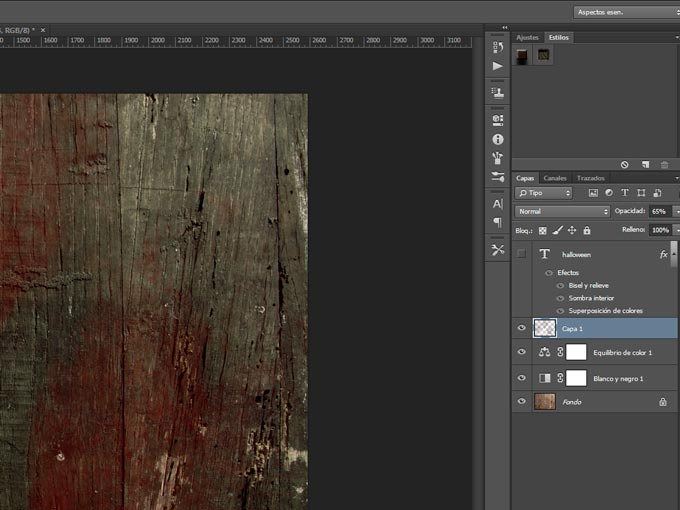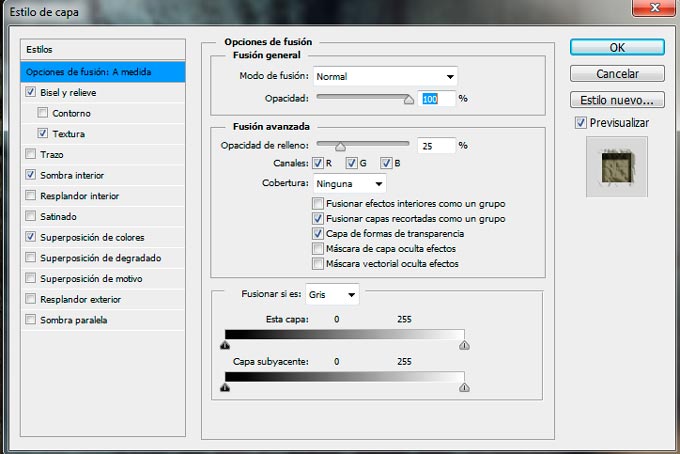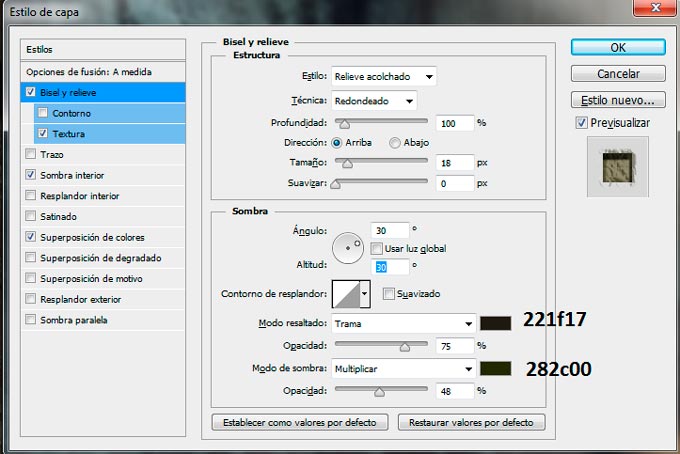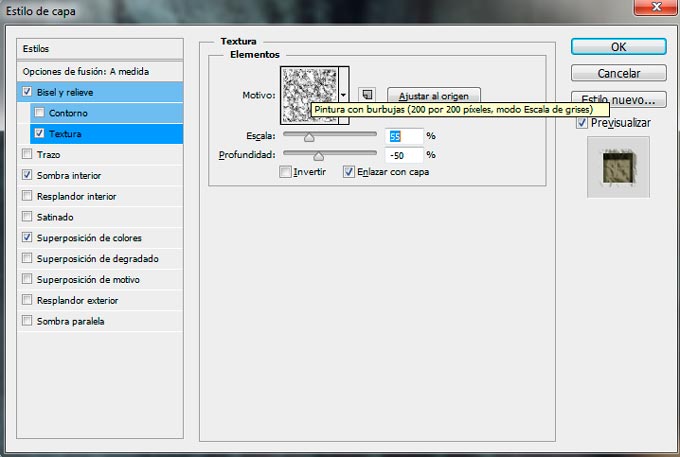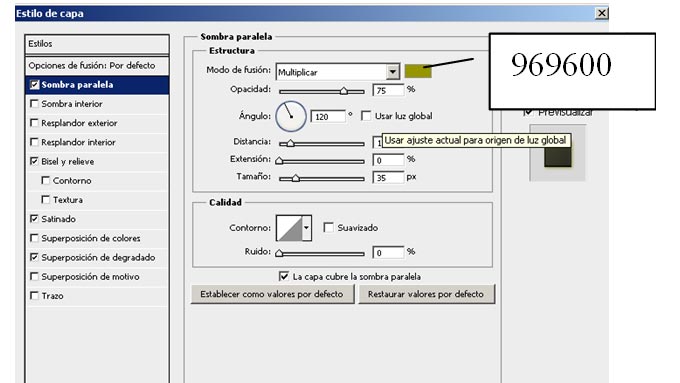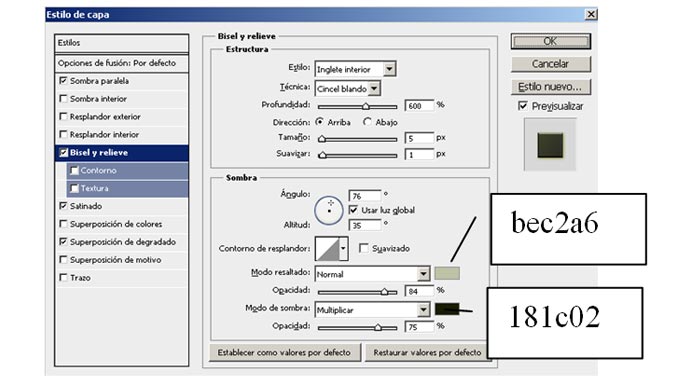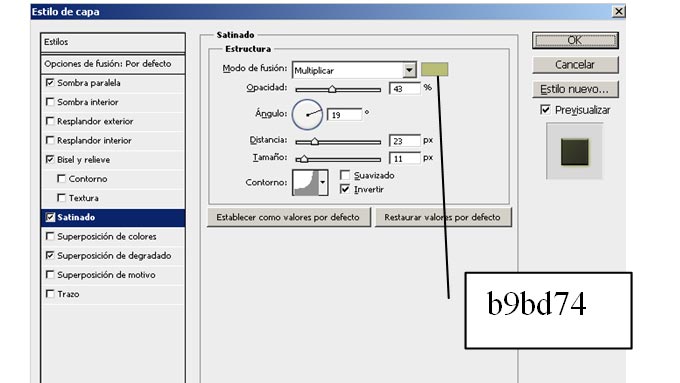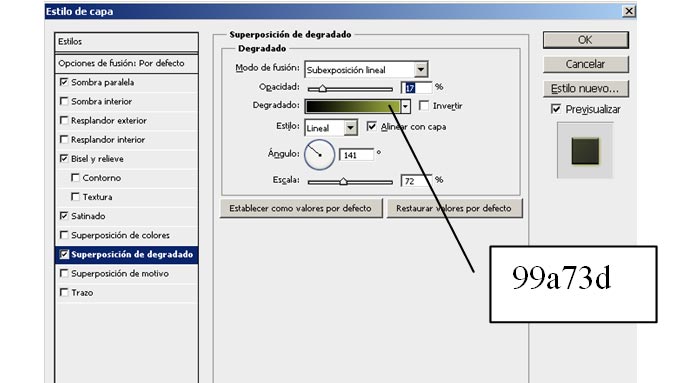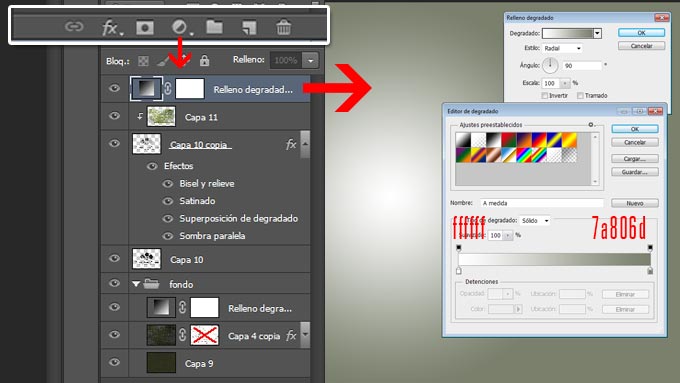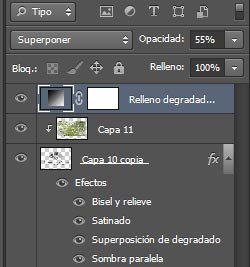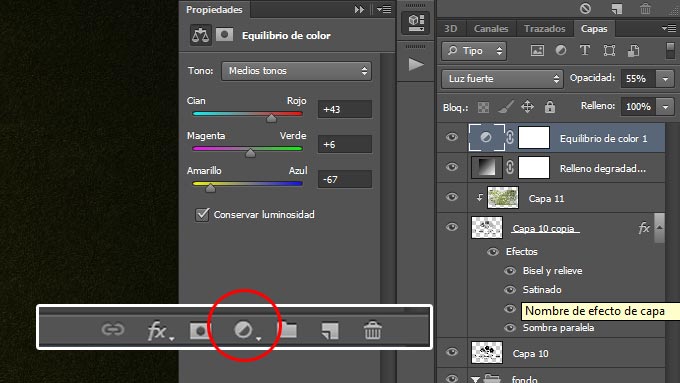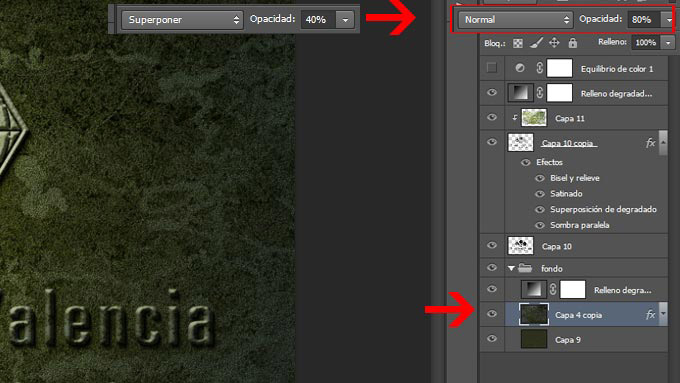
<?xml version="1.0" encoding="UTF-8"?><rss version="2.0"
	xmlns:content="http://purl.org/rss/1.0/modules/content/"
	xmlns:wfw="http://wellformedweb.org/CommentAPI/"
	xmlns:dc="http://purl.org/dc/elements/1.1/"
	xmlns:atom="http://www.w3.org/2005/Atom"
	xmlns:sy="http://purl.org/rss/1.0/modules/syndication/"
	xmlns:slash="http://purl.org/rss/1.0/modules/slash/"
	>

<channel>
	<title>Tutorial Escrito | Ildefonso Segura</title>
	<atom:link href="https://ildefonsosegura.es/category/tutorial-escrito/feed/" rel="self" type="application/rss+xml" />
	<link>https://ildefonsosegura.es</link>
	<description>Tutoriales de diseño y animación</description>
	<lastBuildDate>Sun, 17 Mar 2024 21:44:34 +0000</lastBuildDate>
	<language>es</language>
	<sy:updatePeriod>
	hourly	</sy:updatePeriod>
	<sy:updateFrequency>
	1	</sy:updateFrequency>
	<generator>https://wordpress.org/?v=6.9.4</generator>

<image>
	<url>https://ildefonsosegura.es/wp-content/uploads/cropped-Favicon-new-logo-website-32x32.png</url>
	<title>Tutorial Escrito | Ildefonso Segura</title>
	<link>https://ildefonsosegura.es</link>
	<width>32</width>
	<height>32</height>
</image> 
	<item>
		<title>#Tutorial #Photoshop texto estilo globo, plástico, látex by @ildefonsosegura (incluye editable psd con estilo)</title>
		<link>https://ildefonsosegura.es/tutorial-photoshop-texto-estilo-globo-by-ildefonsosegura-incluye-editable/</link>
					<comments>https://ildefonsosegura.es/tutorial-photoshop-texto-estilo-globo-by-ildefonsosegura-incluye-editable/#respond</comments>
		
		<dc:creator><![CDATA[Ildefonso Segura]]></dc:creator>
		<pubDate>Tue, 30 Jul 2019 10:00:06 +0000</pubDate>
				<category><![CDATA[Editable]]></category>
		<category><![CDATA[Estilos]]></category>
		<category><![CDATA[Photoshop]]></category>
		<category><![CDATA[Tecnicas]]></category>
		<category><![CDATA[Textos]]></category>
		<category><![CDATA[Tutorial Escrito]]></category>
		<category><![CDATA[Tutoriales]]></category>
		<category><![CDATA[capas]]></category>
		<category><![CDATA[descarga]]></category>
		<category><![CDATA[editable]]></category>
		<category><![CDATA[efecto]]></category>
		<category><![CDATA[efectos]]></category>
		<category><![CDATA[estilo]]></category>
		<category><![CDATA[estilos]]></category>
		<category><![CDATA[fondo]]></category>
		<category><![CDATA[fusion]]></category>
		<category><![CDATA[globo]]></category>
		<category><![CDATA[gloriasanis]]></category>
		<category><![CDATA[ildefonso]]></category>
		<category><![CDATA[ildefonsosegura]]></category>
		<category><![CDATA[latex]]></category>
		<category><![CDATA[material]]></category>
		<category><![CDATA[materiales]]></category>
		<category><![CDATA[photoshop]]></category>
		<category><![CDATA[plastico]]></category>
		<category><![CDATA[style]]></category>
		<category><![CDATA[text]]></category>
		<category><![CDATA[texto]]></category>
		<category><![CDATA[textura]]></category>
		<category><![CDATA[tuto]]></category>
		<category><![CDATA[tutorial]]></category>
		<category><![CDATA[youtube]]></category>
		<guid isPermaLink="false">http://ildefonsosegura.es/?p=2945</guid>

					<description><![CDATA[<p>Con este tutorial aprenderemos a usar los estilos de capa para emular un efecto de material de globo, plástico o latex. Si usas variaciones sencillas del ejemplo, puedes conseguir otros efectos que harán que el texto parezca otro material. En cualquier caso, abajo te dejo el editable, estilo y la fuente para que puedas tener [&#8230;]</p>
La entrada <a href="https://ildefonsosegura.es/tutorial-photoshop-texto-estilo-globo-by-ildefonsosegura-incluye-editable/">#Tutorial #Photoshop texto estilo globo, plástico, látex by @ildefonsosegura (incluye editable psd con estilo)</a> apareció primero en <a href="https://ildefonsosegura.es">Ildefonso Segura</a>.]]></description>
										<content:encoded><![CDATA[<div data-elementor-type="wp-post" data-elementor-id="2945" class="elementor elementor-2945">
						<section class="elementor-section elementor-top-section elementor-element elementor-element-70f89c23 elementor-section-boxed elementor-section-height-default elementor-section-height-default" data-id="70f89c23" data-element_type="section" data-e-type="section">
						<div class="elementor-container elementor-column-gap-default">
					<div class="elementor-column elementor-col-100 elementor-top-column elementor-element elementor-element-2387411d" data-id="2387411d" data-element_type="column" data-e-type="column">
			<div class="elementor-widget-wrap elementor-element-populated">
						<div class="elementor-element elementor-element-1905c002 elementor-widget elementor-widget-text-editor" data-id="1905c002" data-element_type="widget" data-e-type="widget" data-widget_type="text-editor.default">
				<div class="elementor-widget-container">
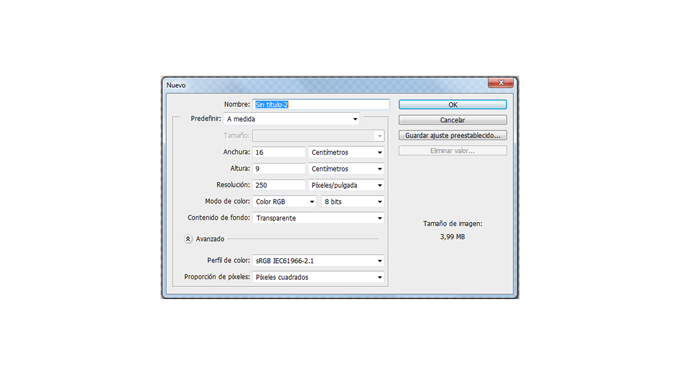
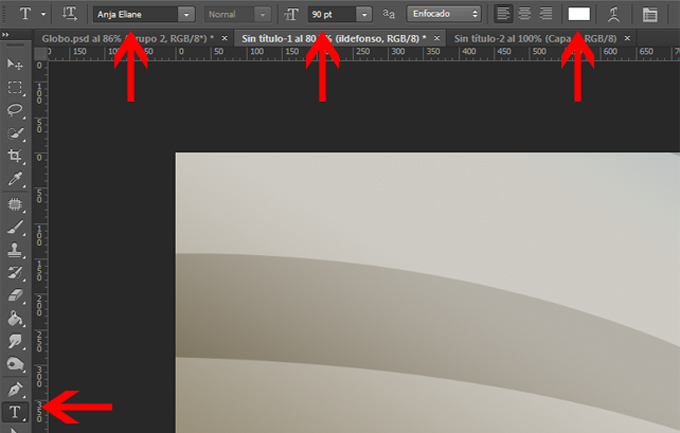
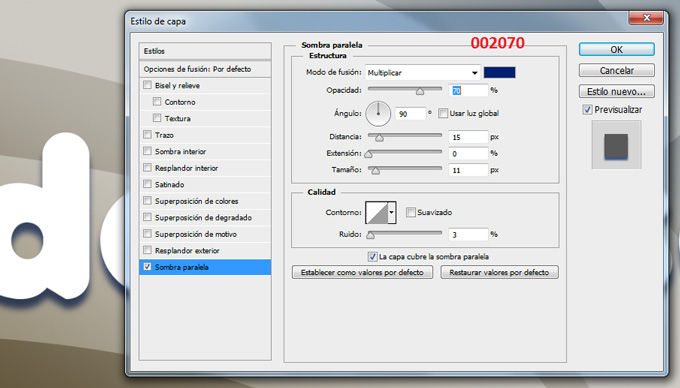
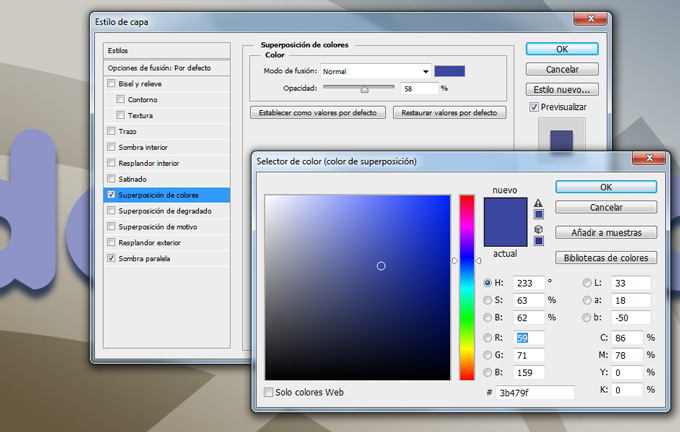
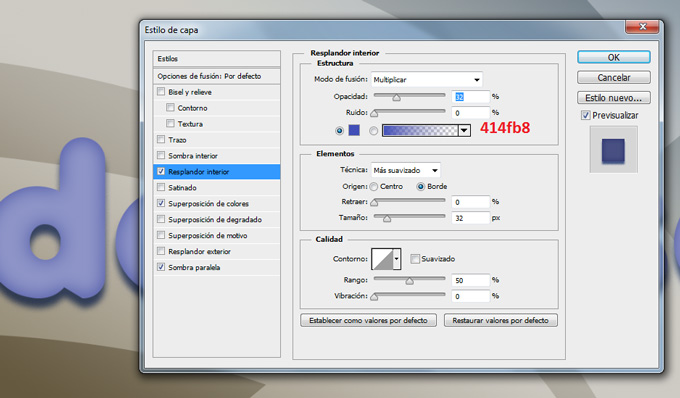
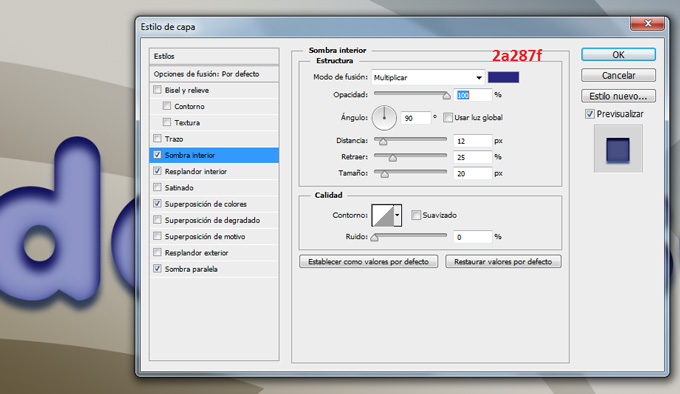
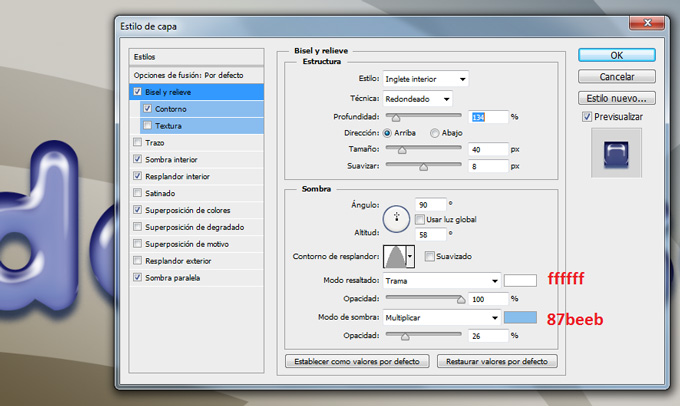
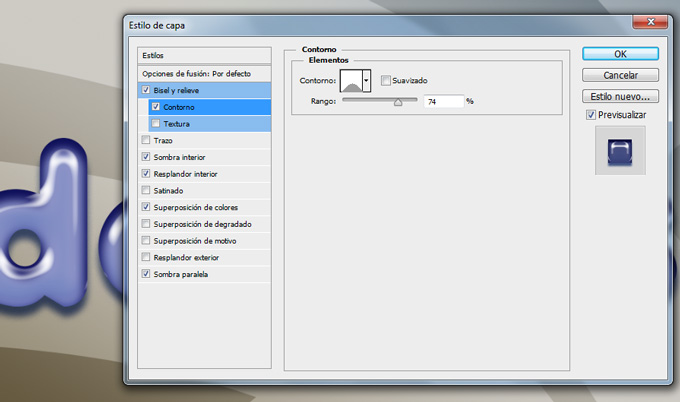
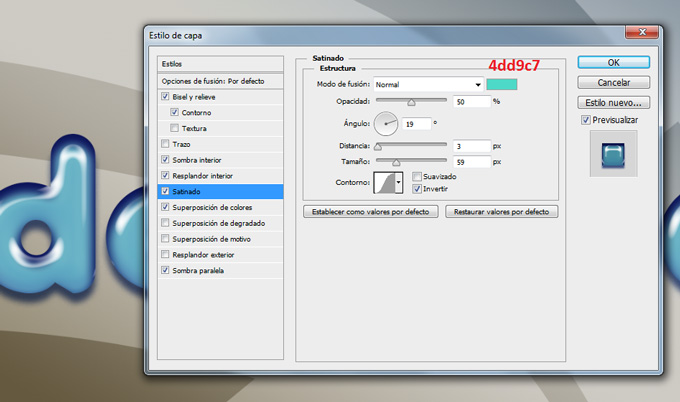
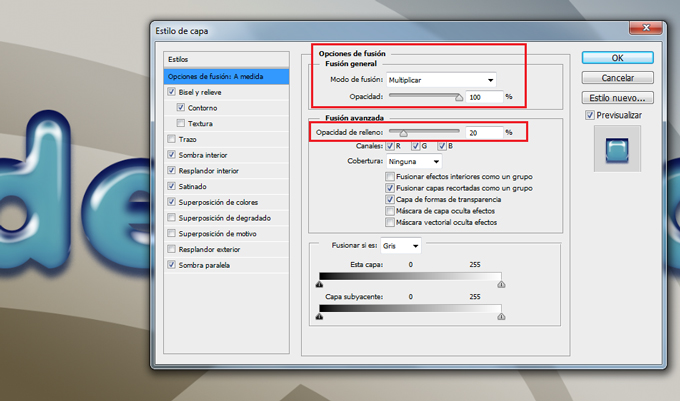
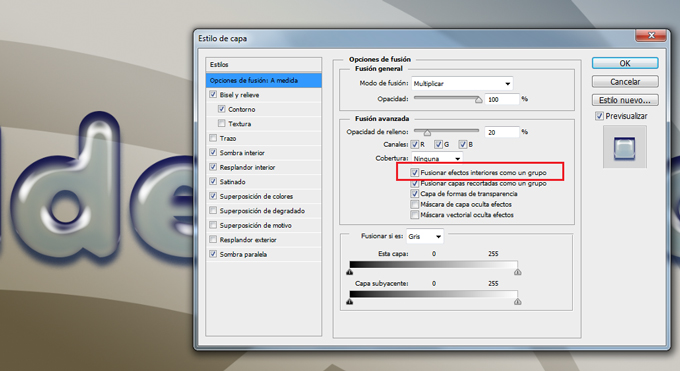
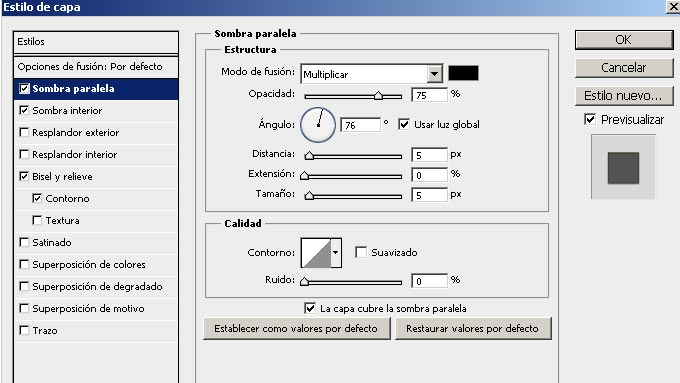
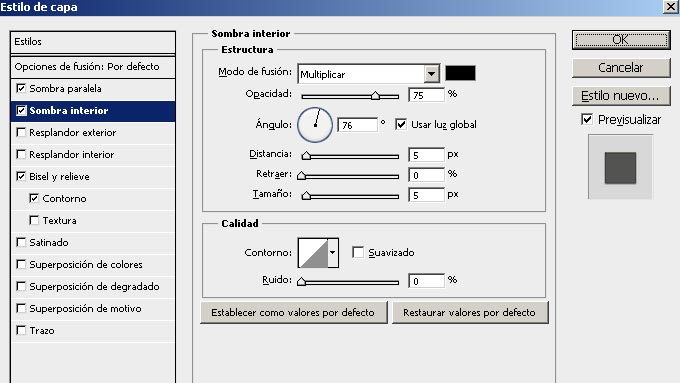
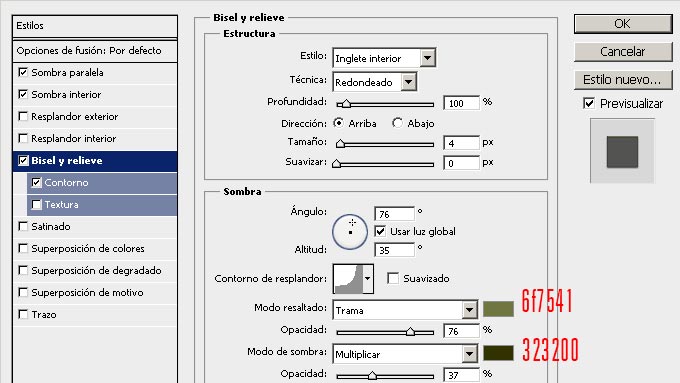
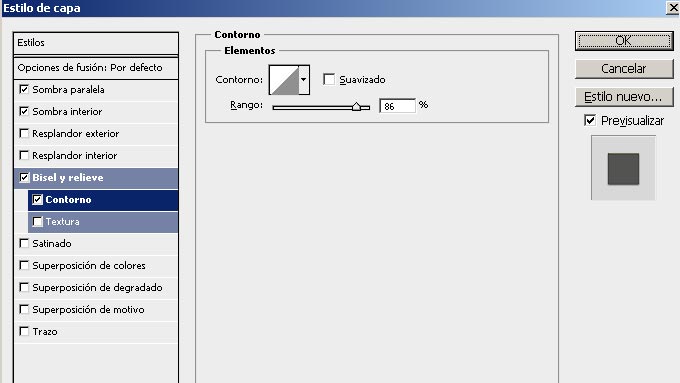
									<p><a href="https://ildefonsosegura.es/tutorial-photoshop-texto-estilo-globo-by-ildefonsosegura-incluye-editable/globo-15/" rel="attachment wp-att-2960"><img fetchpriority="high" decoding="async" class="aligncenter" src="https://ildefonsosegura.es/wp-content/uploads/globo-15.jpg" alt="globo-15" width="680" height="383" /></a></p><p>Con este tutorial aprenderemos a usar los estilos de capa para emular un efecto de material de globo, plástico o latex. Si usas variaciones sencillas del ejemplo, puedes conseguir otros efectos que harán que el texto parezca otro material. En cualquier caso, abajo te dejo el <strong>editable</strong>, estilo y la fuente para que puedas tener el efecto sin necesidad de crearlo.</p><p> </p><p>1.- Abre un nuevo canvas de trabajo con una resolución de 250 ppp. Yo usé un tamaño en cm de 16:9 (wide screen)</p><p><a href="https://ildefonsosegura.es/tutorial-photoshop-texto-estilo-globo-by-ildefonsosegura-incluye-editable/globo-1/" rel="attachment wp-att-2946"><img decoding="async" class="size-full wp-image-2946 aligncenter" src="https://ildefonsosegura.es/wp-content/uploads/globo-1.jpg" alt="globo-1" width="680" height="383" srcset="https://ildefonsosegura.es/wp-content/uploads/globo-1.jpg 680w, https://ildefonsosegura.es/wp-content/uploads/globo-1-300x168.jpg 300w" sizes="(max-width: 680px) 100vw, 680px" /></a></p><p> </p><p>2.- Pon un fondo que tu elijas. Yo usé uno creado por mi sencillo</p><p><a href="https://ildefonsosegura.es/tutorial-photoshop-texto-estilo-globo-by-ildefonsosegura-incluye-editable/globo-2/" rel="attachment wp-att-2947"><img decoding="async" class="size-full wp-image-2947 aligncenter" src="https://ildefonsosegura.es/wp-content/uploads/globo-2.jpg" alt="globo-2" width="680" height="383" srcset="https://ildefonsosegura.es/wp-content/uploads/globo-2.jpg 680w, https://ildefonsosegura.es/wp-content/uploads/globo-2-300x168.jpg 300w" sizes="(max-width: 680px) 100vw, 680px" /></a></p><p>3.- Selecciona la herramienta texto de la barra de herramientas. Usa la fuente Anja con color blanco ffffff y tamaño aproximadamente 90 px</p><p><a href="https://ildefonsosegura.es/tutorial-photoshop-texto-estilo-globo-by-ildefonsosegura-incluye-editable/globo-3/" rel="attachment wp-att-2948"><img loading="lazy" decoding="async" class="size-full wp-image-2948 aligncenter" src="https://ildefonsosegura.es/wp-content/uploads/globo-3.jpg" alt="globo-3" width="680" height="433" srcset="https://ildefonsosegura.es/wp-content/uploads/globo-3.jpg 680w, https://ildefonsosegura.es/wp-content/uploads/globo-3-300x191.jpg 300w" sizes="(max-width: 680px) 100vw, 680px" /></a></p><p>4.- Escribe tu texto</p><p><a href="https://ildefonsosegura.es/tutorial-photoshop-texto-estilo-globo-by-ildefonsosegura-incluye-editable/globo-4/" rel="attachment wp-att-2949"><img loading="lazy" decoding="async" class="size-full wp-image-2949 aligncenter" src="https://ildefonsosegura.es/wp-content/uploads/globo-4.jpg" alt="globo-4" width="680" height="383" srcset="https://ildefonsosegura.es/wp-content/uploads/globo-4.jpg 680w, https://ildefonsosegura.es/wp-content/uploads/globo-4-300x168.jpg 300w" sizes="(max-width: 680px) 100vw, 680px" /></a></p><p>5.- Haz clic derecho en la capa de texto y selecciona OPCIONES DE FUSION. Comienza seleccionando SOMBRA PARALELA</p><p><a href="https://ildefonsosegura.es/tutorial-photoshop-texto-estilo-globo-by-ildefonsosegura-incluye-editable/globo-5/" rel="attachment wp-att-2950"><img loading="lazy" decoding="async" class="size-full wp-image-2950 aligncenter" src="https://ildefonsosegura.es/wp-content/uploads/globo-5.jpg" alt="globo-5" width="680" height="388" srcset="https://ildefonsosegura.es/wp-content/uploads/globo-5.jpg 680w, https://ildefonsosegura.es/wp-content/uploads/globo-5-300x171.jpg 300w" sizes="(max-width: 680px) 100vw, 680px" /></a></p><p>6.- Continuamos con SUPERPOSICION DE COLORES buscando un tono azul</p><p><a href="https://ildefonsosegura.es/tutorial-photoshop-texto-estilo-globo-by-ildefonsosegura-incluye-editable/globo-6/" rel="attachment wp-att-2951"><img loading="lazy" decoding="async" class="size-full wp-image-2951 aligncenter" src="https://ildefonsosegura.es/wp-content/uploads/globo-6.jpg" alt="globo-6" width="680" height="432" srcset="https://ildefonsosegura.es/wp-content/uploads/globo-6.jpg 680w, https://ildefonsosegura.es/wp-content/uploads/globo-6-300x190.jpg 300w" sizes="(max-width: 680px) 100vw, 680px" /></a></p><p>7.- Aplicamos ahora la variable RESPLANDOR INTERIOR</p><p><a href="https://ildefonsosegura.es/tutorial-photoshop-texto-estilo-globo-by-ildefonsosegura-incluye-editable/globo-7/" rel="attachment wp-att-2952"><img loading="lazy" decoding="async" class="size-full wp-image-2952 aligncenter" src="https://ildefonsosegura.es/wp-content/uploads/globo-7.jpg" alt="globo-7" width="680" height="398" srcset="https://ildefonsosegura.es/wp-content/uploads/globo-7.jpg 680w, https://ildefonsosegura.es/wp-content/uploads/globo-7-300x175.jpg 300w" sizes="(max-width: 680px) 100vw, 680px" /></a></p><p>8.- A continuación le damos SOMBRA INTERIOR</p><p><a href="https://ildefonsosegura.es/tutorial-photoshop-texto-estilo-globo-by-ildefonsosegura-incluye-editable/globo-8/" rel="attachment wp-att-2953"><img loading="lazy" decoding="async" class="size-full wp-image-2953 aligncenter" src="https://ildefonsosegura.es/wp-content/uploads/globo-8.jpg" alt="globo-8" width="680" height="394" srcset="https://ildefonsosegura.es/wp-content/uploads/globo-8.jpg 680w, https://ildefonsosegura.es/wp-content/uploads/globo-8-300x173.jpg 300w" sizes="(max-width: 680px) 100vw, 680px" /></a></p><p>9.- Nos situamos en BISEL Y RELIEVE dándole unos valores como sigue:</p><p><a href="https://ildefonsosegura.es/tutorial-photoshop-texto-estilo-globo-by-ildefonsosegura-incluye-editable/globo-9/" rel="attachment wp-att-2954"><img loading="lazy" decoding="async" class="size-full wp-image-2954 aligncenter" src="https://ildefonsosegura.es/wp-content/uploads/globo-9.jpg" alt="globo-9" width="680" height="406" srcset="https://ildefonsosegura.es/wp-content/uploads/globo-9.jpg 680w, https://ildefonsosegura.es/wp-content/uploads/globo-9-300x179.jpg 300w" sizes="(max-width: 680px) 100vw, 680px" /></a></p><p>10.- Dentro de bisel y relieve seleccionamos CONTORNO</p><p><a href="https://ildefonsosegura.es/tutorial-photoshop-texto-estilo-globo-by-ildefonsosegura-incluye-editable/globo-10/" rel="attachment wp-att-2955"><img loading="lazy" decoding="async" class="size-full wp-image-2955 aligncenter" src="https://ildefonsosegura.es/wp-content/uploads/globo-10.jpg" alt="globo-10" width="680" height="402" srcset="https://ildefonsosegura.es/wp-content/uploads/globo-10.jpg 680w, https://ildefonsosegura.es/wp-content/uploads/globo-10-300x177.jpg 300w" sizes="(max-width: 680px) 100vw, 680px" /></a></p><p> </p><p>11.- Casi finalizando aplicamos SATINADO</p><p><a href="https://ildefonsosegura.es/tutorial-photoshop-texto-estilo-globo-by-ildefonsosegura-incluye-editable/globo-11/" rel="attachment wp-att-2956"><img loading="lazy" decoding="async" class="size-full wp-image-2956 aligncenter" src="https://ildefonsosegura.es/wp-content/uploads/globo-11.jpg" alt="globo-11" width="680" height="402" srcset="https://ildefonsosegura.es/wp-content/uploads/globo-11.jpg 680w, https://ildefonsosegura.es/wp-content/uploads/globo-11-300x177.jpg 300w" sizes="(max-width: 680px) 100vw, 680px" /></a></p><p>12.- Hasta aquí ya tendríamos un efecto de texto de globo bastante aceptable.</p><p><a href="https://ildefonsosegura.es/tutorial-photoshop-texto-estilo-globo-by-ildefonsosegura-incluye-editable/globo-12/" rel="attachment wp-att-2957"><img loading="lazy" decoding="async" class="size-full wp-image-2957 aligncenter" src="https://ildefonsosegura.es/wp-content/uploads/globo-12.jpg" alt="globo-12" width="680" height="383" srcset="https://ildefonsosegura.es/wp-content/uploads/globo-12.jpg 680w, https://ildefonsosegura.es/wp-content/uploads/globo-12-300x168.jpg 300w" sizes="(max-width: 680px) 100vw, 680px" /></a></p><p>13.- En las opciones de fusión vamos a cambiar variables tanto de la sección de FUSION GENERAL como de FUSION AVANZADA</p><p>En la fusión general cambiaremos el tipo de fusión de capa a MULIPLICAR. En la fusión avanzada cambiaremos el porcentaje de relleno al 20%</p><p><a href="https://ildefonsosegura.es/tutorial-photoshop-texto-estilo-globo-by-ildefonsosegura-incluye-editable/globo-13/" rel="attachment wp-att-2958"><img loading="lazy" decoding="async" class="size-full wp-image-2958 aligncenter" src="https://ildefonsosegura.es/wp-content/uploads/globo-13.jpg" alt="globo-13" width="680" height="401" srcset="https://ildefonsosegura.es/wp-content/uploads/globo-13.jpg 680w, https://ildefonsosegura.es/wp-content/uploads/globo-13-300x176.jpg 300w" sizes="(max-width: 680px) 100vw, 680px" /></a></p><p> </p><p>14.- Para conseguir mayor transparencia en el texto seleccionaremos una variable dentro de la FUSIÓN AVANZADA que no he visto en ningún tutorial. Esa opción es FUSIONAR EFECTOS INTERIORES COMO UN GRUPO. Con esta opción seleccionada lo que se hace es fusionar los efectos de «resplandor interior», «satinado» y «superposición» con la capa antes de fusionarlos con el documento. Todas las opciones de fusión se fusionan con el documento y en función del contenido de las otras capas el resultado de las variables es diferente. Si tienes esta opción de FUSIONAR EFECTOS INTERIORES COMO UN GRUPO, los efectos interactuan con el contenido de la capa y no con el resto de capas.</p><p><a href="https://ildefonsosegura.es/tutorial-photoshop-texto-estilo-globo-by-ildefonsosegura-incluye-editable/globo-14/" rel="attachment wp-att-2959"><img loading="lazy" decoding="async" class="size-full wp-image-2959 aligncenter" src="https://ildefonsosegura.es/wp-content/uploads/globo-14.jpg" alt="globo-14" width="680" height="371" srcset="https://ildefonsosegura.es/wp-content/uploads/globo-14.jpg 680w, https://ildefonsosegura.es/wp-content/uploads/globo-14-300x163.jpg 300w" sizes="(max-width: 680px) 100vw, 680px" /></a></p><p>15.- Así el resultado es el siguiente que íbamos buscando:</p><p><a href="https://ildefonsosegura.es/tutorial-photoshop-texto-estilo-globo-by-ildefonsosegura-incluye-editable/globo-15/" rel="attachment wp-att-2960"><img loading="lazy" decoding="async" class="size-full wp-image-2960 aligncenter" src="https://ildefonsosegura.es/wp-content/uploads/globo-15.jpg" alt="globo-15" width="680" height="383" srcset="https://ildefonsosegura.es/wp-content/uploads/globo-15.jpg 680w, https://ildefonsosegura.es/wp-content/uploads/globo-15-300x168.jpg 300w" sizes="(max-width: 680px) 100vw, 680px" /></a></p><p> </p><p> </p>								</div>
				</div>
					</div>
		</div>
					</div>
		</section>
				<section class="elementor-section elementor-top-section elementor-element elementor-element-1272db76 elementor-section-full_width elementor-section-height-default elementor-section-height-default" data-id="1272db76" data-element_type="section" data-e-type="section">
						<div class="elementor-container elementor-column-gap-default">
					<div class="elementor-column elementor-col-50 elementor-top-column elementor-element elementor-element-1834e7b8" data-id="1834e7b8" data-element_type="column" data-e-type="column">
			<div class="elementor-widget-wrap elementor-element-populated">
						<div class="elementor-element elementor-element-5393f42d elementor-align-right elementor-invisible elementor-widget elementor-widget-button" data-id="5393f42d" data-element_type="widget" data-e-type="widget" data-settings="{&quot;_animation&quot;:&quot;shake&quot;}" data-widget_type="button.default">
				<div class="elementor-widget-container">
									<div class="elementor-button-wrapper">
					<a class="elementor-button elementor-button-link elementor-size-sm elementor-animation-grow" href="https://drive.google.com/open?id=0B_nJkCGJubucWFU4eTFhMzF1YVU">
						<span class="elementor-button-content-wrapper">
									<span class="elementor-button-text">BAJATE EL EDITABLE</span>
					</span>
					</a>
				</div>
								</div>
				</div>
					</div>
		</div>
				<div class="elementor-column elementor-col-50 elementor-top-column elementor-element elementor-element-726d94ee" data-id="726d94ee" data-element_type="column" data-e-type="column">
			<div class="elementor-widget-wrap elementor-element-populated">
						<div class="elementor-element elementor-element-38a200b6 elementor-widget elementor-widget-html" data-id="38a200b6" data-element_type="widget" data-e-type="widget" data-settings="{&quot;_animation&quot;:&quot;none&quot;}" data-widget_type="html.default">
				<div class="elementor-widget-container">
					<form action="https://www.paypal.com/cgi-bin/webscr" method="post" target="_blank">
<input type="hidden" name="cmd" value="_donations">
<input type="hidden" name="business" value="ildefonsosegura@gmail.com">
<input type="hidden" name="lc" value="ES">
<input type="hidden" name="item_name" value="MANTENIMIENTO DE LA PAGINA DE ILDEFONSOSEGURA">
<input type="hidden" name="no_note" value="0">
<input type="hidden" name="currency_code" value="EUR">
<input type="hidden" name="bn" value="PP-DonationsBF:paypal1.jpg:NonHostedGuest">
<input type="image" src="http://ildefonsosegura.es/wp-content/uploads/paypal-updated-1.png" border="0" name="submit" alt="PayPal. La forma rápida y segura de pagar en Internet.">
<img loading="lazy" decoding="async" alt="" border="0" src="https://www.paypalobjects.com/es_ES/i/scr/pixel.gif" width="1" height="1">
</form>				</div>
				</div>
					</div>
		</div>
					</div>
		</section>
				<section class="elementor-section elementor-top-section elementor-element elementor-element-29087141 elementor-section-boxed elementor-section-height-default elementor-section-height-default" data-id="29087141" data-element_type="section" data-e-type="section">
						<div class="elementor-container elementor-column-gap-default">
					<div class="elementor-column elementor-col-100 elementor-top-column elementor-element elementor-element-994285d" data-id="994285d" data-element_type="column" data-e-type="column">
			<div class="elementor-widget-wrap elementor-element-populated">
						<div class="elementor-element elementor-element-2089d69f elementor-widget elementor-widget-html" data-id="2089d69f" data-element_type="widget" data-e-type="widget" data-widget_type="html.default">
				<div class="elementor-widget-container">
					&nbsp;
<center><span style="color: #333333;"><strong>SUSCRÍBETE A MI CANAL DE YouTube</strong></span></center>&nbsp;
<div>
<div>
<div align="center">


<script src="https://apis.google.com/js/platform.js"></script>

<div class="g-ytsubscribe" data-channel="ildefonsosegura" data-layout="full" data-count="default"></div>
</div>
</div>
&nbsp;<p style="text-align: left;">No te lo pierdas y comparte tus trabajos en mi página de facebook (<span style="color: #ff0000;"><strong><a style="color: #ff0000;" href="http://www.facebook.com/IldefonsoSeguraPage" target="_blank" rel="noopener noreferrer">IldefonsoSeguraPage</a></strong></span>)</p>
Espero que te guste y compartas el vídeo. No dejes de compartir este post.
<p style="text-align: left;">Así es como me puedes ayudar 🙂 Gracias</p>

</div>				</div>
				</div>
					</div>
		</div>
					</div>
		</section>
				</div>La entrada <a href="https://ildefonsosegura.es/tutorial-photoshop-texto-estilo-globo-by-ildefonsosegura-incluye-editable/">#Tutorial #Photoshop texto estilo globo, plástico, látex by @ildefonsosegura (incluye editable psd con estilo)</a> apareció primero en <a href="https://ildefonsosegura.es">Ildefonso Segura</a>.]]></content:encoded>
					
					<wfw:commentRss>https://ildefonsosegura.es/tutorial-photoshop-texto-estilo-globo-by-ildefonsosegura-incluye-editable/feed/</wfw:commentRss>
			<slash:comments>0</slash:comments>
		
		
			</item>
		<item>
		<title>#Tutorial #Photoshop escrito: Texto tallado en madera by @ildefonsosegura</title>
		<link>https://ildefonsosegura.es/tutorial-photoshosop-escrito-texto-escrito-en-madera-by-ildefonsosegura/</link>
					<comments>https://ildefonsosegura.es/tutorial-photoshosop-escrito-texto-escrito-en-madera-by-ildefonsosegura/#comments</comments>
		
		<dc:creator><![CDATA[Ildefonso Segura]]></dc:creator>
		<pubDate>Mon, 29 Jul 2019 15:00:14 +0000</pubDate>
				<category><![CDATA[Efectos]]></category>
		<category><![CDATA[Estilos]]></category>
		<category><![CDATA[Photoshop]]></category>
		<category><![CDATA[PREMIUM]]></category>
		<category><![CDATA[Tecnicas]]></category>
		<category><![CDATA[Textos]]></category>
		<category><![CDATA[Tutorial Escrito]]></category>
		<category><![CDATA[Tutoriales]]></category>
		<category><![CDATA[CC]]></category>
		<category><![CDATA[cs4]]></category>
		<category><![CDATA[cs5]]></category>
		<category><![CDATA[cs6]]></category>
		<category><![CDATA[escrito]]></category>
		<category><![CDATA[estilo]]></category>
		<category><![CDATA[gloriasanis]]></category>
		<category><![CDATA[grabado]]></category>
		<category><![CDATA[halloween]]></category>
		<category><![CDATA[ildefonsosegura]]></category>
		<category><![CDATA[madera]]></category>
		<category><![CDATA[photoshop]]></category>
		<category><![CDATA[style]]></category>
		<category><![CDATA[text]]></category>
		<category><![CDATA[texto]]></category>
		<category><![CDATA[textura]]></category>
		<category><![CDATA[tuto]]></category>
		<category><![CDATA[tutorial]]></category>
		<category><![CDATA[wallpaper]]></category>
		<category><![CDATA[written]]></category>
		<guid isPermaLink="false">http://ildefonsosegura.es/?p=3143</guid>

					<description><![CDATA[<p>Con fecha 21 de octubre de 2013 se publica un videotutorial donde explico como conseguir un efecto de tallado de una calavera en una textura de madera. Con la misma técnica podrías conseguir la integración de un volumen sencillo en una textura determinada. Aprovechando estas fechas cercanas a Halloween, tienes a tu disposición un videotutorial [&#8230;]</p>
La entrada <a href="https://ildefonsosegura.es/tutorial-photoshosop-escrito-texto-escrito-en-madera-by-ildefonsosegura/">#Tutorial #Photoshop escrito: Texto tallado en madera by @ildefonsosegura</a> apareció primero en <a href="https://ildefonsosegura.es">Ildefonso Segura</a>.]]></description>
										<content:encoded><![CDATA[<div data-elementor-type="wp-post" data-elementor-id="3143" class="elementor elementor-3143">
						<section class="elementor-section elementor-top-section elementor-element elementor-element-28fd328 elementor-section-boxed elementor-section-height-default elementor-section-height-default" data-id="28fd328" data-element_type="section" data-e-type="section">
						<div class="elementor-container elementor-column-gap-default">
					<div class="elementor-column elementor-col-100 elementor-top-column elementor-element elementor-element-60bcc37" data-id="60bcc37" data-element_type="column" data-e-type="column">
			<div class="elementor-widget-wrap elementor-element-populated">
						<div class="elementor-element elementor-element-0f19028 elementor-widget elementor-widget-text-editor" data-id="0f19028" data-element_type="widget" data-e-type="widget" data-widget_type="text-editor.default">
				<div class="elementor-widget-container">
									<p>Con fecha <span style="color: #800000;"><strong>21 de octubre de 2013</strong></span> se publica un videotutorial donde explico como conseguir un efecto de tallado de una calavera en una textura de madera. Con la misma técnica podrías conseguir la integración de un volumen sencillo en una textura determinada.</p><p>Aprovechando estas fechas cercanas a Halloween, tienes a tu disposición un videotutorial junto con otros que ya publiqué y que te pueden servir también, donde te muestro unas técnicas sencillas con máscaras, filtros y capas de ajuste. El resultado es fantástico y te invito a ver el videotutorial haciendo clic en la imagen siguiente.</p><p style="text-align: center;"><a href="http://ildefonsosegura.es/tutorial-photoshop-fusionar-volumenes-con-texturas-by-ildefonsosegura-wallpaper-halloween" target="_blank" rel="attachment wp-att-3142 noopener noreferrer"><img loading="lazy" decoding="async" class="size-full wp-image-3142 aligncenter" src="http://ildefonsosegura.es/wp-content/uploads/Calavera-de-madera-wallpaper.jpg" alt="Calavera-de-madera-wallpaper" width="680" height="383" srcset="https://ildefonsosegura.es/wp-content/uploads/Calavera-de-madera-wallpaper.jpg 680w, https://ildefonsosegura.es/wp-content/uploads/Calavera-de-madera-wallpaper-300x168.jpg 300w" sizes="(max-width: 680px) 100vw, 680px" /></a></p><p style="text-align: center;"><strong style="color: #800000;">HAZ CLIC EN LA IMAGEN PARA VER EL VIDEOTUTORIAL</strong></p>								</div>
				</div>
					</div>
		</div>
					</div>
		</section>
				<section class="elementor-section elementor-top-section elementor-element elementor-element-52db58ed elementor-section-full_width elementor-section-height-default elementor-section-height-default" data-id="52db58ed" data-element_type="section" data-e-type="section">
						<div class="elementor-container elementor-column-gap-default">
					<div class="elementor-column elementor-col-50 elementor-top-column elementor-element elementor-element-1406c6bf" data-id="1406c6bf" data-element_type="column" data-e-type="column">
			<div class="elementor-widget-wrap elementor-element-populated">
						<div class="elementor-element elementor-element-5eda612a elementor-align-right elementor-widget elementor-widget-button" data-id="5eda612a" data-element_type="widget" data-e-type="widget" data-widget_type="button.default">
				<div class="elementor-widget-container">
									<div class="elementor-button-wrapper">
					<a class="elementor-button elementor-button-link elementor-size-sm elementor-animation-grow" href="https://drive.google.com/open?id=0B_nJkCGJubuca2tUelpSTUlDSmc">
						<span class="elementor-button-content-wrapper">
						<span class="elementor-button-icon">
				<i aria-hidden="true" class="far fa-arrow-alt-circle-down"></i>			</span>
									<span class="elementor-button-text">DESCARGA EL MATERIAL</span>
					</span>
					</a>
				</div>
								</div>
				</div>
					</div>
		</div>
				<div class="elementor-column elementor-col-50 elementor-top-column elementor-element elementor-element-460e16d1" data-id="460e16d1" data-element_type="column" data-e-type="column">
			<div class="elementor-widget-wrap elementor-element-populated">
						<div class="elementor-element elementor-element-471c22fd elementor-widget elementor-widget-html" data-id="471c22fd" data-element_type="widget" data-e-type="widget" data-settings="{&quot;_animation&quot;:&quot;none&quot;}" data-widget_type="html.default">
				<div class="elementor-widget-container">
					<center><form action="https://www.paypal.com/cgi-bin/webscr" method="post" target="_blank">
<input type="hidden" name="cmd" value="_donations">
<input type="hidden" name="business" value="ildefonsosegura@gmail.com">
<input type="hidden" name="lc" value="ES">
<input type="hidden" name="item_name" value="MANTENIMIENTO DE LA PAGINA DE ILDEFONSOSEGURA">
<input type="hidden" name="no_note" value="0">
<input type="hidden" name="currency_code" value="EUR">
<input type="hidden" name="bn" value="PP-DonationsBF:paypal1.jpg:NonHostedGuest">
<input type="image" src="http://ildefonsosegura.es/wp-content/uploads/paypal-updated-1.png" border="0" name="submit" alt="PayPal. La forma rápida y segura de pagar en Internet.">
<img loading="lazy" decoding="async" alt="" border="0" src="https://www.paypalobjects.com/es_ES/i/scr/pixel.gif" width="1" height="1">
</form></center>				</div>
				</div>
					</div>
		</div>
					</div>
		</section>
				<section class="elementor-section elementor-top-section elementor-element elementor-element-792abb9a elementor-section-boxed elementor-section-height-default elementor-section-height-default" data-id="792abb9a" data-element_type="section" data-e-type="section">
						<div class="elementor-container elementor-column-gap-default">
					<div class="elementor-column elementor-col-100 elementor-top-column elementor-element elementor-element-448b7dc7" data-id="448b7dc7" data-element_type="column" data-e-type="column">
			<div class="elementor-widget-wrap elementor-element-populated">
						<div class="elementor-element elementor-element-122cd2cf elementor-widget elementor-widget-text-editor" data-id="122cd2cf" data-element_type="widget" data-e-type="widget" data-widget_type="text-editor.default">
				<div class="elementor-widget-container">
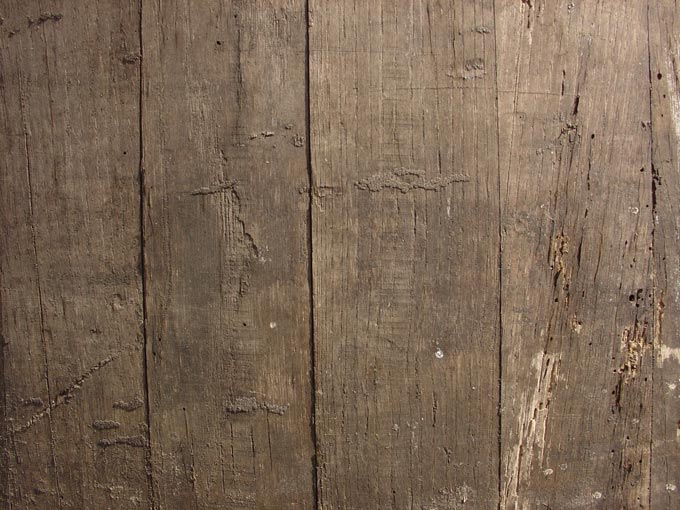
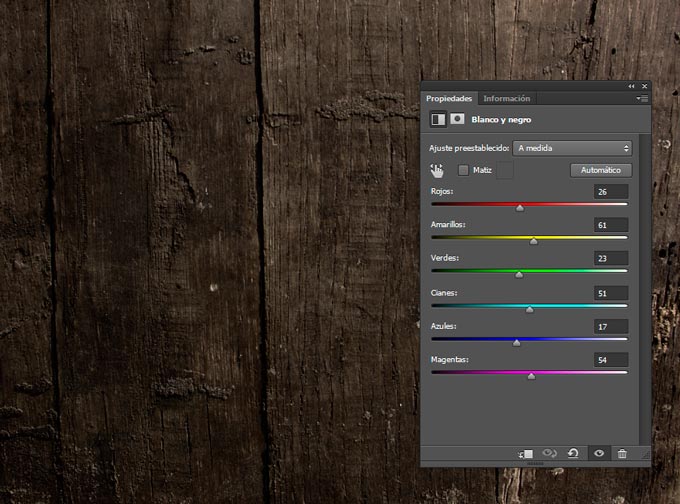
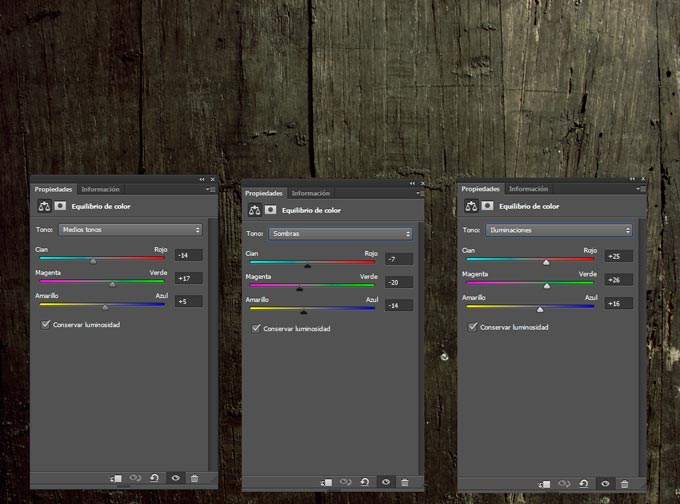
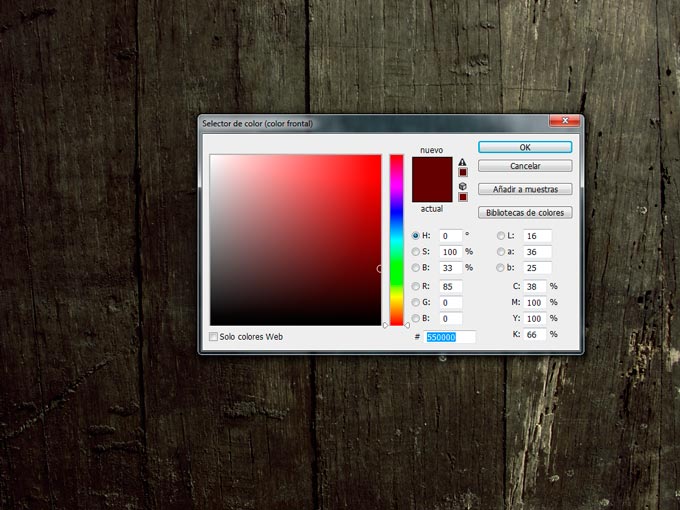
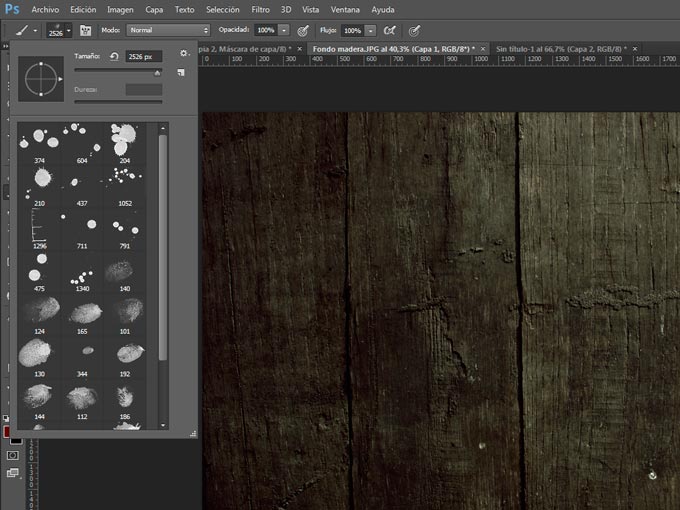
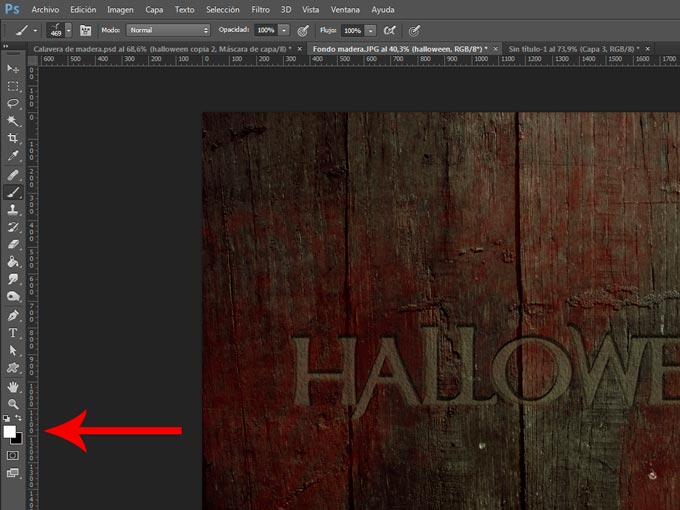
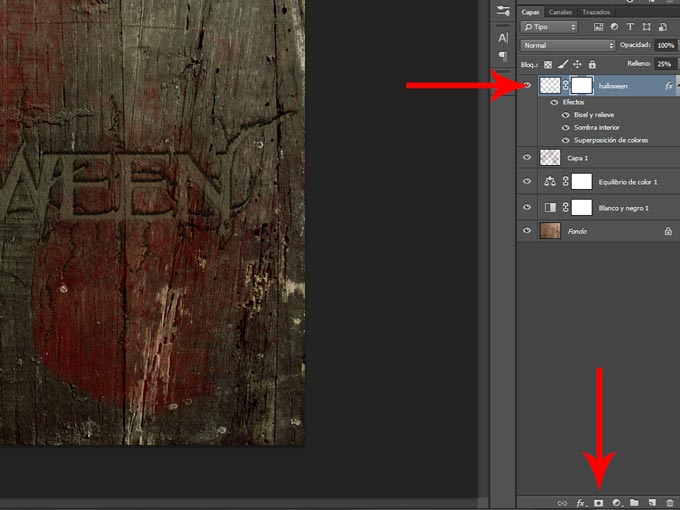
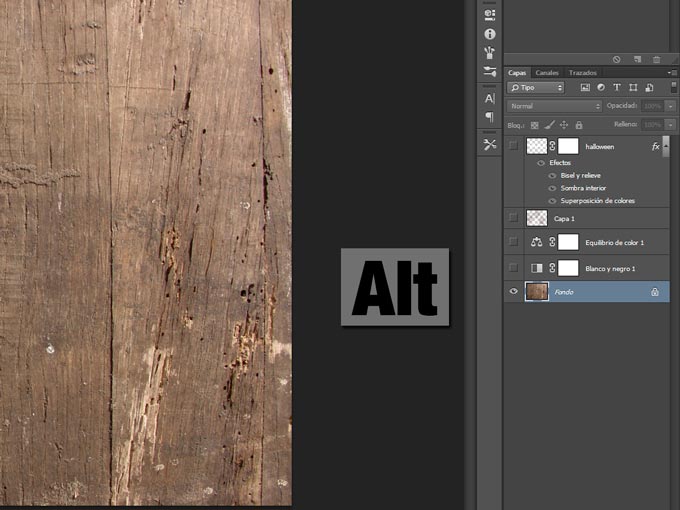
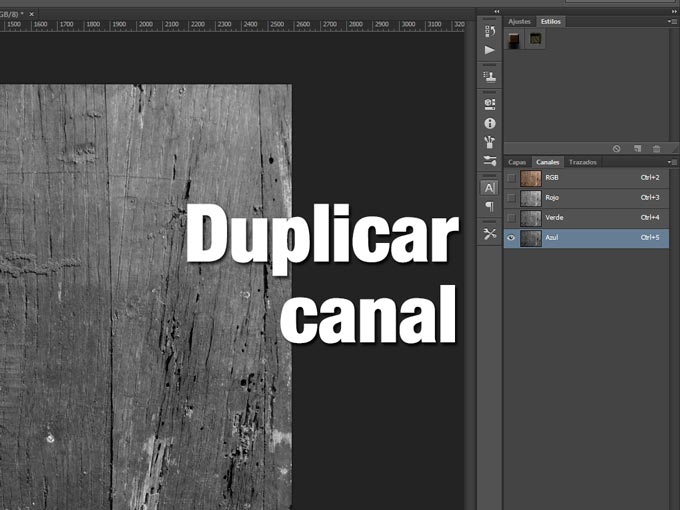
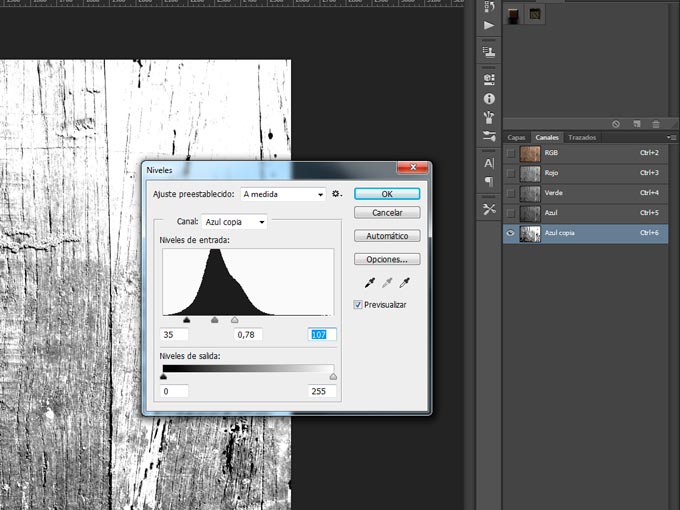
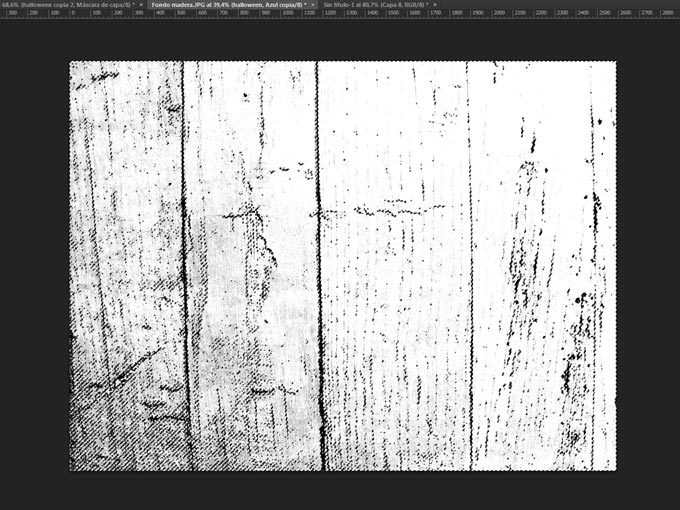
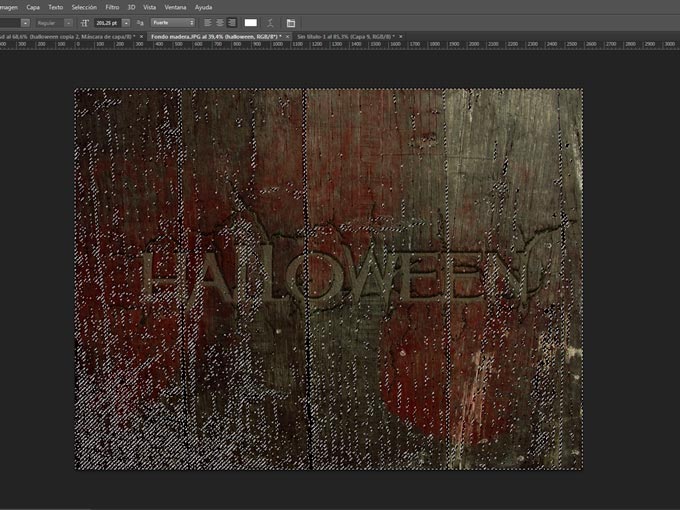
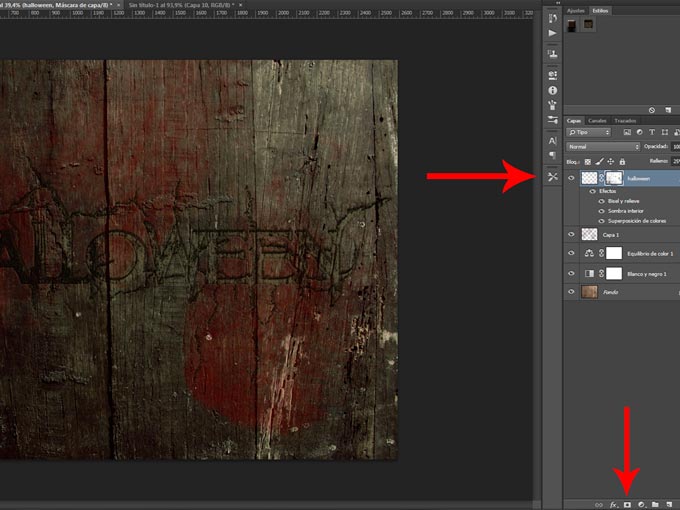
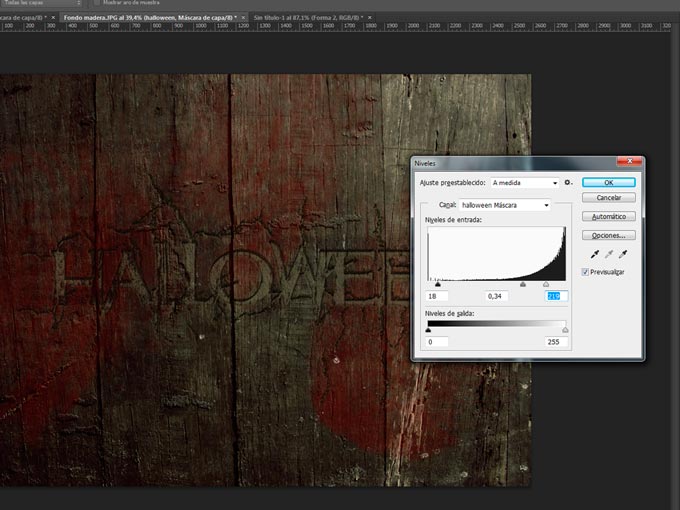
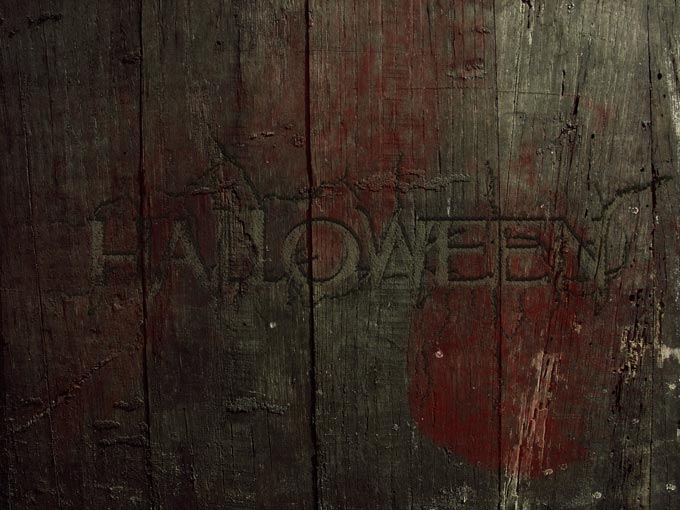
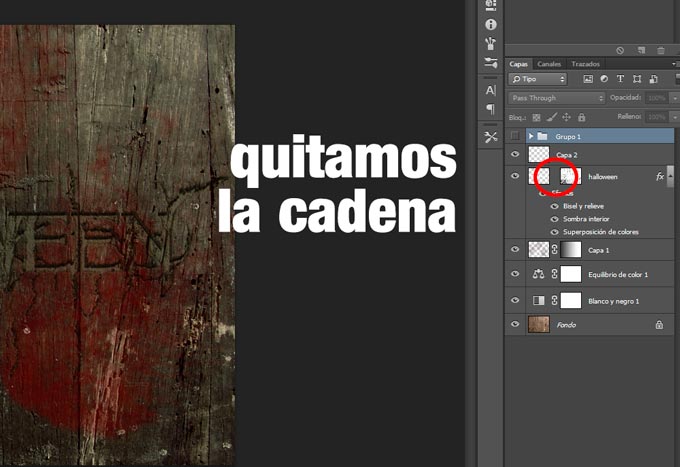
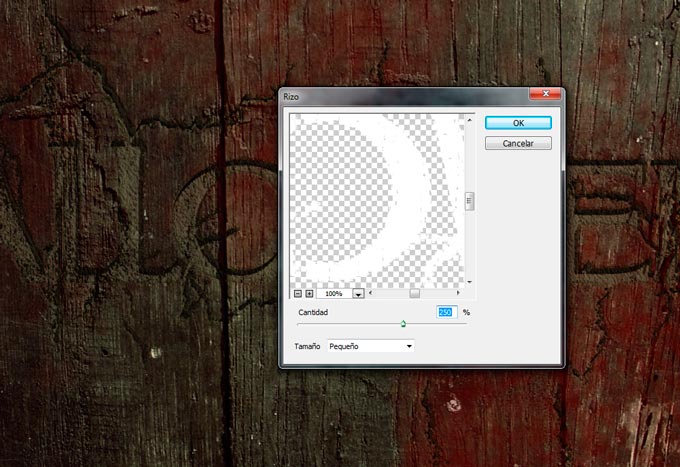
									<pre> [widget id="custom_html-8"]</pre><p>Tutoriales relacionados con la temática Halloween</p><p><a href="http://ildefonsosegura.es/texto-con-textura-de-calabaza-con-cinema4d-y-photoshop-wallpaper-halloween/" target="_blank" rel="noopener noreferrer"><img loading="lazy" decoding="async" class="wp-image-1298 aligncenter" src="http://ildefonsosegura.es/wp-content/uploads/texto-calabaza4.jpg" alt="texto-calabaza4" width="194" height="110" srcset="https://ildefonsosegura.es/wp-content/uploads/texto-calabaza4.jpg 600w, https://ildefonsosegura.es/wp-content/uploads/texto-calabaza4-300x169.jpg 300w" sizes="(max-width: 194px) 100vw, 194px" /></a>  <a href="http://ildefonsosegura.es/vaciado-de-volumenes-con-boleanos-en-cinema4d/" target="_blank" rel="attachment wp-att-1304 noopener noreferrer"><img loading="lazy" decoding="async" class="wp-image-1304 aligncenter" src="http://ildefonsosegura.es/wp-content/uploads/Cara-de-calabaza.jpg" alt="Cara-de-calabaza" width="194" height="110" /></a>  <a href="http://ildefonsosegura.es/convertir-personas-en-zombis/" target="_blank" rel="attachment wp-att-3163 noopener noreferrer"><img loading="lazy" decoding="async" class="wp-image-3163 aligncenter" src="http://ildefonsosegura.es/wp-content/uploads/ZOMBIS-by-Ildefonsosegura1.jpg" alt="ZOMBIS-by-Ildefonsosegura" width="194" height="110" srcset="https://ildefonsosegura.es/wp-content/uploads/ZOMBIS-by-Ildefonsosegura1.jpg 600w, https://ildefonsosegura.es/wp-content/uploads/ZOMBIS-by-Ildefonsosegura1-300x169.jpg 300w" sizes="(max-width: 194px) 100vw, 194px" /></a></p><p>En este post te muestro un tutorial que completa al videotutorial citado dado que nos enseña a realizar el texto que aparece en el wallpaper de Halloween. El resultado es este y lo vemos paso a paso:</p><p><a href="http://ildefonsosegura.es/tutorial-photoshosop-escrito-texto-escrito-en-madera-by-ildefonsosegura/attachment/995/" rel="attachment wp-att-3148"><img loading="lazy" decoding="async" class="size-full wp-image-3148 aligncenter" src="http://ildefonsosegura.es/wp-content/uploads/995.jpg" alt="995" width="680" height="510" srcset="https://ildefonsosegura.es/wp-content/uploads/995.jpg 680w, https://ildefonsosegura.es/wp-content/uploads/995-300x225.jpg 300w" sizes="(max-width: 680px) 100vw, 680px" /></a></p><h1><span style="color: #800000;"><strong> TUTORIAL PHOTOSHOP</strong></span></h1><p><strong> PASO 1.-</strong>  Abrimos textura de madera donde pondremos el texto</p><p><a href="http://ildefonsosegura.es/tutorial-photoshosop-escrito-texto-escrito-en-madera-by-ildefonsosegura/attachment/1/" rel="attachment wp-att-3110"><img loading="lazy" decoding="async" class="alignnone size-full wp-image-3110 aligncenter" src="http://ildefonsosegura.es/wp-content/uploads/1.jpg" alt="1" width="680" height="510" srcset="https://ildefonsosegura.es/wp-content/uploads/1.jpg 680w, https://ildefonsosegura.es/wp-content/uploads/1-300x225.jpg 300w" sizes="(max-width: 680px) 100vw, 680px" /></a></p><p><strong>PASO 2.-</strong>  Añadimos capa de ajuste de Blanco y negro con los valores por defecto que son los que se ven en la imagen. Ponemos el modo de fusión de la capa en MULTIPLICAR</p><p style="text-align: center;"> <a href="http://ildefonsosegura.es/tutorial-photoshosop-escrito-texto-escrito-en-madera-by-ildefonsosegura/1a/" rel="attachment wp-att-3111"><img loading="lazy" decoding="async" class="alignnone size-full wp-image-3111" src="http://ildefonsosegura.es/wp-content/uploads/1a.jpg" alt="1a" width="680" height="504" srcset="https://ildefonsosegura.es/wp-content/uploads/1a.jpg 680w, https://ildefonsosegura.es/wp-content/uploads/1a-300x222.jpg 300w" sizes="(max-width: 680px) 100vw, 680px" /></a></p><p style="text-align: left;"><strong>PASO 3.-</strong>  Añadimos caja de ajuste de equilibrio de color con los valores de la imagen tanto en medios tonos como en sombras como en iluminaciones. Ponemos el modo de fusión de la capa en COLOR</p><p style="text-align: left;"><a href="http://ildefonsosegura.es/tutorial-photoshosop-escrito-texto-escrito-en-madera-by-ildefonsosegura/1b/" rel="attachment wp-att-3112"><img loading="lazy" decoding="async" class="alignnone size-full wp-image-3112 aligncenter" src="http://ildefonsosegura.es/wp-content/uploads/1b.jpg" alt="1b" width="680" height="504" srcset="https://ildefonsosegura.es/wp-content/uploads/1b.jpg 680w, https://ildefonsosegura.es/wp-content/uploads/1b-300x222.jpg 300w" sizes="(max-width: 680px) 100vw, 680px" /></a></p><p style="text-align: left;"><strong>PASO 4.-</strong>  tendríamos este resultado en la textura a partir del cual podemos trabajar el texto</p><p style="text-align: left;"><a href="http://ildefonsosegura.es/tutorial-photoshosop-escrito-texto-escrito-en-madera-by-ildefonsosegura/1c/" rel="attachment wp-att-3113"><img loading="lazy" decoding="async" class="size-full wp-image-3113 aligncenter" src="http://ildefonsosegura.es/wp-content/uploads/1c.jpg" alt="1c" width="680" height="510" srcset="https://ildefonsosegura.es/wp-content/uploads/1c.jpg 680w, https://ildefonsosegura.es/wp-content/uploads/1c-300x225.jpg 300w" sizes="(max-width: 680px) 100vw, 680px" /></a></p><p style="text-align: left;"><strong>PASO 5.-</strong>  Seleccionamos un color rojo oscuro para emular el color de la sangre. Código 550000</p><p style="text-align: left;"><a href="http://ildefonsosegura.es/tutorial-photoshosop-escrito-texto-escrito-en-madera-by-ildefonsosegura/1d/" rel="attachment wp-att-3114"><img loading="lazy" decoding="async" class="alignnone size-full wp-image-3114 aligncenter" src="http://ildefonsosegura.es/wp-content/uploads/1d.jpg" alt="1d" width="680" height="510" srcset="https://ildefonsosegura.es/wp-content/uploads/1d.jpg 680w, https://ildefonsosegura.es/wp-content/uploads/1d-300x225.jpg 300w" sizes="(max-width: 680px) 100vw, 680px" /></a></p><p style="text-align: left;"><strong>PASO 6.-</strong>  Seleccionamos un pincel de sangre que puedes encontrar en la red. Acuérdate de chequear que no tiene derecho de copyright</p><p style="text-align: left;"><a href="http://ildefonsosegura.es/tutorial-photoshosop-escrito-texto-escrito-en-madera-by-ildefonsosegura/1e/" rel="attachment wp-att-3115"><img loading="lazy" decoding="async" class="alignnone size-full wp-image-3115 aligncenter" src="http://ildefonsosegura.es/wp-content/uploads/1e.jpg" alt="1e" width="680" height="510" srcset="https://ildefonsosegura.es/wp-content/uploads/1e.jpg 680w, https://ildefonsosegura.es/wp-content/uploads/1e-300x225.jpg 300w" sizes="(max-width: 680px) 100vw, 680px" /></a></p><p style="text-align: left;"><strong>PASO 7.-</strong>  Vamos pintando con diferentes tamaños, pinceles, rotacion,&#8230; y bajamos la opacidad de la capa en torno al 65%</p><p style="text-align: left;"><a href="http://ildefonsosegura.es/tutorial-photoshosop-escrito-texto-escrito-en-madera-by-ildefonsosegura/1f/" rel="attachment wp-att-3116"><img loading="lazy" decoding="async" class="alignnone size-full wp-image-3116 aligncenter" src="http://ildefonsosegura.es/wp-content/uploads/1f.jpg" alt="1f" width="680" height="510" srcset="https://ildefonsosegura.es/wp-content/uploads/1f.jpg 680w, https://ildefonsosegura.es/wp-content/uploads/1f-300x225.jpg 300w" sizes="(max-width: 680px) 100vw, 680px" /></a></p><p style="text-align: left;"><strong>PASO 8.-</strong>  Tendríamo un resultado como este</p><p style="text-align: left;"><a href="http://ildefonsosegura.es/tutorial-photoshosop-escrito-texto-escrito-en-madera-by-ildefonsosegura/1g/" rel="attachment wp-att-3117"><img loading="lazy" decoding="async" class="alignnone size-full wp-image-3117 aligncenter" src="http://ildefonsosegura.es/wp-content/uploads/1g.jpg" alt="1g" width="680" height="510" srcset="https://ildefonsosegura.es/wp-content/uploads/1g.jpg 680w, https://ildefonsosegura.es/wp-content/uploads/1g-300x225.jpg 300w" sizes="(max-width: 680px) 100vw, 680px" /></a></p><p style="text-align: left;"><strong>PASO 9.-</strong>  Ponemos nuestro texto. El tipo de fuente que usé fue MULAN</p><p style="text-align: left;"><a href="http://ildefonsosegura.es/tutorial-photoshosop-escrito-texto-escrito-en-madera-by-ildefonsosegura/attachment/2/" rel="attachment wp-att-3118"><img loading="lazy" decoding="async" class="alignnone size-full wp-image-3118 aligncenter" src="http://ildefonsosegura.es/wp-content/uploads/2.jpg" alt="2" width="680" height="510" srcset="https://ildefonsosegura.es/wp-content/uploads/2.jpg 680w, https://ildefonsosegura.es/wp-content/uploads/2-300x225.jpg 300w" sizes="(max-width: 680px) 100vw, 680px" /></a></p><p style="text-align: left;"><strong>PASO 10.-</strong>  Aplicamos un estilo de capa. Clic derecho del ratón sobre la capa de texto y selecciona OPCIONES DE FUSION. Sigue los cuadros siguientes para copiar los valores de los atributos del estilo. Ojo&#8230; el relleno de la capa se reduce al 25%</p><p style="text-align: left;"><img loading="lazy" decoding="async" class="alignnone size-full wp-image-3119 aligncenter" src="http://ildefonsosegura.es/wp-content/uploads/3.jpg" alt="3" width="680" height="454" srcset="https://ildefonsosegura.es/wp-content/uploads/3.jpg 680w, https://ildefonsosegura.es/wp-content/uploads/3-300x200.jpg 300w" sizes="(max-width: 680px) 100vw, 680px" /></p><p style="text-align: left;"><a href="http://ildefonsosegura.es/tutorial-photoshosop-escrito-texto-escrito-en-madera-by-ildefonsosegura/attachment/4/" rel="attachment wp-att-3120"><img loading="lazy" decoding="async" class="alignnone size-full wp-image-3120 aligncenter" src="http://ildefonsosegura.es/wp-content/uploads/4.jpg" alt="4" width="680" height="454" srcset="https://ildefonsosegura.es/wp-content/uploads/4.jpg 680w, https://ildefonsosegura.es/wp-content/uploads/4-300x200.jpg 300w" sizes="(max-width: 680px) 100vw, 680px" /></a></p><p style="text-align: left;"><a href="http://ildefonsosegura.es/tutorial-photoshosop-escrito-texto-escrito-en-madera-by-ildefonsosegura/attachment/5/" rel="attachment wp-att-3121"><img loading="lazy" decoding="async" class="alignnone size-full wp-image-3121 aligncenter" src="http://ildefonsosegura.es/wp-content/uploads/5.jpg" alt="5" width="680" height="457" srcset="https://ildefonsosegura.es/wp-content/uploads/5.jpg 680w, https://ildefonsosegura.es/wp-content/uploads/5-300x201.jpg 300w" sizes="(max-width: 680px) 100vw, 680px" /></a></p><p style="text-align: left;"><a href="http://ildefonsosegura.es/tutorial-photoshosop-escrito-texto-escrito-en-madera-by-ildefonsosegura/attachment/6/" rel="attachment wp-att-3122"><img loading="lazy" decoding="async" class="alignnone size-full wp-image-3122 aligncenter" src="http://ildefonsosegura.es/wp-content/uploads/6.jpg" alt="6" width="680" height="448" srcset="https://ildefonsosegura.es/wp-content/uploads/6.jpg 680w, https://ildefonsosegura.es/wp-content/uploads/6-300x197.jpg 300w" sizes="(max-width: 680px) 100vw, 680px" /></a></p><p style="text-align: left;"><a href="http://ildefonsosegura.es/tutorial-photoshosop-escrito-texto-escrito-en-madera-by-ildefonsosegura/attachment/7/" rel="attachment wp-att-3123"><img loading="lazy" decoding="async" class="size-full wp-image-3123 aligncenter" src="http://ildefonsosegura.es/wp-content/uploads/7.jpg" alt="7" width="680" height="457" srcset="https://ildefonsosegura.es/wp-content/uploads/7.jpg 680w, https://ildefonsosegura.es/wp-content/uploads/7-300x201.jpg 300w" sizes="(max-width: 680px) 100vw, 680px" /></a></p><p style="text-align: left;"><strong>PASO 11.-</strong>  El estilo nos queda como sigue</p><p style="text-align: left;"><a href="http://ildefonsosegura.es/tutorial-photoshosop-escrito-texto-escrito-en-madera-by-ildefonsosegura/8-2/" rel="attachment wp-att-3124"><img loading="lazy" decoding="async" class="alignnone size-full wp-image-3124 aligncenter" src="http://ildefonsosegura.es/wp-content/uploads/8.jpg" alt="8" width="680" height="510" srcset="https://ildefonsosegura.es/wp-content/uploads/8.jpg 680w, https://ildefonsosegura.es/wp-content/uploads/8-300x225.jpg 300w" sizes="(max-width: 680px) 100vw, 680px" /></a></p><p style="text-align: left;"><strong>PASO 12.-</strong>  En el menú TEXTO rasterizamos el texto</p><p style="text-align: left;"><img loading="lazy" decoding="async" class="size-full wp-image-3125 aligncenter" src="http://ildefonsosegura.es/wp-content/uploads/9.jpg" alt="9" width="680" height="510" srcset="https://ildefonsosegura.es/wp-content/uploads/9.jpg 680w, https://ildefonsosegura.es/wp-content/uploads/9-300x225.jpg 300w" sizes="(max-width: 680px) 100vw, 680px" /></p><p style="text-align: left;"><strong>PASO 13.-</strong>  Seleccionamos un pack de pinceles de grietas. Os hago la misma recomendación que hice con los de sangre.</p><p style="text-align: left;"><a href="http://ildefonsosegura.es/tutorial-photoshosop-escrito-texto-escrito-en-madera-by-ildefonsosegura/attachment/91/" rel="attachment wp-att-3126"><img loading="lazy" decoding="async" class="alignnone size-full wp-image-3126 aligncenter" src="http://ildefonsosegura.es/wp-content/uploads/91.jpg" alt="91" width="680" height="510" srcset="https://ildefonsosegura.es/wp-content/uploads/91.jpg 680w, https://ildefonsosegura.es/wp-content/uploads/91-300x225.jpg 300w" sizes="(max-width: 680px) 100vw, 680px" /></a></p><p style="text-align: left;"><strong>PASO 14.-</strong>  Seleccionamos el color frontal blanco (como el texto). Un atajo rápido para hacerlo es pulsar D y luego X. Así el color frontal es blanco con total seguridad</p><p style="text-align: left;"><a href="http://ildefonsosegura.es/tutorial-photoshosop-escrito-texto-escrito-en-madera-by-ildefonsosegura/attachment/92/" rel="attachment wp-att-3127"><img loading="lazy" decoding="async" class="alignnone size-full wp-image-3127 aligncenter" src="http://ildefonsosegura.es/wp-content/uploads/92.jpg" alt="92" width="680" height="510" srcset="https://ildefonsosegura.es/wp-content/uploads/92.jpg 680w, https://ildefonsosegura.es/wp-content/uploads/92-300x225.jpg 300w" sizes="(max-width: 680px) 100vw, 680px" /></a></p><p style="text-align: left;"><strong>PASO 15.-</strong>  Si por un momento ponemos el relleno de la capa en el 100% y ocultamos los estilos de capa, podemos ver un ejemplo de como hemos pintado con las grietas el texto</p><p style="text-align: left;"><a href="http://ildefonsosegura.es/tutorial-photoshosop-escrito-texto-escrito-en-madera-by-ildefonsosegura/attachment/94/" rel="attachment wp-att-3129"><img loading="lazy" decoding="async" class="alignnone size-full wp-image-3129 aligncenter" src="http://ildefonsosegura.es/wp-content/uploads/94.jpg" alt="94" width="680" height="510" srcset="https://ildefonsosegura.es/wp-content/uploads/94.jpg 680w, https://ildefonsosegura.es/wp-content/uploads/94-300x225.jpg 300w" sizes="(max-width: 680px) 100vw, 680px" /></a></p><p style="text-align: left;">Si volvemos a poner el relleno en 25% y hacemos visibles los efectos tendemos este resultado</p><p style="text-align: left;"><a href="http://ildefonsosegura.es/tutorial-photoshosop-escrito-texto-escrito-en-madera-by-ildefonsosegura/attachment/93/" rel="attachment wp-att-3128"><img loading="lazy" decoding="async" class="size-full wp-image-3128 aligncenter" src="http://ildefonsosegura.es/wp-content/uploads/93.jpg" alt="93" width="680" height="510" srcset="https://ildefonsosegura.es/wp-content/uploads/93.jpg 680w, https://ildefonsosegura.es/wp-content/uploads/93-300x225.jpg 300w" sizes="(max-width: 680px) 100vw, 680px" /></a></p><p style="text-align: left;"><strong>PASO 16.-</strong>  Añadimos a la capa una máscara de capa con el icono que está abajo del panel de capas</p><p style="text-align: left;"><a href="http://ildefonsosegura.es/tutorial-photoshosop-escrito-texto-escrito-en-madera-by-ildefonsosegura/attachment/95/" rel="attachment wp-att-3130"><img loading="lazy" decoding="async" class="alignnone size-full wp-image-3130 aligncenter" src="http://ildefonsosegura.es/wp-content/uploads/95.jpg" alt="95" width="680" height="510" srcset="https://ildefonsosegura.es/wp-content/uploads/95.jpg 680w, https://ildefonsosegura.es/wp-content/uploads/95-300x225.jpg 300w" sizes="(max-width: 680px) 100vw, 680px" /></a></p><p style="text-align: left;"><strong>PASO 17.-</strong>  Mantenemos tecleada la techa ALT y hacemos clic en el ojo de la capa textura de madera. Con eso conseguimos que solo se vea esa capa</p><p style="text-align: left;"><a href="http://ildefonsosegura.es/tutorial-photoshosop-escrito-texto-escrito-en-madera-by-ildefonsosegura/attachment/96/" rel="attachment wp-att-3131"><img loading="lazy" decoding="async" class="alignnone size-full wp-image-3131 aligncenter" src="http://ildefonsosegura.es/wp-content/uploads/96.jpg" alt="96" width="680" height="510" srcset="https://ildefonsosegura.es/wp-content/uploads/96.jpg 680w, https://ildefonsosegura.es/wp-content/uploads/96-300x225.jpg 300w" sizes="(max-width: 680px) 100vw, 680px" /></a></p><p style="text-align: left;"><strong>PASO 18.-</strong>  Nos vamos a la paleta de canales. Con el botón derecho del ratón hacemos clic en el canal azul y le indicamos que duplique el canal</p><p style="text-align: left;"><a href="http://ildefonsosegura.es/tutorial-photoshosop-escrito-texto-escrito-en-madera-by-ildefonsosegura/attachment/97/" rel="attachment wp-att-3132"><img loading="lazy" decoding="async" class="alignnone size-full wp-image-3132 aligncenter" src="http://ildefonsosegura.es/wp-content/uploads/97.jpg" alt="97" width="680" height="510" srcset="https://ildefonsosegura.es/wp-content/uploads/97.jpg 680w, https://ildefonsosegura.es/wp-content/uploads/97-300x225.jpg 300w" sizes="(max-width: 680px) 100vw, 680px" /></a></p><p style="text-align: left;"><strong>PASO 19.-</strong>  Con CTRL+L vemos la paleta de niveles y buscamos acercarnos con los tonos hacia la izquierda dando luz a la mayoría del canal</p><p style="text-align: left;"><a href="http://ildefonsosegura.es/tutorial-photoshosop-escrito-texto-escrito-en-madera-by-ildefonsosegura/attachment/98/" rel="attachment wp-att-3133"><img loading="lazy" decoding="async" class="alignnone size-full wp-image-3133 aligncenter" src="http://ildefonsosegura.es/wp-content/uploads/98.jpg" alt="98" width="680" height="510" srcset="https://ildefonsosegura.es/wp-content/uploads/98.jpg 680w, https://ildefonsosegura.es/wp-content/uploads/98-300x225.jpg 300w" sizes="(max-width: 680px) 100vw, 680px" /></a></p><p style="text-align: left;"><strong>PASO 20.-</strong>  Con CTRL+clic en el canal se seleccionan las áreas blancas del mismo.</p><p style="text-align: left;"><a href="http://ildefonsosegura.es/tutorial-photoshosop-escrito-texto-escrito-en-madera-by-ildefonsosegura/attachment/99/" rel="attachment wp-att-3134"><img loading="lazy" decoding="async" class="alignnone size-full wp-image-3134 aligncenter" src="http://ildefonsosegura.es/wp-content/uploads/99.jpg" alt="99" width="680" height="510" srcset="https://ildefonsosegura.es/wp-content/uploads/99.jpg 680w, https://ildefonsosegura.es/wp-content/uploads/99-300x225.jpg 300w" sizes="(max-width: 680px) 100vw, 680px" /></a></p><p style="text-align: left;"><strong>PASO 21.-</strong>  Con esa selección realizada volvemos a la paleta de capas RGB</p><p style="text-align: left;"><a href="http://ildefonsosegura.es/tutorial-photoshosop-escrito-texto-escrito-en-madera-by-ildefonsosegura/attachment/991/" rel="attachment wp-att-3135"><img loading="lazy" decoding="async" class="alignnone size-full wp-image-3135 aligncenter" src="http://ildefonsosegura.es/wp-content/uploads/991.jpg" alt="991" width="680" height="510" srcset="https://ildefonsosegura.es/wp-content/uploads/991.jpg 680w, https://ildefonsosegura.es/wp-content/uploads/991-300x225.jpg 300w" sizes="(max-width: 680px) 100vw, 680px" /></a></p><p style="text-align: left;"><strong>PASO 22.-</strong> Añadimos una máscara de capa y automáticamente las zonas no seleccionadas se pintan de negro en la máscara y por lo tanto se ocultan esas zonas en la capa del texto</p><p style="text-align: left;"><a href="http://ildefonsosegura.es/tutorial-photoshosop-escrito-texto-escrito-en-madera-by-ildefonsosegura/attachment/992/" rel="attachment wp-att-3136"><img loading="lazy" decoding="async" class="alignnone size-full wp-image-3136 aligncenter" src="http://ildefonsosegura.es/wp-content/uploads/992.jpg" alt="992" width="680" height="510" srcset="https://ildefonsosegura.es/wp-content/uploads/992.jpg 680w, https://ildefonsosegura.es/wp-content/uploads/992-300x225.jpg 300w" sizes="(max-width: 680px) 100vw, 680px" /></a></p><p style="text-align: left;"><strong>PASO 23.-</strong>  Situados en la máscara podemos cambiar sus niveles (CTRL+L) para ajustar la apariencia de las zonas a ocultar o visualizar. En mi composición le di estos valores a los niveles</p><p style="text-align: left;"><a href="http://ildefonsosegura.es/tutorial-photoshosop-escrito-texto-escrito-en-madera-by-ildefonsosegura/attachment/993/" rel="attachment wp-att-3137"><img loading="lazy" decoding="async" class="alignnone size-full wp-image-3137 aligncenter" src="http://ildefonsosegura.es/wp-content/uploads/993.jpg" alt="993" width="680" height="510" srcset="https://ildefonsosegura.es/wp-content/uploads/993.jpg 680w, https://ildefonsosegura.es/wp-content/uploads/993-300x225.jpg 300w" sizes="(max-width: 680px) 100vw, 680px" /></a></p><p style="text-align: left;"><strong>PASO 24.-</strong>  El resultado hasta el momento es este</p><p style="text-align: left;"><a href="http://ildefonsosegura.es/tutorial-photoshosop-escrito-texto-escrito-en-madera-by-ildefonsosegura/attachment/994/" rel="attachment wp-att-3147"><img loading="lazy" decoding="async" class="size-full wp-image-3147 aligncenter" src="http://ildefonsosegura.es/wp-content/uploads/994.jpg" alt="994" width="680" height="510" srcset="https://ildefonsosegura.es/wp-content/uploads/994.jpg 680w, https://ildefonsosegura.es/wp-content/uploads/994-300x225.jpg 300w" sizes="(max-width: 680px) 100vw, 680px" /></a></p><p style="text-align: left;"><strong>PASO 25.-</strong>  Quitamos la unión entre la capa y su máscara de capa haciendo simplemente clic con el ratón en la cadena que las une. Esta debe desaparecer como en la imagen</p><p style="text-align: left;"><a href="http://ildefonsosegura.es/tutorial-photoshosop-escrito-texto-escrito-en-madera-by-ildefonsosegura/994a/" rel="attachment wp-att-3149"><img loading="lazy" decoding="async" class="alignnone size-full wp-image-3149 aligncenter" src="http://ildefonsosegura.es/wp-content/uploads/994a.jpg" alt="994a" width="680" height="467" srcset="https://ildefonsosegura.es/wp-content/uploads/994a.jpg 680w, https://ildefonsosegura.es/wp-content/uploads/994a-300x206.jpg 300w" sizes="(max-width: 680px) 100vw, 680px" /></a></p><p style="text-align: left;"><strong>PASO 26.-</strong>  Aplicamos un filtro en la capa. Filtro, distorsionar, RIZO con el valor que se muestra en la imagen</p><p style="text-align: left;"><a href="http://ildefonsosegura.es/tutorial-photoshosop-escrito-texto-escrito-en-madera-by-ildefonsosegura/994b/" rel="attachment wp-att-3150"><img loading="lazy" decoding="async" class="alignnone size-full wp-image-3150 aligncenter" src="http://ildefonsosegura.es/wp-content/uploads/994b.jpg" alt="994b" width="680" height="467" srcset="https://ildefonsosegura.es/wp-content/uploads/994b.jpg 680w, https://ildefonsosegura.es/wp-content/uploads/994b-300x206.jpg 300w" sizes="(max-width: 680px) 100vw, 680px" /></a></p><p style="text-align: left;"><strong>PASO 27.-</strong>  Con CTRL+F se repite el filtro y conseguimos un efecto de irregularidad en los bordes bastante real al objeto que buscamos</p><p style="text-align: left;"><a href="http://ildefonsosegura.es/tutorial-photoshosop-escrito-texto-escrito-en-madera-by-ildefonsosegura/994c/" rel="attachment wp-att-3151"><img loading="lazy" decoding="async" class="alignnone size-full wp-image-3151 aligncenter" src="http://ildefonsosegura.es/wp-content/uploads/994c.jpg" alt="994c" width="680" height="467" srcset="https://ildefonsosegura.es/wp-content/uploads/994c.jpg 680w, https://ildefonsosegura.es/wp-content/uploads/994c-300x206.jpg 300w" sizes="(max-width: 680px) 100vw, 680px" /></a></p><h1 style="text-align: left;"><span style="color: #800000;"><strong>CONCLUSION</strong></span></h1><p style="text-align: left;"><a href="http://ildefonsosegura.es/tutorial-photoshosop-escrito-texto-escrito-en-madera-by-ildefonsosegura/attachment/995/" rel="attachment wp-att-3148"><img loading="lazy" decoding="async" class="alignnone size-full wp-image-3148 aligncenter" src="http://ildefonsosegura.es/wp-content/uploads/995.jpg" alt="995" width="680" height="510" srcset="https://ildefonsosegura.es/wp-content/uploads/995.jpg 680w, https://ildefonsosegura.es/wp-content/uploads/995-300x225.jpg 300w" sizes="(max-width: 680px) 100vw, 680px" /></a></p><p style="text-align: justify;">Si te ha gustado el tutorial, espero que dejes un comentario y que lo compartas con tus amigos. Asi me ayudas a continuar. Gracias</p><p style="text-align: left;"> </p>								</div>
				</div>
					</div>
		</div>
					</div>
		</section>
				</div>La entrada <a href="https://ildefonsosegura.es/tutorial-photoshosop-escrito-texto-escrito-en-madera-by-ildefonsosegura/">#Tutorial #Photoshop escrito: Texto tallado en madera by @ildefonsosegura</a> apareció primero en <a href="https://ildefonsosegura.es">Ildefonso Segura</a>.]]></content:encoded>
					
					<wfw:commentRss>https://ildefonsosegura.es/tutorial-photoshosop-escrito-texto-escrito-en-madera-by-ildefonsosegura/feed/</wfw:commentRss>
			<slash:comments>1</slash:comments>
		
		
			</item>
		<item>
		<title>Tutorial Photoshop Texto arenoso 3D (exportar canal alfa)</title>
		<link>https://ildefonsosegura.es/texto-arenoso-iluminado-3d/</link>
					<comments>https://ildefonsosegura.es/texto-arenoso-iluminado-3d/#respond</comments>
		
		<dc:creator><![CDATA[Ildefonso Segura]]></dc:creator>
		<pubDate>Sat, 24 Mar 2018 16:40:27 +0000</pubDate>
				<category><![CDATA[3D]]></category>
		<category><![CDATA[Cinema4D]]></category>
		<category><![CDATA[Efectos]]></category>
		<category><![CDATA[Photoshop]]></category>
		<category><![CDATA[Tecnicas]]></category>
		<category><![CDATA[Textos]]></category>
		<category><![CDATA[Tutorial Escrito]]></category>
		<category><![CDATA[Tutoriales]]></category>
		<category><![CDATA[Wallpaper]]></category>
		<category><![CDATA[arena]]></category>
		<category><![CDATA[extrusión]]></category>
		<category><![CDATA[firma]]></category>
		<category><![CDATA[gloriasanis]]></category>
		<category><![CDATA[ildefonso]]></category>
		<category><![CDATA[ildefonsosegura]]></category>
		<category><![CDATA[iluminación]]></category>
		<category><![CDATA[luces]]></category>
		<category><![CDATA[photobook]]></category>
		<category><![CDATA[sombras]]></category>
		<category><![CDATA[text]]></category>
		<category><![CDATA[textura]]></category>
		<category><![CDATA[wall]]></category>
		<guid isPermaLink="false">http://ildefonsosegura.es/?p=651</guid>

					<description><![CDATA[<p>En esta bonita composición realizamos tres videotutoriales que explican Tutorial Photoshop: Cómo realizar el wallpaper con el texto e iluminarlo Tutorial Cinema4D: Cómo exportar el texto 3D desde cinema4D a photoshop a través del canal alfa Tutorial Photoshop: Cómo realizar el efecto de iluminación de la cara (Firma o Photobook) VIDEOTUTORIAL TEXTO ARENOSO 3D    [&#8230;]</p>
La entrada <a href="https://ildefonsosegura.es/texto-arenoso-iluminado-3d/">Tutorial Photoshop Texto arenoso 3D (exportar canal alfa)</a> apareció primero en <a href="https://ildefonsosegura.es">Ildefonso Segura</a>.]]></description>
										<content:encoded><![CDATA[<div data-elementor-type="wp-post" data-elementor-id="651" class="elementor elementor-651">
						<section class="elementor-section elementor-top-section elementor-element elementor-element-45945c05 elementor-section-boxed elementor-section-height-default elementor-section-height-default" data-id="45945c05" data-element_type="section" data-e-type="section">
						<div class="elementor-container elementor-column-gap-default">
					<div class="elementor-column elementor-col-100 elementor-top-column elementor-element elementor-element-48bf51f9" data-id="48bf51f9" data-element_type="column" data-e-type="column">
			<div class="elementor-widget-wrap elementor-element-populated">
						<div class="elementor-element elementor-element-4342eff2 elementor-widget elementor-widget-text-editor" data-id="4342eff2" data-element_type="widget" data-e-type="widget" data-widget_type="text-editor.default">
				<div class="elementor-widget-container">
									<p><a href="https://ildefonsosegura.es/texto-arenoso-iluminado-3d/ilde-text-burning/" rel="attachment wp-att-653"><img loading="lazy" decoding="async" class="size-full wp-image-653 aligncenter" src="https://ildefonsosegura.es/wp-content/uploads/Ilde-text-burning.jpg" alt="Ilde-text-burning" width="369" height="510" srcset="https://ildefonsosegura.es/wp-content/uploads/Ilde-text-burning.jpg 369w, https://ildefonsosegura.es/wp-content/uploads/Ilde-text-burning-217x300.jpg 217w" sizes="(max-width: 369px) 100vw, 369px" /></a></p><p>En esta bonita composición realizamos tres videotutoriales que explican</p><ol><li>Tutorial Photoshop: Cómo realizar el wallpaper con el texto e iluminarlo</li><li>Tutorial Cinema4D: Cómo exportar el texto 3D desde cinema4D a photoshop a través del canal alfa</li><li>Tutorial Photoshop: Cómo realizar el efecto de iluminación de la cara (Firma o Photobook)</li></ol><p style="text-align: left;"><span style="color: #800000;"><strong>VIDEOTUTORIAL TEXTO ARENOSO 3D  </strong></span></p><center><iframe src="https://www.youtube.com/embed/SmnNgwf79Mo" width="640" height="420" frameborder="0" allowfullscreen="allowfullscreen"></iframe></center><div><p style="text-align: left;"> </p></div>								</div>
				</div>
					</div>
		</div>
					</div>
		</section>
				<section class="elementor-section elementor-top-section elementor-element elementor-element-15db076d elementor-section-boxed elementor-section-height-default elementor-section-height-default" data-id="15db076d" data-element_type="section" data-e-type="section">
						<div class="elementor-container elementor-column-gap-default">
					<div class="elementor-column elementor-col-100 elementor-top-column elementor-element elementor-element-5c4f620a" data-id="5c4f620a" data-element_type="column" data-e-type="column">
			<div class="elementor-widget-wrap elementor-element-populated">
						<div class="elementor-element elementor-element-605e7221 elementor-widget-divider--view-line elementor-widget elementor-widget-divider" data-id="605e7221" data-element_type="widget" data-e-type="widget" data-widget_type="divider.default">
				<div class="elementor-widget-container">
							<div class="elementor-divider">
			<span class="elementor-divider-separator">
						</span>
		</div>
						</div>
				</div>
					</div>
		</div>
					</div>
		</section>
				<section class="elementor-section elementor-top-section elementor-element elementor-element-56fbb9d4 elementor-section-full_width elementor-section-height-default elementor-section-height-default" data-id="56fbb9d4" data-element_type="section" data-e-type="section">
						<div class="elementor-container elementor-column-gap-default">
					<div class="elementor-column elementor-col-50 elementor-top-column elementor-element elementor-element-d00faa4" data-id="d00faa4" data-element_type="column" data-e-type="column">
			<div class="elementor-widget-wrap elementor-element-populated">
						<div class="elementor-element elementor-element-fa4cba3 elementor-align-right elementor-invisible elementor-widget elementor-widget-button" data-id="fa4cba3" data-element_type="widget" data-e-type="widget" data-settings="{&quot;_animation&quot;:&quot;shake&quot;}" data-widget_type="button.default">
				<div class="elementor-widget-container">
									<div class="elementor-button-wrapper">
					<a class="elementor-button elementor-button-link elementor-size-sm elementor-animation-grow" href="https://drive.google.com/open?id=0B_nJkCGJubucQkswOXZNc2dfdHc">
						<span class="elementor-button-content-wrapper">
									<span class="elementor-button-text">DESCARGA EL MATERIAL</span>
					</span>
					</a>
				</div>
								</div>
				</div>
					</div>
		</div>
				<div class="elementor-column elementor-col-50 elementor-top-column elementor-element elementor-element-2211e3dc" data-id="2211e3dc" data-element_type="column" data-e-type="column">
			<div class="elementor-widget-wrap elementor-element-populated">
						<div class="elementor-element elementor-element-10c4f6ff elementor-widget elementor-widget-html" data-id="10c4f6ff" data-element_type="widget" data-e-type="widget" data-settings="{&quot;_animation&quot;:&quot;none&quot;}" data-widget_type="html.default">
				<div class="elementor-widget-container">
					<form action="https://www.paypal.com/cgi-bin/webscr" method="post" target="_blank">
<input type="hidden" name="cmd" value="_donations">
<input type="hidden" name="business" value="ildefonsosegura@gmail.com">
<input type="hidden" name="lc" value="ES">
<input type="hidden" name="item_name" value="MANTENIMIENTO DE LA PAGINA DE ILDEFONSOSEGURA">
<input type="hidden" name="no_note" value="0">
<input type="hidden" name="currency_code" value="EUR">
<input type="hidden" name="bn" value="PP-DonationsBF:paypal1.jpg:NonHostedGuest">
<input type="image" src="http://ildefonsosegura.es/wp-content/uploads/paypal-updated-1.png" border="0" name="submit" alt="PayPal. La forma rápida y segura de pagar en Internet.">
<img loading="lazy" decoding="async" alt="" border="0" src="https://www.paypalobjects.com/es_ES/i/scr/pixel.gif" width="1" height="1">
</form>				</div>
				</div>
					</div>
		</div>
					</div>
		</section>
				<section class="elementor-section elementor-top-section elementor-element elementor-element-77a5934a elementor-section-boxed elementor-section-height-default elementor-section-height-default" data-id="77a5934a" data-element_type="section" data-e-type="section">
						<div class="elementor-container elementor-column-gap-default">
					<div class="elementor-column elementor-col-100 elementor-top-column elementor-element elementor-element-15cd3ab2" data-id="15cd3ab2" data-element_type="column" data-e-type="column">
			<div class="elementor-widget-wrap elementor-element-populated">
						<div class="elementor-element elementor-element-4cae1fdd elementor-widget-divider--view-line elementor-widget elementor-widget-divider" data-id="4cae1fdd" data-element_type="widget" data-e-type="widget" data-widget_type="divider.default">
				<div class="elementor-widget-container">
							<div class="elementor-divider">
			<span class="elementor-divider-separator">
						</span>
		</div>
						</div>
				</div>
					</div>
		</div>
					</div>
		</section>
				<section class="elementor-section elementor-top-section elementor-element elementor-element-57d17c8f elementor-section-boxed elementor-section-height-default elementor-section-height-default" data-id="57d17c8f" data-element_type="section" data-e-type="section">
						<div class="elementor-container elementor-column-gap-default">
					<div class="elementor-column elementor-col-100 elementor-top-column elementor-element elementor-element-4490a2dd" data-id="4490a2dd" data-element_type="column" data-e-type="column">
			<div class="elementor-widget-wrap elementor-element-populated">
						<div class="elementor-element elementor-element-128d8af4 elementor-widget elementor-widget-spacer" data-id="128d8af4" data-element_type="widget" data-e-type="widget" data-widget_type="spacer.default">
				<div class="elementor-widget-container">
							<div class="elementor-spacer">
			<div class="elementor-spacer-inner"></div>
		</div>
						</div>
				</div>
					</div>
		</div>
					</div>
		</section>
				<section class="elementor-section elementor-top-section elementor-element elementor-element-fe8bc17 elementor-section-boxed elementor-section-height-default elementor-section-height-default" data-id="fe8bc17" data-element_type="section" data-e-type="section">
						<div class="elementor-container elementor-column-gap-default">
					<div class="elementor-column elementor-col-100 elementor-top-column elementor-element elementor-element-05d0e34" data-id="05d0e34" data-element_type="column" data-e-type="column">
			<div class="elementor-widget-wrap elementor-element-populated">
						<div class="elementor-element elementor-element-61545d3 elementor-widget elementor-widget-text-editor" data-id="61545d3" data-element_type="widget" data-e-type="widget" data-widget_type="text-editor.default">
				<div class="elementor-widget-container">
									<p style="text-align: left;"><span style="color: #800000;"><strong>VIDEOTUTORIAL EXPORTAR EL TEXTO EN CANAL ALFA </strong></span></p><center><iframe src="https://www.youtube.com/embed/1aTEd4EBJbk" width="640" height="420" frameborder="0" allowfullscreen="allowfullscreen"><span data-mce-type="bookmark" style="display: inline-block; width: 0px; overflow: hidden; line-height: 0;" class="mce_SELRES_start">﻿</span><span data-mce-type="bookmark" style="display: inline-block; width: 0px; overflow: hidden; line-height: 0;" class="mce_SELRES_start">﻿</span><span data-mce-type="bookmark" style="display: inline-block; width: 0px; overflow: hidden; line-height: 0;" class="mce_SELRES_start">﻿</span></iframe></center><p> </p><p> </p><p style="text-align: left;"><span style="color: #800000;"><strong>VIDEOTUTORIAL FIRMA PARA WEB O PHOTOBOOK </strong></span></p><p style="text-align: center;"><img loading="lazy" decoding="async" class="size-full wp-image-657 aligncenter" src="https://ildefonsosegura.es/wp-content/uploads/Portada-fotobook-Robert-D-Jr.jpg" alt="Portada-fotobook-Robert-D-Jr" width="462" height="258" /></p><center></center><center></center><center></center><center><iframe src="https://www.youtube.com/embed/VDnQ83krYzQ" width="640" height="420" frameborder="0" allowfullscreen="allowfullscreen"></iframe></center><p> </p><p style="text-align: left;"><strong><span style="color: #800000;">TUTORIAL ESCRITO</span></strong></p><div><p style="text-align: left;"> </p></div>								</div>

				</div>
					</div>
		</div>
					</div>
		</section>
				<section class="elementor-section elementor-top-section elementor-element elementor-element-b7b1f9c elementor-section-boxed elementor-section-height-default elementor-section-height-default" data-id="b7b1f9c" data-element_type="section" data-e-type="section">
						<div class="elementor-container elementor-column-gap-default">
					<div class="elementor-column elementor-col-100 elementor-top-column elementor-element elementor-element-42178dd8" data-id="42178dd8" data-element_type="column" data-e-type="column">
			<div class="elementor-widget-wrap elementor-element-populated">
						<div class="elementor-element elementor-element-606f32a elementor-widget-divider--view-line elementor-widget elementor-widget-divider" data-id="606f32a" data-element_type="widget" data-e-type="widget" data-widget_type="divider.default">
				<div class="elementor-widget-container">
							<div class="elementor-divider">
			<span class="elementor-divider-separator">
						</span>
		</div>
						</div>
				</div>
					</div>
		</div>
					</div>
		</section>
				<section class="elementor-section elementor-top-section elementor-element elementor-element-4b8e7859 elementor-section-full_width elementor-section-height-default elementor-section-height-default" data-id="4b8e7859" data-element_type="section" data-e-type="section">
						<div class="elementor-container elementor-column-gap-default">
					<div class="elementor-column elementor-col-50 elementor-top-column elementor-element elementor-element-67dea9f" data-id="67dea9f" data-element_type="column" data-e-type="column">
			<div class="elementor-widget-wrap elementor-element-populated">
						<div class="elementor-element elementor-element-720fd882 elementor-align-right elementor-invisible elementor-widget elementor-widget-button" data-id="720fd882" data-element_type="widget" data-e-type="widget" data-settings="{&quot;_animation&quot;:&quot;shake&quot;}" data-widget_type="button.default">
				<div class="elementor-widget-container">
									<div class="elementor-button-wrapper">
					<a class="elementor-button elementor-button-link elementor-size-sm elementor-animation-grow" href="https://drive.google.com/open?id=0B_nJkCGJubucZEMtVU9tT0tyZEU">
						<span class="elementor-button-content-wrapper">
									<span class="elementor-button-text">TUTORIAL ESCRITO</span>
					</span>
					</a>
				</div>
								</div>
				</div>
					</div>
		</div>
				<div class="elementor-column elementor-col-50 elementor-top-column elementor-element elementor-element-71d2f7c1" data-id="71d2f7c1" data-element_type="column" data-e-type="column">
			<div class="elementor-widget-wrap elementor-element-populated">
						<div class="elementor-element elementor-element-28d1507e elementor-widget elementor-widget-html" data-id="28d1507e" data-element_type="widget" data-e-type="widget" data-settings="{&quot;_animation&quot;:&quot;none&quot;}" data-widget_type="html.default">
				<div class="elementor-widget-container">
					<form action="https://www.paypal.com/cgi-bin/webscr" method="post" target="_blank">
<input type="hidden" name="cmd" value="_donations">
<input type="hidden" name="business" value="ildefonsosegura@gmail.com">
<input type="hidden" name="lc" value="ES">
<input type="hidden" name="item_name" value="MANTENIMIENTO DE LA PAGINA DE ILDEFONSOSEGURA">
<input type="hidden" name="no_note" value="0">
<input type="hidden" name="currency_code" value="EUR">
<input type="hidden" name="bn" value="PP-DonationsBF:paypal1.jpg:NonHostedGuest">
<input type="image" src="http://ildefonsosegura.es/wp-content/uploads/paypal-updated-1.png" border="0" name="submit" alt="PayPal. La forma rápida y segura de pagar en Internet.">
<img loading="lazy" decoding="async" alt="" border="0" src="https://www.paypalobjects.com/es_ES/i/scr/pixel.gif" width="1" height="1">
</form>				</div>
				</div>
					</div>
		</div>
					</div>
		</section>
				<section class="elementor-section elementor-top-section elementor-element elementor-element-9e01720 elementor-section-boxed elementor-section-height-default elementor-section-height-default" data-id="9e01720" data-element_type="section" data-e-type="section">
						<div class="elementor-container elementor-column-gap-default">
					<div class="elementor-column elementor-col-100 elementor-top-column elementor-element elementor-element-68b1b89b" data-id="68b1b89b" data-element_type="column" data-e-type="column">
			<div class="elementor-widget-wrap elementor-element-populated">
						<div class="elementor-element elementor-element-42fa585f elementor-widget-divider--view-line elementor-widget elementor-widget-divider" data-id="42fa585f" data-element_type="widget" data-e-type="widget" data-widget_type="divider.default">
				<div class="elementor-widget-container">
							<div class="elementor-divider">
			<span class="elementor-divider-separator">
						</span>
		</div>
						</div>
				</div>
					</div>
		</div>
					</div>
		</section>
				<section class="elementor-section elementor-top-section elementor-element elementor-element-14e6bb07 elementor-section-full_width elementor-section-height-default elementor-section-height-default" data-id="14e6bb07" data-element_type="section" data-e-type="section">
						<div class="elementor-container elementor-column-gap-default">
					<div class="elementor-column elementor-col-100 elementor-top-column elementor-element elementor-element-1f3cdbcd" data-id="1f3cdbcd" data-element_type="column" data-e-type="column">
			<div class="elementor-widget-wrap elementor-element-populated">
						<div class="elementor-element elementor-element-3f87ca3c elementor-widget elementor-widget-text-editor" data-id="3f87ca3c" data-element_type="widget" data-e-type="widget" data-widget_type="text-editor.default">
				<div class="elementor-widget-container">
									<div><div align="center"><center><strong style="color: #ff0000;">Suscríbete a mi canal de Youtube:</strong></center><div><div><div align="center"><p><script src="https://apis.google.com/js/platform.js"></script></p><div class="g-ytsubscribe" data-channel="ildefonsosegura" data-layout="full" data-count="default"> </div></div></div><p> </p><p style="text-align: center;">No te lo pierdas y comparte tus trabajos en mi página de facebook (<span style="color: #0000ff;"><strong><a style="color: #0000ff;" href="http://www.facebook.com/IldefonsoSeguraPage" target="_blank" rel="noopener noreferrer">IldefonsoSeguraPage</a></strong></span>)<br />Espero que te guste y compartas el vídeo. No dejes de compartir este post.</p><p style="text-align: center;">Así es como me puedes ayudar 🙂 Gracias</p></div></div></div>								</div>
				</div>
					</div>
		</div>
					</div>
		</section>
				</div>La entrada <a href="https://ildefonsosegura.es/texto-arenoso-iluminado-3d/">Tutorial Photoshop Texto arenoso 3D (exportar canal alfa)</a> apareció primero en <a href="https://ildefonsosegura.es">Ildefonso Segura</a>.]]></content:encoded>
					
					<wfw:commentRss>https://ildefonsosegura.es/texto-arenoso-iluminado-3d/feed/</wfw:commentRss>
			<slash:comments>0</slash:comments>
		
		
			</item>
		<item>
		<title>Tutorial Photoshop // Convierte tu logo en piedra, envejecelo y agrietalo</title>
		<link>https://ildefonsosegura.es/convierte-tu-logo-en-piedra-envejecelo-y-agrietalo-con-photoshop/</link>
					<comments>https://ildefonsosegura.es/convierte-tu-logo-en-piedra-envejecelo-y-agrietalo-con-photoshop/#respond</comments>
		
		<dc:creator><![CDATA[Ildefonso Segura]]></dc:creator>
		<pubDate>Thu, 03 Jan 2013 14:00:44 +0000</pubDate>
				<category><![CDATA[Efectos]]></category>
		<category><![CDATA[Estilos]]></category>
		<category><![CDATA[Photoshop]]></category>
		<category><![CDATA[PREMIUM]]></category>
		<category><![CDATA[Tecnicas]]></category>
		<category><![CDATA[Textos]]></category>
		<category><![CDATA[Tutorial Escrito]]></category>
		<category><![CDATA[Tutoriales]]></category>
		<category><![CDATA[Wallpaper]]></category>
		<category><![CDATA[capas]]></category>
		<category><![CDATA[envejecer]]></category>
		<category><![CDATA[estilos]]></category>
		<category><![CDATA[fondo]]></category>
		<category><![CDATA[gloriasanis]]></category>
		<category><![CDATA[ildefonsosegura]]></category>
		<category><![CDATA[máscara]]></category>
		<category><![CDATA[piedra]]></category>
		<category><![CDATA[roca]]></category>
		<category><![CDATA[text]]></category>
		<category><![CDATA[texto]]></category>
		<category><![CDATA[textura]]></category>
		<category><![CDATA[viejo]]></category>
		<category><![CDATA[wall]]></category>
		<category><![CDATA[wallpaper]]></category>
		<guid isPermaLink="false">http://ildefonsosegura.es/?p=2121</guid>

					<description><![CDATA[<p>En este tutorial trabajaremos un logotipo cualquiera para darle un efecto de piedra, lo envejeceremos y después lo agrietaremos para darle un aspecto mucho más longevo. Conseguiremos primero un wallpaper como este: Y posteriormente lo envejeceremos para conseguir este: Igualmente le podemos dar un color para hacerlo mucho más real comparándolo con el logo original [&#8230;]</p>



La entrada <a href="https://ildefonsosegura.es/convierte-tu-logo-en-piedra-envejecelo-y-agrietalo-con-photoshop/">Tutorial Photoshop // Convierte tu logo en piedra, envejecelo y agrietalo</a> apareció primero en <a href="https://ildefonsosegura.es">Ildefonso Segura</a>.]]></description>
										<content:encoded><![CDATA[<p>En este tutorial trabajaremos un logotipo cualquiera para darle un efecto de piedra, lo envejeceremos y después lo agrietaremos para darle un aspecto mucho más longevo.</p>
<p>Conseguiremos primero un wallpaper como este:</p>
<p><a href="https://ildefonsosegura.es/convierte-tu-logo-en-piedra-envejecelo-y-agrietalo-con-photoshop/imagen1/" rel="attachment wp-att-2123"><img loading="lazy" decoding="async" class="alignnone size-full wp-image-2123" src="https://ildefonsosegura.es/wp-content/uploads/imagen1.png" alt="imagen1" width="680" height="455" srcset="https://ildefonsosegura.es/wp-content/uploads/imagen1.png 680w, https://ildefonsosegura.es/wp-content/uploads/imagen1-300x200.png 300w" sizes="(max-width: 680px) 100vw, 680px" /></a></p>
<p>Y posteriormente lo envejeceremos para conseguir este:</p>
<p><a href="https://ildefonsosegura.es/convierte-tu-logo-en-piedra-envejecelo-y-agrietalo-con-photoshop/imagen2/" rel="attachment wp-att-2124"><img loading="lazy" decoding="async" class="alignnone size-full wp-image-2124" src="https://ildefonsosegura.es/wp-content/uploads/imagen2.jpg" alt="imagen2" width="680" height="453" srcset="https://ildefonsosegura.es/wp-content/uploads/imagen2.jpg 680w, https://ildefonsosegura.es/wp-content/uploads/imagen2-300x199.jpg 300w" sizes="(max-width: 680px) 100vw, 680px" /></a></p>
<p>Igualmente le podemos dar un color para hacerlo mucho más real comparándolo con el logo original</p>
<p><a href="https://ildefonsosegura.es/convierte-tu-logo-en-piedra-envejecelo-y-agrietalo-con-photoshop/imagen44/" rel="attachment wp-att-2167"><img loading="lazy" decoding="async" class="alignnone size-full wp-image-2167" src="https://ildefonsosegura.es/wp-content/uploads/imagen44.jpg" alt="imagen44" width="680" height="453" srcset="https://ildefonsosegura.es/wp-content/uploads/imagen44.jpg 680w, https://ildefonsosegura.es/wp-content/uploads/imagen44-300x199.jpg 300w" sizes="(max-width: 680px) 100vw, 680px" /></a></p>
<p>&nbsp;</p>
<h2>1.- STOCKTS UTILIZADOS</h2>
<p>Partimos de dos stocks</p>
<ol>
<li>Logotipo seleccionado</li>
<li>Textura de piedra</li>
</ol>
<p><a href="https://ildefonsosegura.es/convierte-tu-logo-en-piedra-envejecelo-y-agrietalo-con-photoshop/imagen3/" rel="attachment wp-att-2125"><img loading="lazy" decoding="async" class="alignnone size-full wp-image-2125" src="https://ildefonsosegura.es/wp-content/uploads/imagen3.jpg" alt="imagen3" width="680" height="251" srcset="https://ildefonsosegura.es/wp-content/uploads/imagen3.jpg 680w, https://ildefonsosegura.es/wp-content/uploads/imagen3-300x110.jpg 300w" sizes="(max-width: 680px) 100vw, 680px" /></a></p>
<h2>2.-PLANTEAMIENTO DEL TRABAJO</h2>
<p>En cualquier proyecto os recomiendo que planteeis en primer lugar un borrador de lo que quereis hacer para seguir una guía que, incluso durante el desarrollo del trabajo, podréis modificar. En cualquier caso es un punto de partida.</p>
<p><a href="https://ildefonsosegura.es/convierte-tu-logo-en-piedra-envejecelo-y-agrietalo-con-photoshop/imagen4/" rel="attachment wp-att-2126"><img loading="lazy" decoding="async" class="alignnone size-full wp-image-2126" src="https://ildefonsosegura.es/wp-content/uploads/imagen4.jpg" alt="imagen4" width="680" height="244" srcset="https://ildefonsosegura.es/wp-content/uploads/imagen4.jpg 680w, https://ildefonsosegura.es/wp-content/uploads/imagen4-300x107.jpg 300w" sizes="(max-width: 680px) 100vw, 680px" /></a></p>
<h2>3.-DESARROLLO DEL TRABAJO</h2>
<p>&nbsp;</p>
<h3>3.1.-FONDO</h3>
<p>1) Abriremos un documento (CTRL+N) de dimensiones 2500&#215;1667 con una resolución de 250ppp y fondo transparente. Cualquier otra resolución implicará ajustes en los estilos que posteriormente mostraré. El resultado que yo obtengo es en función de estos parámetros. Con otros distintos, el resultado no será igual sin perjuicio de que vosotros lo ajusteis para conseguirlo.</p>
<p><a href="https://ildefonsosegura.es/convierte-tu-logo-en-piedra-envejecelo-y-agrietalo-con-photoshop/imagen5/" rel="attachment wp-att-2127"><img loading="lazy" decoding="async" class="alignnone size-full wp-image-2127" src="https://ildefonsosegura.es/wp-content/uploads/imagen5.jpg" alt="imagen5" width="680" height="383" srcset="https://ildefonsosegura.es/wp-content/uploads/imagen5.jpg 680w, https://ildefonsosegura.es/wp-content/uploads/imagen5-300x168.jpg 300w" sizes="(max-width: 680px) 100vw, 680px" /></a></p>
<p>2) Seleccionamos la herramienta de bote de pintura (tecla «G») y rellenamos de un color 0a0c00</p>
<p><a href="https://ildefonsosegura.es/convierte-tu-logo-en-piedra-envejecelo-y-agrietalo-con-photoshop/imagen6/" rel="attachment wp-att-2128"><img loading="lazy" decoding="async" class="alignnone size-full wp-image-2128" src="https://ildefonsosegura.es/wp-content/uploads/imagen6.jpg" alt="imagen6" width="680" height="383" srcset="https://ildefonsosegura.es/wp-content/uploads/imagen6.jpg 680w, https://ildefonsosegura.es/wp-content/uploads/imagen6-300x168.jpg 300w" sizes="(max-width: 680px) 100vw, 680px" /></a></p>
<p>3) Vamos a FILTRO, AÑADIR RUIDO y añadimos un 30%, gausiano y monocromático</p>
<p><a href="https://ildefonsosegura.es/convierte-tu-logo-en-piedra-envejecelo-y-agrietalo-con-photoshop/imagen7/" rel="attachment wp-att-2129"><img loading="lazy" decoding="async" class="alignnone size-full wp-image-2129" src="https://ildefonsosegura.es/wp-content/uploads/imagen7.jpg" alt="imagen7" width="680" height="383" srcset="https://ildefonsosegura.es/wp-content/uploads/imagen7.jpg 680w, https://ildefonsosegura.es/wp-content/uploads/imagen7-300x168.jpg 300w" sizes="(max-width: 680px) 100vw, 680px" /></a></p>
<p>4) Vamos de nuevo a FILTRO, GALERIA DE FILTROS y seleccionamos TEXTURA dándole los valores de Arenisca, Escala al 121%, Relieve 17 y luz superior izquierda</p>
<p><a href="https://ildefonsosegura.es/convierte-tu-logo-en-piedra-envejecelo-y-agrietalo-con-photoshop/imagen8/" rel="attachment wp-att-2130"><img loading="lazy" decoding="async" class="alignnone size-full wp-image-2130" src="https://ildefonsosegura.es/wp-content/uploads/imagen8.jpg" alt="imagen8" width="680" height="383" srcset="https://ildefonsosegura.es/wp-content/uploads/imagen8.jpg 680w, https://ildefonsosegura.es/wp-content/uploads/imagen8-300x168.jpg 300w" sizes="(max-width: 680px) 100vw, 680px" /></a></p>
<p>Así conseguimos tener esto</p>
<p><a href="https://ildefonsosegura.es/convierte-tu-logo-en-piedra-envejecelo-y-agrietalo-con-photoshop/imagen9/" rel="attachment wp-att-2131"><img loading="lazy" decoding="async" class="alignnone size-full wp-image-2131" src="https://ildefonsosegura.es/wp-content/uploads/imagen9.jpg" alt="imagen9" width="680" height="383" srcset="https://ildefonsosegura.es/wp-content/uploads/imagen9.jpg 680w, https://ildefonsosegura.es/wp-content/uploads/imagen9-300x168.jpg 300w" sizes="(max-width: 680px) 100vw, 680px" /></a></p>
<p>5) Colocamos la textura de piedra (ve al menú ARCHIVO, COLOCAR y busca el archivo de la textura) )y cambiamos el modo de fusión a SUPERPONER . Bajamos opacidad al 40%.</p>
<p><a href="https://ildefonsosegura.es/convierte-tu-logo-en-piedra-envejecelo-y-agrietalo-con-photoshop/imagen10/" rel="attachment wp-att-2132"><img loading="lazy" decoding="async" class="alignnone size-full wp-image-2132" src="https://ildefonsosegura.es/wp-content/uploads/imagen10.jpg" alt="imagen10" width="680" height="383" srcset="https://ildefonsosegura.es/wp-content/uploads/imagen10.jpg 680w, https://ildefonsosegura.es/wp-content/uploads/imagen10-300x168.jpg 300w" sizes="(max-width: 680px) 100vw, 680px" /></a></p>
<p>6) Vamos al menú CAPA, AÑADIR NUEVA CAPA DE RELLENO de DEGRADADO  quedando como sigue</p>
<p><a href="https://ildefonsosegura.es/convierte-tu-logo-en-piedra-envejecelo-y-agrietalo-con-photoshop/imagen11/" rel="attachment wp-att-2133"><img loading="lazy" decoding="async" class="alignnone size-full wp-image-2133" src="https://ildefonsosegura.es/wp-content/uploads/imagen11.jpg" alt="imagen11" width="680" height="383" srcset="https://ildefonsosegura.es/wp-content/uploads/imagen11.jpg 680w, https://ildefonsosegura.es/wp-content/uploads/imagen11-300x168.jpg 300w" sizes="(max-width: 680px) 100vw, 680px" /></a></p>
<p>Cambiamos el modo de fusión a SUPERPONER y bajamos opacidad al 29%</p>
<p><a href="https://ildefonsosegura.es/convierte-tu-logo-en-piedra-envejecelo-y-agrietalo-con-photoshop/imagen12/" rel="attachment wp-att-2134"><img loading="lazy" decoding="async" class="alignnone size-full wp-image-2134" src="https://ildefonsosegura.es/wp-content/uploads/imagen12.jpg" alt="imagen12" width="680" height="383" srcset="https://ildefonsosegura.es/wp-content/uploads/imagen12.jpg 680w, https://ildefonsosegura.es/wp-content/uploads/imagen12-300x168.jpg 300w" sizes="(max-width: 680px) 100vw, 680px" /></a></p>
<p>Así ya tenemos nuestro fondo hecho</p>
<h3>3.2.-LOGOTIPO DE PIEDRA</h3>
<p>1) Introducimos el logotipo (a través del ARCHIVO, COLOCAR el logotipo)</p>
<p><a href="https://ildefonsosegura.es/convierte-tu-logo-en-piedra-envejecelo-y-agrietalo-con-photoshop/imagen13/" rel="attachment wp-att-2135"><img loading="lazy" decoding="async" class="alignnone size-full wp-image-2135" src="https://ildefonsosegura.es/wp-content/uploads/imagen13.jpg" alt="imagen13" width="680" height="383" srcset="https://ildefonsosegura.es/wp-content/uploads/imagen13.jpg 680w, https://ildefonsosegura.es/wp-content/uploads/imagen13-300x168.jpg 300w" sizes="(max-width: 680px) 100vw, 680px" /></a></p>
<p>2) Con la combinación de teclas CTRL+SHIFT+U desaturamos la capa del logotipo (con el menú IMAGEN, AJUSTES, DESATURAR consigues lo mismo)</p>
<p><a href="https://ildefonsosegura.es/convierte-tu-logo-en-piedra-envejecelo-y-agrietalo-con-photoshop/imagen14/" rel="attachment wp-att-2136"><img loading="lazy" decoding="async" class="alignnone size-full wp-image-2136" src="https://ildefonsosegura.es/wp-content/uploads/imagen14.jpg" alt="imagen14" width="680" height="383" srcset="https://ildefonsosegura.es/wp-content/uploads/imagen14.jpg 680w, https://ildefonsosegura.es/wp-content/uploads/imagen14-300x168.jpg 300w" sizes="(max-width: 680px) 100vw, 680px" /></a></p>
<p>3) Duplicamos esta capa con la combinación de teclas CTRL+J. A continuación nos situamos en la capa inferior de logo desaturado y con la tecla CTRL presionada hacemos clic con el mouse para seleccionar el contorno del logo.</p>
<p><a href="https://ildefonsosegura.es/convierte-tu-logo-en-piedra-envejecelo-y-agrietalo-con-photoshop/imagen15/" rel="attachment wp-att-2137"><img loading="lazy" decoding="async" class="alignnone size-full wp-image-2137" src="https://ildefonsosegura.es/wp-content/uploads/imagen15.jpg" alt="imagen15" width="680" height="383" srcset="https://ildefonsosegura.es/wp-content/uploads/imagen15.jpg 680w, https://ildefonsosegura.es/wp-content/uploads/imagen15-300x168.jpg 300w" sizes="(max-width: 680px) 100vw, 680px" /></a></p>
<p>4) Con la combinación SHIFT+F5 (o desde el menú EDICION, RELLENAR) rellenamos de color negro</p>
<p><a href="https://ildefonsosegura.es/convierte-tu-logo-en-piedra-envejecelo-y-agrietalo-con-photoshop/imagen16/" rel="attachment wp-att-2138"><img loading="lazy" decoding="async" class="alignnone size-full wp-image-2138" src="https://ildefonsosegura.es/wp-content/uploads/imagen16.jpg" alt="imagen16" width="680" height="383" srcset="https://ildefonsosegura.es/wp-content/uploads/imagen16.jpg 680w, https://ildefonsosegura.es/wp-content/uploads/imagen16-300x168.jpg 300w" sizes="(max-width: 680px) 100vw, 680px" /></a></p>
<p>5) Con el cursor desplazamos la capa rellena de negro hacia abajo y hacia la izquierda para darle una extrusión en la sombra del logo. Después iremos a FILTRO, DESENFOQUE DE MOVIMIENTO de -60º y 15 px</p>
<p><a href="https://ildefonsosegura.es/convierte-tu-logo-en-piedra-envejecelo-y-agrietalo-con-photoshop/imagen17/" rel="attachment wp-att-2139"><img loading="lazy" decoding="async" class="alignnone size-full wp-image-2139" src="https://ildefonsosegura.es/wp-content/uploads/imagen17.jpg" alt="imagen17" width="680" height="383" srcset="https://ildefonsosegura.es/wp-content/uploads/imagen17.jpg 680w, https://ildefonsosegura.es/wp-content/uploads/imagen17-300x168.jpg 300w" sizes="(max-width: 680px) 100vw, 680px" /></a></p>
<p>6) Colocamos de nuevo la textura de piedra arriba del todo y ponemos en modo de fusión de la capa en LUZ SUAVE</p>
<p><a href="https://ildefonsosegura.es/convierte-tu-logo-en-piedra-envejecelo-y-agrietalo-con-photoshop/imagen18/" rel="attachment wp-att-2140"><img loading="lazy" decoding="async" class="alignnone size-full wp-image-2140" src="https://ildefonsosegura.es/wp-content/uploads/imagen18.jpg" alt="imagen18" width="680" height="255" srcset="https://ildefonsosegura.es/wp-content/uploads/imagen18.jpg 680w, https://ildefonsosegura.es/wp-content/uploads/imagen18-300x112.jpg 300w" sizes="(max-width: 680px) 100vw, 680px" /></a></p>
<p>7) Hacemos que la textura sea una máscara de recorte de la capa que tiene debajo (la del logo). Combinación para hacer la máscara de recorte = CTRL+ALT+G</p>
<p><a href="https://ildefonsosegura.es/convierte-tu-logo-en-piedra-envejecelo-y-agrietalo-con-photoshop/imagen19/" rel="attachment wp-att-2141"><img loading="lazy" decoding="async" class="alignnone size-full wp-image-2141" src="https://ildefonsosegura.es/wp-content/uploads/imagen19.jpg" alt="imagen19" width="680" height="383" srcset="https://ildefonsosegura.es/wp-content/uploads/imagen19.jpg 680w, https://ildefonsosegura.es/wp-content/uploads/imagen19-300x168.jpg 300w" sizes="(max-width: 680px) 100vw, 680px" /></a></p>
<p>8) A continuación nos situamos en la capa del logo desaturado y con el botón derecho hacemos clic en la capa para elegir OPCIONES DE FUSIÓN de la lista desplegable obtenida. Aplicamos unos estilos como aparece a continuación</p>
<p><a href="https://ildefonsosegura.es/convierte-tu-logo-en-piedra-envejecelo-y-agrietalo-con-photoshop/imagen20/" rel="attachment wp-att-2142"><img loading="lazy" decoding="async" class="alignnone size-full wp-image-2142" src="https://ildefonsosegura.es/wp-content/uploads/imagen20.jpg" alt="imagen20" width="680" height="383" srcset="https://ildefonsosegura.es/wp-content/uploads/imagen20.jpg 680w, https://ildefonsosegura.es/wp-content/uploads/imagen20-300x168.jpg 300w" sizes="(max-width: 680px) 100vw, 680px" /></a></p>
<p>&nbsp;</p>
<p><a href="https://ildefonsosegura.es/convierte-tu-logo-en-piedra-envejecelo-y-agrietalo-con-photoshop/imagen21/" rel="attachment wp-att-2143"><img loading="lazy" decoding="async" class="alignnone size-full wp-image-2143" src="https://ildefonsosegura.es/wp-content/uploads/imagen21.jpg" alt="imagen21" width="680" height="383" srcset="https://ildefonsosegura.es/wp-content/uploads/imagen21.jpg 680w, https://ildefonsosegura.es/wp-content/uploads/imagen21-300x168.jpg 300w" sizes="(max-width: 680px) 100vw, 680px" /></a></p>
<p>&nbsp;</p>
<p><a href="https://ildefonsosegura.es/convierte-tu-logo-en-piedra-envejecelo-y-agrietalo-con-photoshop/imagen22/" rel="attachment wp-att-2144"><img loading="lazy" decoding="async" class="alignnone size-full wp-image-2144" src="https://ildefonsosegura.es/wp-content/uploads/imagen22.jpg" alt="imagen22" width="680" height="383" srcset="https://ildefonsosegura.es/wp-content/uploads/imagen22.jpg 680w, https://ildefonsosegura.es/wp-content/uploads/imagen22-300x168.jpg 300w" sizes="(max-width: 680px) 100vw, 680px" /></a></p>
<p>&nbsp;</p>
<p><a href="https://ildefonsosegura.es/convierte-tu-logo-en-piedra-envejecelo-y-agrietalo-con-photoshop/imagen23/" rel="attachment wp-att-2145"><img loading="lazy" decoding="async" class="alignnone size-full wp-image-2145" src="https://ildefonsosegura.es/wp-content/uploads/imagen23.jpg" alt="imagen23" width="680" height="383" srcset="https://ildefonsosegura.es/wp-content/uploads/imagen23.jpg 680w, https://ildefonsosegura.es/wp-content/uploads/imagen23-300x168.jpg 300w" sizes="(max-width: 680px) 100vw, 680px" /></a></p>
<p>&nbsp;</p>
<p>El resultado que tenemos es este</p>
<p><a href="https://ildefonsosegura.es/convierte-tu-logo-en-piedra-envejecelo-y-agrietalo-con-photoshop/imagen24/" rel="attachment wp-att-2146"><img loading="lazy" decoding="async" class="alignnone size-full wp-image-2146" src="https://ildefonsosegura.es/wp-content/uploads/imagen24.jpg" alt="imagen24" width="680" height="383" srcset="https://ildefonsosegura.es/wp-content/uploads/imagen24.jpg 680w, https://ildefonsosegura.es/wp-content/uploads/imagen24-300x168.jpg 300w" sizes="(max-width: 680px) 100vw, 680px" /></a></p>
<p>9) Desde los iconos de la parte de abajo de la paleta de capas añadimos una capa de ajuste de DEGRADADO según las siguientes variables</p>
<p><a href="https://ildefonsosegura.es/convierte-tu-logo-en-piedra-envejecelo-y-agrietalo-con-photoshop/imagen25/" rel="attachment wp-att-2147"><img loading="lazy" decoding="async" class="alignnone size-full wp-image-2147" src="https://ildefonsosegura.es/wp-content/uploads/imagen25.jpg" alt="imagen25" width="680" height="383" srcset="https://ildefonsosegura.es/wp-content/uploads/imagen25.jpg 680w, https://ildefonsosegura.es/wp-content/uploads/imagen25-300x168.jpg 300w" sizes="(max-width: 680px) 100vw, 680px" /></a></p>
<p>10) Ponemos el modo de fusión de la capa en SUPERPONER y le bajamos la opacidad al 55%</p>
<p>&nbsp;</p>
<p><a href="https://ildefonsosegura.es/convierte-tu-logo-en-piedra-envejecelo-y-agrietalo-con-photoshop/imagen26/" rel="attachment wp-att-2148"><img loading="lazy" decoding="async" class="alignnone size-full wp-image-2148" src="https://ildefonsosegura.es/wp-content/uploads/imagen26.jpg" alt="imagen26" width="250" height="267" /></a></p>
<p>11) Desde los iconos de abajo de la paleta de capas añadimos otra capa de ajuste de EQUILIBRIO DE COLOR con los valores que ves en la imágen y cambiamos el modo de fusión a LUZ FUERTE bajando la opacidad al 55%</p>
<p><a href="https://ildefonsosegura.es/convierte-tu-logo-en-piedra-envejecelo-y-agrietalo-con-photoshop/imagen27/" rel="attachment wp-att-2149"><img loading="lazy" decoding="async" class="alignnone size-full wp-image-2149" src="https://ildefonsosegura.es/wp-content/uploads/imagen27.jpg" alt="imagen27" width="680" height="383" srcset="https://ildefonsosegura.es/wp-content/uploads/imagen27.jpg 680w, https://ildefonsosegura.es/wp-content/uploads/imagen27-300x168.jpg 300w" sizes="(max-width: 680px) 100vw, 680px" /></a></p>
<p>12) Así es como tenemos el logotipo en apariencia de piedra iluminada</p>
<h1 style="text-align: center;"><span style="color: #800000;">CONCLUSION 1</span></h1>
<p><a href="https://ildefonsosegura.es/convierte-tu-logo-en-piedra-envejecelo-y-agrietalo-con-photoshop/imagen28/" rel="attachment wp-att-2150"><img loading="lazy" decoding="async" class="alignnone size-full wp-image-2150" src="https://ildefonsosegura.es/wp-content/uploads/imagen28.png" alt="imagen28" width="680" height="455" srcset="https://ildefonsosegura.es/wp-content/uploads/imagen28.png 680w, https://ildefonsosegura.es/wp-content/uploads/imagen28-300x200.png 300w" sizes="(max-width: 680px) 100vw, 680px" /></a></p>
<h3>3.3.-LOGOTIPO DE PIEDRA ENVEJECIDO Y AGRIETADO</h3>
<p>1) Vamos a cambiar algunas variables de una capa que ya editamos al principio. Nos vamos a la capa inferior de la textura de pierdra y le cambiamos la opacidad a 80% (antes estaba al 40%) y el modo de fusión a NORMAL (estaba en superponer)</p>
<p><a href="https://ildefonsosegura.es/convierte-tu-logo-en-piedra-envejecelo-y-agrietalo-con-photoshop/imagen29a/" rel="attachment wp-att-2151"><img loading="lazy" decoding="async" class="alignnone size-full wp-image-2151" src="https://ildefonsosegura.es/wp-content/uploads/imagen29a.jpg" alt="imagen29a" width="680" height="383" srcset="https://ildefonsosegura.es/wp-content/uploads/imagen29a.jpg 680w, https://ildefonsosegura.es/wp-content/uploads/imagen29a-300x168.jpg 300w" sizes="(max-width: 680px) 100vw, 680px" /></a></p>
<p>2) Tendríamos ahora algo asi</p>
<p><a href="https://ildefonsosegura.es/convierte-tu-logo-en-piedra-envejecelo-y-agrietalo-con-photoshop/imagen29b/" rel="attachment wp-att-2152"><img loading="lazy" decoding="async" class="alignnone size-full wp-image-2152" src="https://ildefonsosegura.es/wp-content/uploads/imagen29b.jpg" alt="imagen29b" width="680" height="383" srcset="https://ildefonsosegura.es/wp-content/uploads/imagen29b.jpg 680w, https://ildefonsosegura.es/wp-content/uploads/imagen29b-300x168.jpg 300w" sizes="(max-width: 680px) 100vw, 680px" /></a></p>
<p>3) A esa capa de la textura de piedra aplicaremos unos estilos (botón derecho sobre la capa y seleccionamos «opciones de fusión»). Aunque no veas que pasa nada, le estás dando estilo y será útil en los siguientes pasos.</p>
<p><a href="https://ildefonsosegura.es/convierte-tu-logo-en-piedra-envejecelo-y-agrietalo-con-photoshop/imagen30/" rel="attachment wp-att-2153"><img loading="lazy" decoding="async" class="alignnone size-full wp-image-2153" src="https://ildefonsosegura.es/wp-content/uploads/imagen30.jpg" alt="imagen30" width="680" height="383" srcset="https://ildefonsosegura.es/wp-content/uploads/imagen30.jpg 680w, https://ildefonsosegura.es/wp-content/uploads/imagen30-300x168.jpg 300w" sizes="(max-width: 680px) 100vw, 680px" /></a></p>
<p><a href="https://ildefonsosegura.es/convierte-tu-logo-en-piedra-envejecelo-y-agrietalo-con-photoshop/imagen31/" rel="attachment wp-att-2154"><img loading="lazy" decoding="async" class="alignnone size-full wp-image-2154" src="https://ildefonsosegura.es/wp-content/uploads/imagen31.jpg" alt="imagen31" width="680" height="383" srcset="https://ildefonsosegura.es/wp-content/uploads/imagen31.jpg 680w, https://ildefonsosegura.es/wp-content/uploads/imagen31-300x168.jpg 300w" sizes="(max-width: 680px) 100vw, 680px" /></a></p>
<p><a href="https://ildefonsosegura.es/convierte-tu-logo-en-piedra-envejecelo-y-agrietalo-con-photoshop/imagen32/" rel="attachment wp-att-2155"><img loading="lazy" decoding="async" class="alignnone size-full wp-image-2155" src="https://ildefonsosegura.es/wp-content/uploads/imagen32.jpg" alt="imagen32" width="680" height="383" srcset="https://ildefonsosegura.es/wp-content/uploads/imagen32.jpg 680w, https://ildefonsosegura.es/wp-content/uploads/imagen32-300x168.jpg 300w" sizes="(max-width: 680px) 100vw, 680px" /></a></p>
<p><a href="https://ildefonsosegura.es/convierte-tu-logo-en-piedra-envejecelo-y-agrietalo-con-photoshop/imagen33/" rel="attachment wp-att-2156"><img loading="lazy" decoding="async" class="alignnone size-full wp-image-2156" src="https://ildefonsosegura.es/wp-content/uploads/imagen33.jpg" alt="imagen33" width="680" height="383" srcset="https://ildefonsosegura.es/wp-content/uploads/imagen33.jpg 680w, https://ildefonsosegura.es/wp-content/uploads/imagen33-300x168.jpg 300w" sizes="(max-width: 680px) 100vw, 680px" /></a></p>
<p>4) Creamos una máscara de capa en la capa de la textura (en el menú CAPA, MASCARA DE CAPA, DESCUBRIT TODAS). Seleccionamos un pincel de rayos (si no sabes como instalarlos te aconsejo mi manual <a title="Manual de Photoshop" href="https://ildefonsosegura.es/manual-de-photoshop/" target="_blank"><strong>HAZ CLIC</strong></a> y te muestro cómo)</p>
<p><a href="https://ildefonsosegura.es/convierte-tu-logo-en-piedra-envejecelo-y-agrietalo-con-photoshop/imagen34/" rel="attachment wp-att-2157"><img loading="lazy" decoding="async" class="alignnone size-full wp-image-2157" src="https://ildefonsosegura.es/wp-content/uploads/imagen34.jpg" alt="imagen34" width="680" height="383" srcset="https://ildefonsosegura.es/wp-content/uploads/imagen34.jpg 680w, https://ildefonsosegura.es/wp-content/uploads/imagen34-300x168.jpg 300w" sizes="(max-width: 680px) 100vw, 680px" /></a></p>
<p>5) Pintamos y tendríamos un resultado en la máscara como el que sigue (lo que ves es lo que hemos pintado en la máscara de capa de color negro &#8211; haz ALT+clic en la máscara para verlo y lo mismo para volver a la vista inicial)</p>
<p><a href="https://ildefonsosegura.es/convierte-tu-logo-en-piedra-envejecelo-y-agrietalo-con-photoshop/imagen35/" rel="attachment wp-att-2158"><img loading="lazy" decoding="async" class="alignnone size-full wp-image-2158" src="https://ildefonsosegura.es/wp-content/uploads/imagen35.jpg" alt="imagen35" width="680" height="383" srcset="https://ildefonsosegura.es/wp-content/uploads/imagen35.jpg 680w, https://ildefonsosegura.es/wp-content/uploads/imagen35-300x168.jpg 300w" sizes="(max-width: 680px) 100vw, 680px" /></a></p>
<p>6) Hemos conseguido hasta el momento esto:</p>
<p><a href="https://ildefonsosegura.es/convierte-tu-logo-en-piedra-envejecelo-y-agrietalo-con-photoshop/imagen36/" rel="attachment wp-att-2159"><img loading="lazy" decoding="async" class="alignnone size-full wp-image-2159" src="https://ildefonsosegura.es/wp-content/uploads/imagen36.jpg" alt="imagen36" width="680" height="383" srcset="https://ildefonsosegura.es/wp-content/uploads/imagen36.jpg 680w, https://ildefonsosegura.es/wp-content/uploads/imagen36-300x168.jpg 300w" sizes="(max-width: 680px) 100vw, 680px" /></a></p>
<p>7) Para conservar las mismas grietas que hemos dibujado en el fondo (a través de la máscara de capa) sobre el logo, debemos copiar la máscara de la textura a la capa del logo. Para ello, mantenemos la tecla ALT presionada mientras arrastramos la máscara que queremos copiar hacia la capa donde queremos copiarla.</p>
<p><a href="https://ildefonsosegura.es/convierte-tu-logo-en-piedra-envejecelo-y-agrietalo-con-photoshop/imagen37/" rel="attachment wp-att-2160"><img loading="lazy" decoding="async" class="alignnone size-full wp-image-2160" src="https://ildefonsosegura.es/wp-content/uploads/imagen37.jpg" alt="imagen37" width="680" height="383" srcset="https://ildefonsosegura.es/wp-content/uploads/imagen37.jpg 680w, https://ildefonsosegura.es/wp-content/uploads/imagen37-300x168.jpg 300w" sizes="(max-width: 680px) 100vw, 680px" /></a></p>
<p>y conseguimos que las mismas grietas de la parte de atrás estén sobre el logotipo</p>
<p><a href="https://ildefonsosegura.es/convierte-tu-logo-en-piedra-envejecelo-y-agrietalo-con-photoshop/imagen38/" rel="attachment wp-att-2161"><img loading="lazy" decoding="async" class="alignnone size-full wp-image-2161" src="https://ildefonsosegura.es/wp-content/uploads/imagen38.jpg" alt="imagen38" width="680" height="383" srcset="https://ildefonsosegura.es/wp-content/uploads/imagen38.jpg 680w, https://ildefonsosegura.es/wp-content/uploads/imagen38-300x168.jpg 300w" sizes="(max-width: 680px) 100vw, 680px" /></a></p>
<p>Vemos que nos queda lo que buscábamos</p>
<h1 style="text-align: center;"><span style="color: #800000;">CONCLUSION 2</span></h1>
<p><a href="https://ildefonsosegura.es/convierte-tu-logo-en-piedra-envejecelo-y-agrietalo-con-photoshop/imagen39/" rel="attachment wp-att-2162"><img loading="lazy" decoding="async" class="alignnone size-full wp-image-2162" src="https://ildefonsosegura.es/wp-content/uploads/imagen39.jpg" alt="imagen39" width="680" height="453" srcset="https://ildefonsosegura.es/wp-content/uploads/imagen39.jpg 680w, https://ildefonsosegura.es/wp-content/uploads/imagen39-300x199.jpg 300w" sizes="(max-width: 680px) 100vw, 680px" /></a></p>
<p>&nbsp;</p>
<h3>3.4.-COLOR EN EL LOGOTIPO DE PIEDRA ENVEJECIDO Y AGRIETADO</h3>
<p>1) Colocamos arriba del todo de nuevo el logo original a color y cambiamos el modo de fusión a LUZ SUAVE</p>
<p><a href="https://ildefonsosegura.es/convierte-tu-logo-en-piedra-envejecelo-y-agrietalo-con-photoshop/imagen40/" rel="attachment wp-att-2163"><img loading="lazy" decoding="async" class="alignnone size-full wp-image-2163" src="https://ildefonsosegura.es/wp-content/uploads/imagen40.jpg" alt="imagen40" width="680" height="383" srcset="https://ildefonsosegura.es/wp-content/uploads/imagen40.jpg 680w, https://ildefonsosegura.es/wp-content/uploads/imagen40-300x168.jpg 300w" sizes="(max-width: 680px) 100vw, 680px" /></a></p>
<p>2) Añadimos una máscara de capa (menú CAPA, MASCARA DE CAPA, MOSTRAR TODAS o desde los iconos de abajo de la paleta de capas). Nos situamos en la máscara de capa y aplicamos desde el menú FILTRO, INTERPRETAR, NUBES.  Lo hacemos por segunda vez presionando CTRL+F. Vamos de nuevo a FILTRO, INTERPRETAR pero en esta ocasión NUBES DE DIFERENCIA y posteriormente repetimos el filtro con CTRL+F. En definitiva hemos aplicado dos veces NUBES y dos veces NUBES DE DIFERENCIA. Quedaría así:</p>
<p><a href="https://ildefonsosegura.es/convierte-tu-logo-en-piedra-envejecelo-y-agrietalo-con-photoshop/imagen41/" rel="attachment wp-att-2164"><img loading="lazy" decoding="async" class="alignnone size-full wp-image-2164" src="https://ildefonsosegura.es/wp-content/uploads/imagen41.jpg" alt="imagen41" width="680" height="383" srcset="https://ildefonsosegura.es/wp-content/uploads/imagen41.jpg 680w, https://ildefonsosegura.es/wp-content/uploads/imagen41-300x168.jpg 300w" sizes="(max-width: 680px) 100vw, 680px" /></a></p>
<p>3) Aplicamos la máscara de capa ¿cómo? te situas en la máscara de capa, botón derecho del mouse y selecciona APLICAR MASCARA DE CAPA. Ahora solo tendrás una capa sin máscara pero como esta:</p>
<p><a href="https://ildefonsosegura.es/convierte-tu-logo-en-piedra-envejecelo-y-agrietalo-con-photoshop/imagen42/" rel="attachment wp-att-2165"><img loading="lazy" decoding="async" class="alignnone size-full wp-image-2165" src="https://ildefonsosegura.es/wp-content/uploads/imagen42.jpg" alt="imagen42" width="680" height="383" srcset="https://ildefonsosegura.es/wp-content/uploads/imagen42.jpg 680w, https://ildefonsosegura.es/wp-content/uploads/imagen42-300x168.jpg 300w" sizes="(max-width: 680px) 100vw, 680px" /></a></p>
<p>4) Igual que hicimos en el punto 7 del apartado anterior, copiaremos la máscara de capa donde dibujamos las grietas en la capa que acabamos de obtener en el punto 3 anterior</p>
<p><a href="https://ildefonsosegura.es/convierte-tu-logo-en-piedra-envejecelo-y-agrietalo-con-photoshop/imagen43/" rel="attachment wp-att-2166"><img loading="lazy" decoding="async" class="alignnone size-full wp-image-2166" src="https://ildefonsosegura.es/wp-content/uploads/imagen43.jpg" alt="imagen43" width="680" height="383" srcset="https://ildefonsosegura.es/wp-content/uploads/imagen43.jpg 680w, https://ildefonsosegura.es/wp-content/uploads/imagen43-300x168.jpg 300w" sizes="(max-width: 680px) 100vw, 680px" /></a></p>
<p>Y nuestro trabajo está finalizado</p>
<h1 style="text-align: center;"><span style="color: #800000;">CONCLUSION 3</span></h1>
<p><a href="https://ildefonsosegura.es/convierte-tu-logo-en-piedra-envejecelo-y-agrietalo-con-photoshop/imagen44/" rel="attachment wp-att-2167"><img loading="lazy" decoding="async" class="alignnone size-full wp-image-2167" src="https://ildefonsosegura.es/wp-content/uploads/imagen44.jpg" alt="imagen44" width="680" height="453" srcset="https://ildefonsosegura.es/wp-content/uploads/imagen44.jpg 680w, https://ildefonsosegura.es/wp-content/uploads/imagen44-300x199.jpg 300w" sizes="(max-width: 680px) 100vw, 680px" /></a></p>
<p>&nbsp;</p>
<p>Espero que te haya gustado el tutorial, lo compartas y me dejes tu comentario</p>
<p>&nbsp;</p>
<p>&nbsp;</p>
<p>&nbsp;</p>
<p>&nbsp;</p>La entrada <a href="https://ildefonsosegura.es/convierte-tu-logo-en-piedra-envejecelo-y-agrietalo-con-photoshop/">Tutorial Photoshop // Convierte tu logo en piedra, envejecelo y agrietalo</a> apareció primero en <a href="https://ildefonsosegura.es">Ildefonso Segura</a>.]]></content:encoded>
					
					<wfw:commentRss>https://ildefonsosegura.es/convierte-tu-logo-en-piedra-envejecelo-y-agrietalo-con-photoshop/feed/</wfw:commentRss>
			<slash:comments>0</slash:comments>
		
		
			</item>
		<item>
		<title>Tutorial Photoshop // Convertir una persona en agua</title>
		<link>https://ildefonsosegura.es/convertir-una-persona-en-agua/</link>
					<comments>https://ildefonsosegura.es/convertir-una-persona-en-agua/#comments</comments>
		
		<dc:creator><![CDATA[Ildefonso Segura]]></dc:creator>
		<pubDate>Thu, 03 Jan 2013 10:47:20 +0000</pubDate>
				<category><![CDATA[Efectos]]></category>
		<category><![CDATA[Photoshop]]></category>
		<category><![CDATA[Tecnicas]]></category>
		<category><![CDATA[Tutorial Escrito]]></category>
		<category><![CDATA[Tutoriales]]></category>
		<category><![CDATA[Wallpaper]]></category>
		<category><![CDATA[agua]]></category>
		<category><![CDATA[burbujas]]></category>
		<category><![CDATA[ciudad]]></category>
		<category><![CDATA[composición]]></category>
		<category><![CDATA[convertir]]></category>
		<category><![CDATA[deep]]></category>
		<category><![CDATA[entorno]]></category>
		<category><![CDATA[ildefonsosegura]]></category>
		<category><![CDATA[mar]]></category>
		<category><![CDATA[photoshop]]></category>
		<category><![CDATA[pincel]]></category>
		<category><![CDATA[pinceles]]></category>
		<category><![CDATA[reflexión]]></category>
		<category><![CDATA[sumergir]]></category>
		<category><![CDATA[tuto]]></category>
		<category><![CDATA[video]]></category>
		<category><![CDATA[youtube]]></category>
		<guid isPermaLink="false">http://ildefonsosegura.es/?p=595</guid>

					<description><![CDATA[<p>La composición creada en enero de 2011 (ADAPTATE) es una reflexión sobre la dura situación actual por la que estamos pasando. Los tiempos cambian y el entorno turbulento hace más difícil un seguimiento de los estándares habituales. Hemos de adaptarnos a las situaciones anticipándonos y formando parte de la realidad como responsables de los cambios, [&#8230;]</p>
La entrada <a href="https://ildefonsosegura.es/convertir-una-persona-en-agua/">Tutorial Photoshop // Convertir una persona en agua</a> apareció primero en <a href="https://ildefonsosegura.es">Ildefonso Segura</a>.]]></description>
										<content:encoded><![CDATA[<div data-elementor-type="wp-post" data-elementor-id="595" class="elementor elementor-595">
						<section class="elementor-section elementor-top-section elementor-element elementor-element-7108801d elementor-section-boxed elementor-section-height-default elementor-section-height-default" data-id="7108801d" data-element_type="section" data-e-type="section">
						<div class="elementor-container elementor-column-gap-default">
					<div class="elementor-column elementor-col-100 elementor-top-column elementor-element elementor-element-34b3edc9" data-id="34b3edc9" data-element_type="column" data-e-type="column">
			<div class="elementor-widget-wrap elementor-element-populated">
						<div class="elementor-element elementor-element-5bebf176 elementor-widget__width-initial elementor-widget elementor-widget-text-editor" data-id="5bebf176" data-element_type="widget" data-e-type="widget" data-widget_type="text-editor.default">
				<div class="elementor-widget-container">
									<p>La composición creada en enero de 2011 (<span style="color: #800000;"><strong>ADAPTATE</strong></span>) es una reflexión sobre la dura situación actual por la que estamos pasando. Los tiempos cambian y el entorno turbulento hace más difícil un seguimiento de los estándares habituales. <strong>Hemos de adaptarnos</strong> a las situaciones anticipándonos y formando parte de la realidad como responsables de los cambios, actores y no como víctimas de las circunstancias, Adáptate.</p><p>Esta composición está explicada en tres tutoriales:</p><p>1.- <strong>Convertir una persona en agua</strong></p><p>2.- <strong>Crear burbujas</strong> (pinceles).</p><p>3.- <strong>Sumergir una ciudad</strong>.</p><p><a href="https://ildefonsosegura.es/convertir-una-persona-en-agua/adaptate/" rel="attachment wp-att-607"><img loading="lazy" decoding="async" class="size-full wp-image-607 aligncenter" src="https://ildefonsosegura.es/wp-content/uploads/ADAPTATE.jpg" alt="ADAPTATE" width="670" height="377" /></a></p><p>Abajo puedes ver y descargar el tutorial escrito. Disfrútalo</p><p><span style="color: #800000;"><strong>VIDEOTUTORIAL CONVERTIR LA PERSONA EN AGUA </strong></span></p><center><iframe src="https://www.youtube.com/embed/5Tu7gPUxBaY" width="640" height="420" frameborder="0" allowfullscreen="allowfullscreen"></iframe></center><center></center><pre><span style="color: #800000;"><strong>VIDEOTUTORIAL CREAR BURBUJAS </strong></span></pre><center><iframe src="https://www.youtube.com/embed/6qxumiHis2Y" width="640" height="420" frameborder="0" allowfullscreen="allowfullscreen"></iframe></center><p><span style="color: #800000;"><strong>VIDEOTUTORIAL SUMERGIR UNA CIUDAD </strong></span></p><center><iframe src="https://www.youtube.com/embed/BBhg9IfrbKM" width="640" height="420" frameborder="0" allowfullscreen="allowfullscreen"></iframe></center><p> </p><p><a style="margin: 12px auto 6px auto; font-family: Helvetica,Arial,Sans-serif; font-style: normal; font-variant: normal; font-weight: normal; font-size: 14px; line-height: normal; font-size-adjust: none; font-stretch: normal; -x-system-font: none; display: block; text-decoration: underline;" title="View Tutorial Agua Adaptate on Scribd" href="http://www.scribd.com/doc/46550681">Tutorial Agua Adaptate</a><iframe id="doc_40324" src="https://www.scribd.com/embeds/46550681/content?start_page=1&amp;view_mode=scroll" width="100%" height="600" frameborder="0" scrolling="no" data-auto-height="true" data-aspect-ratio=""></iframe></p><p style="text-align: left;"> </p>								</div>
				</div>
					</div>
		</div>
					</div>
		</section>
				<section class="elementor-section elementor-top-section elementor-element elementor-element-4589eff6 elementor-section-boxed elementor-section-height-default elementor-section-height-default" data-id="4589eff6" data-element_type="section" data-e-type="section">
						<div class="elementor-container elementor-column-gap-default">
					<div class="elementor-column elementor-col-100 elementor-top-column elementor-element elementor-element-2c7b42d" data-id="2c7b42d" data-element_type="column" data-e-type="column">
			<div class="elementor-widget-wrap elementor-element-populated">
						<div class="elementor-element elementor-element-58439ffd elementor-widget-divider--view-line elementor-widget elementor-widget-divider" data-id="58439ffd" data-element_type="widget" data-e-type="widget" data-widget_type="divider.default">
				<div class="elementor-widget-container">
							<div class="elementor-divider">
			<span class="elementor-divider-separator">
						</span>
		</div>
						</div>
				</div>
					</div>
		</div>
					</div>
		</section>
				<section class="elementor-section elementor-top-section elementor-element elementor-element-14ff095b elementor-section-full_width elementor-section-height-default elementor-section-height-default" data-id="14ff095b" data-element_type="section" data-e-type="section">
						<div class="elementor-container elementor-column-gap-default">
					<div class="elementor-column elementor-col-33 elementor-top-column elementor-element elementor-element-30a56b07" data-id="30a56b07" data-element_type="column" data-e-type="column">
			<div class="elementor-widget-wrap elementor-element-populated">
						<div class="elementor-element elementor-element-2a14cf81 elementor-align-right elementor-invisible elementor-widget elementor-widget-button" data-id="2a14cf81" data-element_type="widget" data-e-type="widget" data-settings="{&quot;_animation&quot;:&quot;shake&quot;}" data-widget_type="button.default">
				<div class="elementor-widget-container">
									<div class="elementor-button-wrapper">
					<a class="elementor-button elementor-button-link elementor-size-sm elementor-animation-grow" href="https://drive.google.com/open?id=0B_nJkCGJubucY2x4RTFnREl2cjA" target="_blank">
						<span class="elementor-button-content-wrapper">
									<span class="elementor-button-text">DESCARGA EL MATERIAL</span>
					</span>
					</a>
				</div>
								</div>
				</div>
					</div>
		</div>
				<div class="elementor-column elementor-col-33 elementor-top-column elementor-element elementor-element-a48b21c" data-id="a48b21c" data-element_type="column" data-e-type="column">
			<div class="elementor-widget-wrap elementor-element-populated">
						<div class="elementor-element elementor-element-22e3f7ac elementor-align-right elementor-invisible elementor-widget elementor-widget-button" data-id="22e3f7ac" data-element_type="widget" data-e-type="widget" data-settings="{&quot;_animation&quot;:&quot;shake&quot;}" data-widget_type="button.default">
				<div class="elementor-widget-container">
									<div class="elementor-button-wrapper">
					<a class="elementor-button elementor-button-link elementor-size-sm elementor-animation-grow" href="https://drive.google.com/open?id=0B_nJkCGJubucc0FnRkdicVdRak0">
						<span class="elementor-button-content-wrapper">
									<span class="elementor-button-text">BAJATE TUTORIAL ESCRITO</span>
					</span>
					</a>
				</div>
								</div>
				</div>
					</div>
		</div>
				<div class="elementor-column elementor-col-33 elementor-top-column elementor-element elementor-element-98bb30" data-id="98bb30" data-element_type="column" data-e-type="column">
			<div class="elementor-widget-wrap elementor-element-populated">
						<div class="elementor-element elementor-element-dea1543 elementor-widget elementor-widget-html" data-id="dea1543" data-element_type="widget" data-e-type="widget" data-settings="{&quot;_animation&quot;:&quot;none&quot;}" data-widget_type="html.default">
				<div class="elementor-widget-container">
					<form action="https://www.paypal.com/cgi-bin/webscr" method="post" target="_blank">
<input type="hidden" name="cmd" value="_donations">
<input type="hidden" name="business" value="ildefonsosegura@gmail.com">
<input type="hidden" name="lc" value="ES">
<input type="hidden" name="item_name" value="MANTENIMIENTO DE LA PAGINA DE ILDEFONSOSEGURA">
<input type="hidden" name="no_note" value="0">
<input type="hidden" name="currency_code" value="EUR">
<input type="hidden" name="bn" value="PP-DonationsBF:paypal1.jpg:NonHostedGuest">
<input type="image" src="http://ildefonsosegura.es/wp-content/uploads/paypal-updated-1.png" border="0" name="submit" alt="PayPal. La forma rápida y segura de pagar en Internet.">
<img loading="lazy" decoding="async" alt="" border="0" src="https://www.paypalobjects.com/es_ES/i/scr/pixel.gif" width="1" height="1">
</form>				</div>
				</div>
					</div>
		</div>
					</div>
		</section>
				<section class="elementor-section elementor-top-section elementor-element elementor-element-220132b1 elementor-section-boxed elementor-section-height-default elementor-section-height-default" data-id="220132b1" data-element_type="section" data-e-type="section">
						<div class="elementor-container elementor-column-gap-default">
					<div class="elementor-column elementor-col-100 elementor-top-column elementor-element elementor-element-69202122" data-id="69202122" data-element_type="column" data-e-type="column">
			<div class="elementor-widget-wrap elementor-element-populated">
						<div class="elementor-element elementor-element-3ce834fd elementor-widget-divider--view-line elementor-widget elementor-widget-divider" data-id="3ce834fd" data-element_type="widget" data-e-type="widget" data-widget_type="divider.default">
				<div class="elementor-widget-container">
							<div class="elementor-divider">
			<span class="elementor-divider-separator">
						</span>
		</div>
						</div>
				</div>
					</div>
		</div>
					</div>
		</section>
				<section class="elementor-section elementor-top-section elementor-element elementor-element-7523bbee elementor-section-full_width elementor-section-height-default elementor-section-height-default" data-id="7523bbee" data-element_type="section" data-e-type="section">
						<div class="elementor-container elementor-column-gap-default">
					<div class="elementor-column elementor-col-100 elementor-top-column elementor-element elementor-element-54410855" data-id="54410855" data-element_type="column" data-e-type="column">
			<div class="elementor-widget-wrap elementor-element-populated">
						<div class="elementor-element elementor-element-6ad9a09 elementor-widget elementor-widget-text-editor" data-id="6ad9a09" data-element_type="widget" data-e-type="widget" data-widget_type="text-editor.default">
				<div class="elementor-widget-container">
									<div><div align="center"><center><strong style="color: #ff0000;">Suscríbete a mi canal de Youtube:</strong></center><div><div><div align="center"><p><script src="https://apis.google.com/js/platform.js"></script></p><div class="g-ytsubscribe" data-channel="ildefonsosegura" data-layout="full" data-count="default"> </div></div></div><p> </p><p style="text-align: center;">No te lo pierdas y comparte tus trabajos en mi página de facebook (<span style="color: #0000ff;"><strong><a style="color: #0000ff;" href="http://www.facebook.com/IldefonsoSeguraPage" target="_blank" rel="noopener noreferrer">IldefonsoSeguraPage</a></strong></span>)<br />Espero que te guste y compartas el vídeo. No dejes de compartir este post.</p><p style="text-align: center;">Así es como me puedes ayudar 🙂 Gracias</p></div></div></div>								</div>
				</div>
					</div>
		</div>
					</div>
		</section>
				</div>La entrada <a href="https://ildefonsosegura.es/convertir-una-persona-en-agua/">Tutorial Photoshop // Convertir una persona en agua</a> apareció primero en <a href="https://ildefonsosegura.es">Ildefonso Segura</a>.]]></content:encoded>
					
					<wfw:commentRss>https://ildefonsosegura.es/convertir-una-persona-en-agua/feed/</wfw:commentRss>
			<slash:comments>1</slash:comments>
		
		
			</item>
		<item>
		<title>Tutorial Photoshop // Wallpaper adios Big Ben (Meteorito en Londres)</title>
		<link>https://ildefonsosegura.es/645/</link>
					<comments>https://ildefonsosegura.es/645/#comments</comments>
		
		<dc:creator><![CDATA[Ildefonso Segura]]></dc:creator>
		<pubDate>Thu, 03 Jan 2013 10:10:22 +0000</pubDate>
				<category><![CDATA[3D]]></category>
		<category><![CDATA[After Effects]]></category>
		<category><![CDATA[Cinema4D]]></category>
		<category><![CDATA[Photoshop]]></category>
		<category><![CDATA[Tutorial Escrito]]></category>
		<category><![CDATA[Tutoriales]]></category>
		<category><![CDATA[Video]]></category>
		<category><![CDATA[Wallpaper]]></category>
		<category><![CDATA[big ben]]></category>
		<category><![CDATA[destrucción]]></category>
		<category><![CDATA[explosion]]></category>
		<category><![CDATA[gloriasanis]]></category>
		<category><![CDATA[ildefonsosegura]]></category>
		<category><![CDATA[londres]]></category>
		<category><![CDATA[meteorito]]></category>
		<guid isPermaLink="false">http://ildefonsosegura.es/?p=645</guid>

					<description><![CDATA[<p>La magia del photoshop nos ayuda a crear situaciones fantásticas como la de la fotocomposición de ADIOS BIG BEN creada en Agosto de 2010. En febrero de 2011 y a petición de un amigo (canal Tiogollum) realicé el tutorial en youtube. Realmente responde a mi afición por la ciencia ficción que en esta ocasion he [&#8230;]</p>
La entrada <a href="https://ildefonsosegura.es/645/">Tutorial Photoshop // Wallpaper adios Big Ben (Meteorito en Londres)</a> apareció primero en <a href="https://ildefonsosegura.es">Ildefonso Segura</a>.]]></description>
										<content:encoded><![CDATA[<p style="text-align: center;"><img loading="lazy" decoding="async" class="size-full wp-image-646 aligncenter" src="https://ildefonsosegura.es/wp-content/uploads/Big-ben.jpg" alt="Big-ben" width="454" height="255" srcset="https://ildefonsosegura.es/wp-content/uploads/Big-ben.jpg 454w, https://ildefonsosegura.es/wp-content/uploads/Big-ben-300x168.jpg 300w" sizes="(max-width: 454px) 100vw, 454px" /></p>
<p>La magia del photoshop nos ayuda a crear situaciones fantásticas como la de la fotocomposición de ADIOS BIG BEN creada en Agosto de 2010. En febrero de 2011 y a petición de un amigo (canal Tiogollum) realicé el tutorial en youtube. Realmente responde a mi afición por la ciencia ficción que en esta ocasion he creado yo mismo intentando emular los trabajos de los grandes maestros.</p>
<p>&nbsp;</p>
<p style="text-align: left;"><span style="color: #800000;"><strong>VIDEOTUTORIAL </strong></span></p>
<p><center><iframe src="https://www.youtube.com/embed/ZUdgPU7IH90" width="640" height="420" frameborder="0" allowfullscreen="allowfullscreen"></iframe></center>&nbsp;</p>
<p><center>[vc_button title=»BAJATE LOS MATERIALES» target=»blank» color=»btn-danger» size=»btn-large» href=»https://drive.google.com/open?id=0B_nJkCGJubucVDlNajMxRTNqNTQ»]</center>&nbsp;</p>
<p>Meses después de realizar el wallpaper me interesé en animar la escena e hice un speed art en el que mostraba cómo se hacía la animación de la caida de un meteorito sobre Londres. Mira como quedó:</p>
<p><span style="color: #800000;"><strong>TUTORIAL ESCRITO</strong></span></p>
<p><center>[vc_button title=»BAJATE EL TUTO ESCRITO» target=»blank» color=»btn-danger» size=»btn-large» href=»https://drive.google.com/open?id=0B_nJkCGJubucbnJLdWR4Z0NENWs»]</center>&nbsp;<br />
<a style="margin: 12px auto 6px auto; font-family: Helvetica,Arial,Sans-serif; font-style: normal; font-variant: normal; font-weight: normal; font-size: 14px; line-height: normal; font-size-adjust: none; font-stretch: normal; -x-system-font: none; display: block; text-decoration: underline;" title="View Tutorial de Photoshop: ADIOS BIG BEN on Scribd" href="http://www.scribd.com/doc/51789976">Tutorial de Photoshop: ADIOS BIG BEN</a><iframe id="doc_53740" src="https://www.scribd.com/embeds/51789976/content?start_page=1&amp;view_mode=scroll" width="100%" height="600" frameborder="0" scrolling="no" data-auto-height="true" data-aspect-ratio=""></iframe></p>
<p style="text-align: left;">La entrada <a href="https://ildefonsosegura.es/645/">Tutorial Photoshop // Wallpaper adios Big Ben (Meteorito en Londres)</a> apareció primero en <a href="https://ildefonsosegura.es">Ildefonso Segura</a>.]]></content:encoded>
					
					<wfw:commentRss>https://ildefonsosegura.es/645/feed/</wfw:commentRss>
			<slash:comments>1</slash:comments>
		
		
			</item>
		<item>
		<title>Tutorial Photoshop // Wallpaper Tsunami en New York</title>
		<link>https://ildefonsosegura.es/wallpaper-tsunami-en-new-york/</link>
					<comments>https://ildefonsosegura.es/wallpaper-tsunami-en-new-york/#respond</comments>
		
		<dc:creator><![CDATA[Ildefonso Segura]]></dc:creator>
		<pubDate>Thu, 03 Jan 2013 02:56:55 +0000</pubDate>
				<category><![CDATA[Photoshop]]></category>
		<category><![CDATA[Tutorial Escrito]]></category>
		<category><![CDATA[Tutoriales]]></category>
		<category><![CDATA[Wallpaper]]></category>
		<category><![CDATA[destrucción]]></category>
		<category><![CDATA[liberty]]></category>
		<category><![CDATA[mar]]></category>
		<category><![CDATA[new york]]></category>
		<category><![CDATA[oceano]]></category>
		<category><![CDATA[tsunami]]></category>
		<guid isPermaLink="false">http://ildefonsosegura.es/?p=381</guid>

					<description><![CDATA[<p>Fotomontaje realizado en el verano del 2010 que intenta representar un Tsunami que arrasa la emblematica Estatua de la Libertad. Se utilizaron 5 stocks y multitud de técnicas y herramientas de Photoshop. Este fotomontaje se explica tanto en video tutorial como en tutorial escrito. El link está debajo del segundo video tutorial VIDEOTUTORIAL 1ª PARTE [&#8230;]</p>
La entrada <a href="https://ildefonsosegura.es/wallpaper-tsunami-en-new-york/">Tutorial Photoshop // Wallpaper Tsunami en New York</a> apareció primero en <a href="https://ildefonsosegura.es">Ildefonso Segura</a>.]]></description>
										<content:encoded><![CDATA[<p style="text-align: center;"><img loading="lazy" decoding="async" class="size-large wp-image-382 aligncenter" alt="Liberty Statue 2" src="https://ildefonsosegura.es/wp-content/uploads/Liberty-Statue-2-1024x576.jpg" width="678" height="381" srcset="https://ildefonsosegura.es/wp-content/uploads/Liberty-Statue-2-1024x576.jpg 1024w, https://ildefonsosegura.es/wp-content/uploads/Liberty-Statue-2-300x168.jpg 300w, https://ildefonsosegura.es/wp-content/uploads/Liberty-Statue-2.jpg 1575w" sizes="(max-width: 678px) 100vw, 678px" /></p>
<p>Fotomontaje realizado en el verano del 2010 que intenta representar un Tsunami que arrasa la emblematica Estatua de la Libertad. Se utilizaron 5 stocks y multitud de técnicas y herramientas de Photoshop. Este fotomontaje se explica tanto en video tutorial como en <strong>tutorial escrito</strong>. El link está debajo del segundo video tutorial</p>
<p style="text-align: left;"><span style="color: #800000;"><strong>VIDEOTUTORIAL 1ª PARTE </strong></span></p>
<p><center><iframe src="https://www.youtube.com/embed/9CLyWRButVs" height="360" width="640" allowfullscreen="" frameborder="0"></iframe></center><br />
<span style="color: #800000;"><strong>VIDEOTUTORIAL 2ª PARTE </strong></span></p>
<p><center><iframe src="https://www.youtube.com/embed/fn2_wLaAUBU" height="360" width="640" allowfullscreen="" frameborder="0"></iframe></center><br />
<center>[vc_button title=»BAJATE LOS MATERIALES» target=»blank» color=»btn-danger» size=»btn-large» href=»https://drive.google.com/open?id=0B_nJkCGJubucUWlDNnREdGdVdDA»]</center>&nbsp;</p>
<p><span style="color: #800000;"><strong>TUTORIAL ESCRITO</strong></span><br />
<center>[vc_button title=»BAJATE EL TUTO ESCRITO» target=»blank» color=»btn-danger» size=»btn-large» href=»https://drive.google.com/open?id=0B_nJkCGJubucMjhBZnRRalZFaDA»]</center>&nbsp;<br />
<a style="margin: 12px auto 6px auto; font-family: Helvetica,Arial,Sans-serif; font-style: normal; font-variant: normal; font-weight: normal; font-size: 14px; line-height: normal; font-size-adjust: none; font-stretch: normal; -x-system-font: none; display: block; text-decoration: underline;" title="View Tutorial Liberty Statue Tsunami on Scribd" href="http://www.scribd.com/doc/46050358">Tutorial Liberty Statue Tsunami</a><iframe id="doc_32790" src="https://www.scribd.com/embeds/46050358/content?start_page=1&amp;view_mode=scroll" height="600" width="100%" frameborder="0" scrolling="no" data-auto-height="true" data-aspect-ratio=""></iframe></p>
<p>&nbsp;</p>
<div align="right">
<p><script src="https://apis.google.com/js/platform.js"></script><script>// <![CDATA[
function onYtEvent(payload) { if (payload.eventType == 'subscribe') { // Add code to handle subscribe event. } else if (payload.eventType == 'unsubscribe') { // Add code to handle unsubscribe event. } if (window.console) { // for debugging only window.console.log('YT event: ', payload); } }
// ]]&gt;</script></p>
<div class="g-ytsubscribe" data-channel="ildefonsosegura" data-layout="default" data-count="default" data-onytevent="onYtEvent"></div>
</div>
</div>
<p style="text-align: left;">No dejes de compartir este post.</p>
<p style="text-align: left;">Así es como me puedes ayudar 🙂 Gracias</p>
<p>&nbsp;</p>La entrada <a href="https://ildefonsosegura.es/wallpaper-tsunami-en-new-york/">Tutorial Photoshop // Wallpaper Tsunami en New York</a> apareció primero en <a href="https://ildefonsosegura.es">Ildefonso Segura</a>.]]></content:encoded>
					
					<wfw:commentRss>https://ildefonsosegura.es/wallpaper-tsunami-en-new-york/feed/</wfw:commentRss>
			<slash:comments>0</slash:comments>
		
		
			</item>
		<item>
		<title>tutorial Photoshop // Cupido puede ser una mujer (Wallpaper San Valentín)</title>
		<link>https://ildefonsosegura.es/cupido-puede-ser-una-mujer-wallpaper-san-valentin/</link>
					<comments>https://ildefonsosegura.es/cupido-puede-ser-una-mujer-wallpaper-san-valentin/#respond</comments>
		
		<dc:creator><![CDATA[Ildefonso Segura]]></dc:creator>
		<pubDate>Thu, 03 Jan 2013 00:04:25 +0000</pubDate>
				<category><![CDATA[Efectos]]></category>
		<category><![CDATA[Photoshop]]></category>
		<category><![CDATA[Tutorial Escrito]]></category>
		<category><![CDATA[Tutoriales]]></category>
		<category><![CDATA[Wallpaper]]></category>
		<category><![CDATA[amor]]></category>
		<category><![CDATA[cupido]]></category>
		<category><![CDATA[enamorados]]></category>
		<category><![CDATA[foto]]></category>
		<category><![CDATA[fotocomposición]]></category>
		<category><![CDATA[gloriasanis]]></category>
		<category><![CDATA[ildefonsosegura]]></category>
		<category><![CDATA[love]]></category>
		<category><![CDATA[san valentin]]></category>
		<category><![CDATA[valentin]]></category>
		<category><![CDATA[wall]]></category>
		<category><![CDATA[wallpaper]]></category>
		<category><![CDATA[youtube]]></category>
		<guid isPermaLink="false">http://ildefonsosegura.es/?p=639</guid>

					<description><![CDATA[<p>Con estafotocomposición creada en febrero de 2011 he querido realizar una reflexión sobre cupido. Tradicionalmente se ha considerado como un hombre pero en mi opinión podría ser una mujer porque reúne todas las características necesarias para realizar su fución. He querido manifestar mi opinión sobre la igualdad que las mujeres deben tener en todos los [&#8230;]</p>
La entrada <a href="https://ildefonsosegura.es/cupido-puede-ser-una-mujer-wallpaper-san-valentin/">tutorial Photoshop // Cupido puede ser una mujer (Wallpaper San Valentín)</a> apareció primero en <a href="https://ildefonsosegura.es">Ildefonso Segura</a>.]]></description>
										<content:encoded><![CDATA[<div data-elementor-type="wp-post" data-elementor-id="639" class="elementor elementor-639">
						<section class="elementor-section elementor-top-section elementor-element elementor-element-70b42cc2 elementor-section-boxed elementor-section-height-default elementor-section-height-default" data-id="70b42cc2" data-element_type="section" data-e-type="section">
						<div class="elementor-container elementor-column-gap-default">
					<div class="elementor-column elementor-col-100 elementor-top-column elementor-element elementor-element-6fb1538f" data-id="6fb1538f" data-element_type="column" data-e-type="column">
			<div class="elementor-widget-wrap elementor-element-populated">
						<div class="elementor-element elementor-element-5e2c1fbd elementor-widget elementor-widget-text-editor" data-id="5e2c1fbd" data-element_type="widget" data-e-type="widget" data-widget_type="text-editor.default">
				<div class="elementor-widget-container">
									<a href="http://ildefonsosegura.es/cupido-puede-ser-una-mujer-wallpaper-san-valentin/cupido-puede-ser-una-mujer-foto-original/" rel="attachment wp-att-640"><img loading="lazy" decoding="async" class="size-full wp-image-640 aligncenter" src="http://ildefonsosegura.es/wp-content/uploads/Cupido-puede-ser-una-mujer-FOTO-ORIGINAL.jpg" alt="Cupido-puede-ser-una-mujer-FOTO-ORIGINAL" width="425" height="567" srcset="https://ildefonsosegura.es/wp-content/uploads/Cupido-puede-ser-una-mujer-FOTO-ORIGINAL.jpg 425w, https://ildefonsosegura.es/wp-content/uploads/Cupido-puede-ser-una-mujer-FOTO-ORIGINAL-224x300.jpg 224w" sizes="(max-width: 425px) 100vw, 425px" /></a>

Con estafotocomposición creada en febrero de 2011 he querido realizar una reflexión sobre cupido.

Tradicionalmente se ha considerado como un hombre pero en mi opinión podría ser una mujer porque reúne todas las características necesarias para realizar su fución. He querido manifestar mi opinión sobre la igualdad que las mujeres deben tener en todos los ámbitos.
<p style="text-align: left;"><span style="color: #800000;"><strong>VIDEOTUTORIAL </strong></span></p>

<center><iframe src="https://www.youtube.com/embed/8iFR4Da-QKE" width="640" height="360" frameborder="0" allowfullscreen="allowfullscreen"></iframe></center>&nbsp;

<center>[vc_button title=»BAJATE LOS MATERIALES» target=»blank» color=»btn-danger» size=»btn-large» href=»https://drive.google.com/open?id=0B_nJkCGJubucWWZWUUZHTVhHTEE»]</center>&nbsp;

<span style="color: #800000;"><strong>TUTORIAL ESCRITO</strong></span>

<center>[vc_button title=»BAJATE EL TUTO ESCRITO» target=»blank» color=»btn-danger» size=»btn-large» href=»https://drive.google.com/open?id=0B_nJkCGJubucUExTcm5QMHJlR0U»]</center>&nbsp;

<a style="margin: 12px auto 6px auto; font-family: Helvetica,Arial,Sans-serif; font-style: normal; font-variant: normal; font-weight: normal; font-size: 14px; line-height: normal; font-size-adjust: none; font-stretch: normal; -x-system-font: none; display: block; text-decoration: underline;" title="View Tutorial de Photoshop:Cupido podría ser una mujer on Scribd" href="http://www.scribd.com/doc/51915851">Tutorial de Photoshop:Cupido podría ser una mujer</a><iframe id="doc_21437" src="https://www.scribd.com/embeds/51915851/content?start_page=1&amp;view_mode=scroll" width="100%" height="600" frameborder="0" scrolling="no" data-auto-height="true" data-aspect-ratio=""></iframe>
<div align="right"><center><script src="https://apis.google.com/js/platform.js"></script>


</center></div>								</div>
				</div>
					</div>
		</div>
					</div>
		</section>
				<section class="elementor-section elementor-top-section elementor-element elementor-element-121392d elementor-section-full_width elementor-section-height-default elementor-section-height-default" data-id="121392d" data-element_type="section" data-e-type="section">
						<div class="elementor-container elementor-column-gap-default">
					<div class="elementor-column elementor-col-100 elementor-top-column elementor-element elementor-element-3867f6ad" data-id="3867f6ad" data-element_type="column" data-e-type="column">
			<div class="elementor-widget-wrap elementor-element-populated">
						<div class="elementor-element elementor-element-18fdf9cd elementor-widget elementor-widget-text-editor" data-id="18fdf9cd" data-element_type="widget" data-e-type="widget" data-widget_type="text-editor.default">
				<div class="elementor-widget-container">
									<div><div align="center"><center><strong style="color: #ff0000;">Suscríbete a mi canal de Youtube:</strong></center><center></center><div><div><div align="center"><p><script src="https://apis.google.com/js/platform.js"></script></p><div class="g-ytsubscribe" data-channel="ildefonsosegura" data-layout="full" data-count="default"> </div></div></div><p> </p><p style="text-align: left;">No te lo pierdas y comparte tus trabajos en mi página de facebook (<span style="color: #0000ff;"><strong><a style="color: #0000ff;" href="http://www.facebook.com/IldefonsoSeguraPage" target="_blank" rel="noopener noreferrer">IldefonsoSeguraPage</a></strong></span>)<br />Espero que te guste y compartas el vídeo. No dejes de compartir este post.</p><p style="text-align: left;">Así es como me puedes ayudar 🙂 Gracias</p></div></div></div>								</div>
				</div>
					</div>
		</div>
					</div>
		</section>
				</div>La entrada <a href="https://ildefonsosegura.es/cupido-puede-ser-una-mujer-wallpaper-san-valentin/">tutorial Photoshop // Cupido puede ser una mujer (Wallpaper San Valentín)</a> apareció primero en <a href="https://ildefonsosegura.es">Ildefonso Segura</a>.]]></content:encoded>
					
					<wfw:commentRss>https://ildefonsosegura.es/cupido-puede-ser-una-mujer-wallpaper-san-valentin/feed/</wfw:commentRss>
			<slash:comments>0</slash:comments>
		
		
			</item>
		<item>
		<title>Tutorial Photoshop // Iluminaciones y Sombras a base de curvas</title>
		<link>https://ildefonsosegura.es/iluminaciones-y-sombras-a-base-de-curvas-con-photoshop/</link>
					<comments>https://ildefonsosegura.es/iluminaciones-y-sombras-a-base-de-curvas-con-photoshop/#respond</comments>
		
		<dc:creator><![CDATA[Ildefonso Segura]]></dc:creator>
		<pubDate>Sat, 29 Dec 2012 02:42:50 +0000</pubDate>
				<category><![CDATA[Efectos]]></category>
		<category><![CDATA[Fotocomposición]]></category>
		<category><![CDATA[Photoshop]]></category>
		<category><![CDATA[Tecnicas]]></category>
		<category><![CDATA[Tutorial Escrito]]></category>
		<category><![CDATA[Tutoriales]]></category>
		<category><![CDATA[Wallpaper]]></category>
		<category><![CDATA[cartel]]></category>
		<category><![CDATA[cine]]></category>
		<category><![CDATA[estilo]]></category>
		<category><![CDATA[fusion]]></category>
		<category><![CDATA[gloriasanis]]></category>
		<category><![CDATA[ildefonsosegura]]></category>
		<category><![CDATA[iluminación]]></category>
		<category><![CDATA[luces]]></category>
		<category><![CDATA[movie]]></category>
		<category><![CDATA[pelicula]]></category>
		<category><![CDATA[retrato]]></category>
		<category><![CDATA[sombras]]></category>
		<category><![CDATA[wall]]></category>
		<guid isPermaLink="false">http://ildefonsosegura.es/?p=1028</guid>

					<description><![CDATA[<p>Ya expliqué hace meses una técnica de iluminación utilizando un cartel de cine (Cartel de cine de Batman). Ahora, analizando varios tutoriales en la red y aplicando mis propias opciones de fusión, he conseguido realizar un efecto de iluminaciones y sombras fantástico. Aquí tienes pasos escritos  y el video los completa. El efecto que he [&#8230;]</p>
La entrada <a href="https://ildefonsosegura.es/iluminaciones-y-sombras-a-base-de-curvas-con-photoshop/">Tutorial Photoshop // Iluminaciones y Sombras a base de curvas</a> apareció primero en <a href="https://ildefonsosegura.es">Ildefonso Segura</a>.]]></description>
										<content:encoded><![CDATA[<div data-elementor-type="wp-post" data-elementor-id="1028" class="elementor elementor-1028">
						<section class="elementor-section elementor-top-section elementor-element elementor-element-458c778a elementor-section-boxed elementor-section-height-default elementor-section-height-default" data-id="458c778a" data-element_type="section" data-e-type="section">
						<div class="elementor-container elementor-column-gap-default">
					<div class="elementor-column elementor-col-100 elementor-top-column elementor-element elementor-element-613edcae" data-id="613edcae" data-element_type="column" data-e-type="column">
			<div class="elementor-widget-wrap elementor-element-populated">
						<div class="elementor-element elementor-element-3caeb1ac elementor-widget elementor-widget-text-editor" data-id="3caeb1ac" data-element_type="widget" data-e-type="widget" data-widget_type="text-editor.default">
				<div class="elementor-widget-container">
									<p><a href="https://ildefonsosegura.es/iluminaciones-y-sombras-a-base-de-curvas-con-photoshop/miniatura-3/" rel="attachment wp-att-1032"><img loading="lazy" decoding="async" class="size-full wp-image-1032 aligncenter" src="https://ildefonsosegura.es/wp-content/uploads/miniatura2.jpg" alt="miniatura" width="550" height="600" srcset="https://ildefonsosegura.es/wp-content/uploads/miniatura2.jpg 550w, https://ildefonsosegura.es/wp-content/uploads/miniatura2-275x300.jpg 275w" sizes="(max-width: 550px) 100vw, 550px" /></a></p><p>Ya expliqué hace meses una técnica de iluminación utilizando un cartel de cine (<a title="Técnicas de iluminación luces y sombras (cartel de cine Batman)" href="https://ildefonsosegura.es/tecnicas-de-iluminacion-luces-y-sombras-cartel-de-cine-batman/" target="_blank" rel="noopener"><strong>Cartel de cine de Batman</strong></a>). Ahora, analizando varios tutoriales en la red y aplicando mis propias opciones de fusión, he conseguido realizar un efecto de iluminaciones y sombras fantástico. Aquí tienes pasos escritos  y el video los completa.</p><p>El efecto que he planteado es resultado del compendio de técnicas sobre iluminación y sombras sobre las que muchos tutoriales han versado. Ahora intento aplicar mi estilo consiguiendo un resultado que se puede aplicar sobre todo al área del diseño de cartelería y sobre todo para carteles de películas.</p><p><span style="color: #800000;"><strong>VIDEOTUTORIAL </strong></span></p>								</div>
				</div>
					</div>
		</div>
					</div>
		</section>
				<section class="elementor-section elementor-top-section elementor-element elementor-element-d0557b3 elementor-section-boxed elementor-section-height-default elementor-section-height-default" data-id="d0557b3" data-element_type="section" data-e-type="section">
						<div class="elementor-container elementor-column-gap-default">
					<div class="elementor-column elementor-col-100 elementor-top-column elementor-element elementor-element-29f2dca" data-id="29f2dca" data-element_type="column" data-e-type="column">
			<div class="elementor-widget-wrap elementor-element-populated">
						<div class="elementor-element elementor-element-3defad2 elementor-widget elementor-widget-video" data-id="3defad2" data-element_type="widget" data-e-type="widget" data-settings="{&quot;youtube_url&quot;:&quot;https:\/\/youtu.be\/WQ6xWuu6wIk&quot;,&quot;video_type&quot;:&quot;youtube&quot;,&quot;controls&quot;:&quot;yes&quot;}" data-widget_type="video.default">
				<div class="elementor-widget-container">
							<div class="elementor-wrapper elementor-open-inline">
			<div class="elementor-video"></div>		</div>
						</div>
				</div>
					</div>
		</div>
					</div>
		</section>
				<section class="elementor-section elementor-top-section elementor-element elementor-element-6c88dd9 elementor-section-boxed elementor-section-height-default elementor-section-height-default" data-id="6c88dd9" data-element_type="section" data-e-type="section">
						<div class="elementor-container elementor-column-gap-default">
					<div class="elementor-column elementor-col-100 elementor-top-column elementor-element elementor-element-6b7d6b16" data-id="6b7d6b16" data-element_type="column" data-e-type="column">
			<div class="elementor-widget-wrap elementor-element-populated">
						<div class="elementor-element elementor-element-6cab6aac elementor-widget-divider--view-line elementor-widget elementor-widget-divider" data-id="6cab6aac" data-element_type="widget" data-e-type="widget" data-widget_type="divider.default">
				<div class="elementor-widget-container">
							<div class="elementor-divider">
			<span class="elementor-divider-separator">
						</span>
		</div>
						</div>
				</div>
					</div>
		</div>
					</div>
		</section>
				<section class="elementor-section elementor-top-section elementor-element elementor-element-70d1a568 elementor-section-full_width elementor-section-height-default elementor-section-height-default" data-id="70d1a568" data-element_type="section" data-e-type="section">
						<div class="elementor-container elementor-column-gap-default">
					<div class="elementor-column elementor-col-50 elementor-top-column elementor-element elementor-element-3bb92747" data-id="3bb92747" data-element_type="column" data-e-type="column">
			<div class="elementor-widget-wrap elementor-element-populated">
						<div class="elementor-element elementor-element-6669ce9e elementor-align-right elementor-invisible elementor-widget elementor-widget-button" data-id="6669ce9e" data-element_type="widget" data-e-type="widget" data-settings="{&quot;_animation&quot;:&quot;shake&quot;}" data-widget_type="button.default">
				<div class="elementor-widget-container">
									<div class="elementor-button-wrapper">
					<a class="elementor-button elementor-button-link elementor-size-sm elementor-animation-grow" href="https://drive.google.com/open?id=0B_nJkCGJubucd2JsbUlGUm5uNjQ" target="_blank">
						<span class="elementor-button-content-wrapper">
									<span class="elementor-button-text">DESCARGA EL MATERIAL</span>
					</span>
					</a>
				</div>
								</div>
				</div>
					</div>
		</div>
				<div class="elementor-column elementor-col-50 elementor-top-column elementor-element elementor-element-5d9d0ab8" data-id="5d9d0ab8" data-element_type="column" data-e-type="column">
			<div class="elementor-widget-wrap elementor-element-populated">
						<div class="elementor-element elementor-element-7d4353fc elementor-widget elementor-widget-html" data-id="7d4353fc" data-element_type="widget" data-e-type="widget" data-settings="{&quot;_animation&quot;:&quot;none&quot;}" data-widget_type="html.default">
				<div class="elementor-widget-container">
					<form action="https://www.paypal.com/cgi-bin/webscr" method="post" target="_blank">
<input type="hidden" name="cmd" value="_donations">
<input type="hidden" name="business" value="ildefonsosegura@gmail.com">
<input type="hidden" name="lc" value="ES">
<input type="hidden" name="item_name" value="MANTENIMIENTO DE LA PAGINA DE ILDEFONSOSEGURA">
<input type="hidden" name="no_note" value="0">
<input type="hidden" name="currency_code" value="EUR">
<input type="hidden" name="bn" value="PP-DonationsBF:paypal1.jpg:NonHostedGuest">
<input type="image" src="http://ildefonsosegura.es/wp-content/uploads/paypal-updated-1.png" border="0" name="submit" alt="PayPal. La forma rápida y segura de pagar en Internet.">
<img loading="lazy" decoding="async" alt="" border="0" src="https://www.paypalobjects.com/es_ES/i/scr/pixel.gif" width="1" height="1">
</form>				</div>
				</div>
					</div>
		</div>
					</div>
		</section>
				<section class="elementor-section elementor-top-section elementor-element elementor-element-79d4640 elementor-section-boxed elementor-section-height-default elementor-section-height-default" data-id="79d4640" data-element_type="section" data-e-type="section">
						<div class="elementor-container elementor-column-gap-default">
					<div class="elementor-column elementor-col-100 elementor-top-column elementor-element elementor-element-20b29df" data-id="20b29df" data-element_type="column" data-e-type="column">
			<div class="elementor-widget-wrap elementor-element-populated">
						<div class="elementor-element elementor-element-aadbd0e elementor-widget-divider--view-line_icon elementor-view-default elementor-widget-divider--element-align-center elementor-widget elementor-widget-divider" data-id="aadbd0e" data-element_type="widget" data-e-type="widget" data-widget_type="divider.default">
				<div class="elementor-widget-container">
							<div class="elementor-divider">
			<span class="elementor-divider-separator">
							<div class="elementor-icon elementor-divider__element">
					<i aria-hidden="true" class="fas fa-star"></i></div>
						</span>
		</div>
						</div>
				</div>
					</div>
		</div>
					</div>
		</section>
				<section class="elementor-section elementor-top-section elementor-element elementor-element-17e45380 elementor-section-full_width elementor-section-height-default elementor-section-height-default" data-id="17e45380" data-element_type="section" data-e-type="section">
						<div class="elementor-container elementor-column-gap-default">
					<div class="elementor-column elementor-col-50 elementor-top-column elementor-element elementor-element-71ed1453" data-id="71ed1453" data-element_type="column" data-e-type="column">
			<div class="elementor-widget-wrap elementor-element-populated">
						<div class="elementor-element elementor-element-bcfd813 elementor-align-right elementor-invisible elementor-widget elementor-widget-button" data-id="bcfd813" data-element_type="widget" data-e-type="widget" data-settings="{&quot;_animation&quot;:&quot;shake&quot;}" data-widget_type="button.default">
				<div class="elementor-widget-container">
									<div class="elementor-button-wrapper">
					<a class="elementor-button elementor-button-link elementor-size-sm elementor-animation-grow" href="https://drive.google.com/open?id=0B_nJkCGJubucVVFBc0tGd3VRdjQ">
						<span class="elementor-button-content-wrapper">
									<span class="elementor-button-text">TUTORIAL ESCRITO</span>
					</span>
					</a>
				</div>
								</div>
				</div>
					</div>
		</div>
				<div class="elementor-column elementor-col-50 elementor-top-column elementor-element elementor-element-3fa3533d" data-id="3fa3533d" data-element_type="column" data-e-type="column">
			<div class="elementor-widget-wrap elementor-element-populated">
						<div class="elementor-element elementor-element-bf1e732 elementor-widget elementor-widget-image" data-id="bf1e732" data-element_type="widget" data-e-type="widget" data-widget_type="image.default">
				<div class="elementor-widget-container">
																<a href="https://drive.google.com/open?id=0B_nJkCGJubucVVFBc0tGd3VRdjQ" target="_blank">
							<img loading="lazy" decoding="async" width="210" height="118" src="https://ildefonsosegura.es/wp-content/uploads/tutos-escritos.jpg" class="attachment-large size-large wp-image-3348" alt="" />								</a>
															</div>
				</div>
					</div>
		</div>
					</div>
		</section>
				<section class="elementor-section elementor-top-section elementor-element elementor-element-b4d27fe elementor-section-boxed elementor-section-height-default elementor-section-height-default" data-id="b4d27fe" data-element_type="section" data-e-type="section">
						<div class="elementor-container elementor-column-gap-default">
					<div class="elementor-column elementor-col-100 elementor-top-column elementor-element elementor-element-3d2eb055" data-id="3d2eb055" data-element_type="column" data-e-type="column">
			<div class="elementor-widget-wrap elementor-element-populated">
						<div class="elementor-element elementor-element-6650d1f8 elementor-widget-divider--view-line elementor-widget elementor-widget-divider" data-id="6650d1f8" data-element_type="widget" data-e-type="widget" data-widget_type="divider.default">
				<div class="elementor-widget-container">
							<div class="elementor-divider">
			<span class="elementor-divider-separator">
						</span>
		</div>
						</div>
				</div>
					</div>
		</div>
					</div>
		</section>
				<section class="elementor-section elementor-top-section elementor-element elementor-element-281a77eb elementor-section-full_width elementor-section-height-default elementor-section-height-default" data-id="281a77eb" data-element_type="section" data-e-type="section">
						<div class="elementor-container elementor-column-gap-default">
					<div class="elementor-column elementor-col-100 elementor-top-column elementor-element elementor-element-46613c7d" data-id="46613c7d" data-element_type="column" data-e-type="column">
			<div class="elementor-widget-wrap elementor-element-populated">
						<div class="elementor-element elementor-element-72a100b6 elementor-widget elementor-widget-text-editor" data-id="72a100b6" data-element_type="widget" data-e-type="widget" data-widget_type="text-editor.default">
				<div class="elementor-widget-container">
									<div><div align="center"><center><strong style="color: #ff0000;">Suscríbete a mi canal de Youtube:</strong></center><div><div><div align="center"><p><script src="https://apis.google.com/js/platform.js"></script></p><div class="g-ytsubscribe" data-channel="ildefonsosegura" data-layout="full" data-count="default"> </div></div></div><p> </p><p style="text-align: center;">No te lo pierdas y comparte tus trabajos en mi página de facebook (<span style="color: #0000ff;"><strong><a style="color: #0000ff;" href="http://www.facebook.com/IldefonsoSeguraPage" target="_blank" rel="noopener noreferrer">IldefonsoSeguraPage</a></strong></span>)<br />Espero que te guste y compartas el vídeo. No dejes de compartir este post.</p><p style="text-align: center;">Así es como me puedes ayudar 🙂 Gracias</p></div></div></div>								</div>
				</div>
					</div>
		</div>
					</div>
		</section>
				</div>La entrada <a href="https://ildefonsosegura.es/iluminaciones-y-sombras-a-base-de-curvas-con-photoshop/">Tutorial Photoshop // Iluminaciones y Sombras a base de curvas</a> apareció primero en <a href="https://ildefonsosegura.es">Ildefonso Segura</a>.]]></content:encoded>
					
					<wfw:commentRss>https://ildefonsosegura.es/iluminaciones-y-sombras-a-base-de-curvas-con-photoshop/feed/</wfw:commentRss>
			<slash:comments>0</slash:comments>
		
		
			</item>
		<item>
		<title>Tutorial Photoshop // Convierte una fotografía en dibujo</title>
		<link>https://ildefonsosegura.es/fotografia-a-dibujo/</link>
					<comments>https://ildefonsosegura.es/fotografia-a-dibujo/#comments</comments>
		
		<dc:creator><![CDATA[Ildefonso Segura]]></dc:creator>
		<pubDate>Tue, 25 Dec 2012 00:36:20 +0000</pubDate>
				<category><![CDATA[Efectos]]></category>
		<category><![CDATA[Photoshop]]></category>
		<category><![CDATA[Tecnicas]]></category>
		<category><![CDATA[Tutorial Escrito]]></category>
		<category><![CDATA[Tutoriales]]></category>
		<category><![CDATA[Wallpaper]]></category>
		<category><![CDATA[convertir]]></category>
		<category><![CDATA[dibujo]]></category>
		<category><![CDATA[efecto]]></category>
		<category><![CDATA[foto]]></category>
		<category><![CDATA[fotografia]]></category>
		<category><![CDATA[ildefonsosegura]]></category>
		<category><![CDATA[manipulación]]></category>
		<category><![CDATA[photoshop]]></category>
		<category><![CDATA[pincel]]></category>
		<category><![CDATA[pinceles]]></category>
		<category><![CDATA[style]]></category>
		<category><![CDATA[tuto]]></category>
		<category><![CDATA[video]]></category>
		<category><![CDATA[youtube]]></category>
		<guid isPermaLink="false">http://ildefonsosegura.es/?p=41</guid>

					<description><![CDATA[<p>Con este tutorial de Photoshop podrás aprender técnicas para convertir una fotografía en un dibujo. En la miniatura ves un ejemplo del resultado muy profesional. Sólo emplearás unos minutos para conseguir este efecto. Anímate y prueba con este sencillo tutorial. Disfrútalo. VIDEOTUTORIAL    VIDEOTUTORIAL HABLADO    DESCARGA EL MATERIAL DESCARGA TUTORIAL ESCRITO Suscríbete a mi [&#8230;]</p>
La entrada <a href="https://ildefonsosegura.es/fotografia-a-dibujo/">Tutorial Photoshop // Convierte una fotografía en dibujo</a> apareció primero en <a href="https://ildefonsosegura.es">Ildefonso Segura</a>.]]></description>
										<content:encoded><![CDATA[<div data-elementor-type="wp-post" data-elementor-id="41" class="elementor elementor-41">
						<section class="elementor-section elementor-top-section elementor-element elementor-element-34a1d2f5 elementor-section-boxed elementor-section-height-default elementor-section-height-default" data-id="34a1d2f5" data-element_type="section" data-e-type="section">
						<div class="elementor-container elementor-column-gap-default">
					<div class="elementor-column elementor-col-100 elementor-top-column elementor-element elementor-element-613051a0" data-id="613051a0" data-element_type="column" data-e-type="column">
			<div class="elementor-widget-wrap elementor-element-populated">
						<div class="elementor-element elementor-element-4c71afb5 elementor-widget elementor-widget-text-editor" data-id="4c71afb5" data-element_type="widget" data-e-type="widget" data-widget_type="text-editor.default">
				<div class="elementor-widget-container">
									<p><img loading="lazy" decoding="async" class="size-medium wp-image-166 aligncenter" src="https://ildefonsosegura.es/wp-content/uploads/dibujo-miniatura-300x168.jpg" alt="dibujo miniatura" width="300" height="168" srcset="https://ildefonsosegura.es/wp-content/uploads/dibujo-miniatura-300x168.jpg 300w, https://ildefonsosegura.es/wp-content/uploads/dibujo-miniatura-1024x576.jpg 1024w, https://ildefonsosegura.es/wp-content/uploads/dibujo-miniatura.jpg 1280w" sizes="(max-width: 300px) 100vw, 300px" /></p><p>Con este tutorial de Photoshop podrás aprender técnicas para convertir una fotografía en un dibujo. En la miniatura ves un ejemplo del resultado muy profesional. Sólo emplearás unos minutos para conseguir este efecto. Anímate y prueba con este sencillo tutorial. Disfrútalo.</p><p><span style="color: #800000;"><strong>VIDEOTUTORIAL </strong> </span></p><center><iframe src="https://www.youtube.com/embed/eJTBMbYovpQ" width="640" height="420" frameborder="0" allowfullscreen="allowfullscreen"></iframe></center><center></center><center></center><p> </p><p><span style="color: #800000;"><strong>VIDEOTUTORIAL HABLADO </strong> </span></p><p> </p><center><iframe src="https://www.youtube.com/embed/CdWYwjcgJho" width="640" height="420" frameborder="0" allowfullscreen="allowfullscreen"></iframe></center>								</div>
				</div>
					</div>
		</div>
					</div>
		</section>
				<section class="elementor-section elementor-top-section elementor-element elementor-element-501ab0 elementor-section-boxed elementor-section-height-default elementor-section-height-default" data-id="501ab0" data-element_type="section" data-e-type="section">
						<div class="elementor-container elementor-column-gap-default">
					<div class="elementor-column elementor-col-100 elementor-top-column elementor-element elementor-element-4db6006b" data-id="4db6006b" data-element_type="column" data-e-type="column">
			<div class="elementor-widget-wrap elementor-element-populated">
						<div class="elementor-element elementor-element-24099dce elementor-widget-divider--view-line elementor-widget elementor-widget-divider" data-id="24099dce" data-element_type="widget" data-e-type="widget" data-widget_type="divider.default">
				<div class="elementor-widget-container">
							<div class="elementor-divider">
			<span class="elementor-divider-separator">
						</span>
		</div>
						</div>
				</div>
					</div>
		</div>
					</div>
		</section>
				<section class="elementor-section elementor-top-section elementor-element elementor-element-8cccb21 elementor-section-full_width elementor-section-height-default elementor-section-height-default" data-id="8cccb21" data-element_type="section" data-e-type="section">
						<div class="elementor-container elementor-column-gap-default">
					<div class="elementor-column elementor-col-50 elementor-top-column elementor-element elementor-element-27f21f45" data-id="27f21f45" data-element_type="column" data-e-type="column">
			<div class="elementor-widget-wrap elementor-element-populated">
						<div class="elementor-element elementor-element-417f6e8f elementor-align-right elementor-invisible elementor-widget elementor-widget-button" data-id="417f6e8f" data-element_type="widget" data-e-type="widget" data-settings="{&quot;_animation&quot;:&quot;shake&quot;}" data-widget_type="button.default">
				<div class="elementor-widget-container">
									<div class="elementor-button-wrapper">
					<a class="elementor-button elementor-button-link elementor-size-sm elementor-animation-grow" href="https://drive.google.com/open?id=0B_nJkCGJubucYUs1R09nV1FrdTA" target="_blank">
						<span class="elementor-button-content-wrapper">
									<span class="elementor-button-text">DESCARGA EL MATERIAL</span>
					</span>
					</a>
				</div>
								</div>
				</div>
					</div>
		</div>
				<div class="elementor-column elementor-col-50 elementor-top-column elementor-element elementor-element-66471908" data-id="66471908" data-element_type="column" data-e-type="column">
			<div class="elementor-widget-wrap elementor-element-populated">
						<div class="elementor-element elementor-element-3d1ed0ee elementor-widget elementor-widget-html" data-id="3d1ed0ee" data-element_type="widget" data-e-type="widget" data-settings="{&quot;_animation&quot;:&quot;none&quot;}" data-widget_type="html.default">
				<div class="elementor-widget-container">
					<form action="https://www.paypal.com/cgi-bin/webscr" method="post" target="_blank">
<input type="hidden" name="cmd" value="_donations">
<input type="hidden" name="business" value="ildefonsosegura@gmail.com">
<input type="hidden" name="lc" value="ES">
<input type="hidden" name="item_name" value="MANTENIMIENTO DE LA PAGINA DE ILDEFONSOSEGURA">
<input type="hidden" name="no_note" value="0">
<input type="hidden" name="currency_code" value="EUR">
<input type="hidden" name="bn" value="PP-DonationsBF:paypal1.jpg:NonHostedGuest">
<input type="image" src="http://ildefonsosegura.es/wp-content/uploads/paypal-updated-1.png" border="0" name="submit" alt="PayPal. La forma rápida y segura de pagar en Internet.">
<img loading="lazy" decoding="async" alt="" border="0" src="https://www.paypalobjects.com/es_ES/i/scr/pixel.gif" width="1" height="1">
</form>				</div>
				</div>
					</div>
		</div>
					</div>
		</section>
				<section class="elementor-section elementor-top-section elementor-element elementor-element-c56abbc elementor-section-boxed elementor-section-height-default elementor-section-height-default" data-id="c56abbc" data-element_type="section" data-e-type="section">
						<div class="elementor-container elementor-column-gap-default">
					<div class="elementor-column elementor-col-100 elementor-top-column elementor-element elementor-element-9d31b69" data-id="9d31b69" data-element_type="column" data-e-type="column">
			<div class="elementor-widget-wrap elementor-element-populated">
						<div class="elementor-element elementor-element-01c3f6e elementor-widget-divider--view-line_icon elementor-view-default elementor-widget-divider--element-align-center elementor-widget elementor-widget-divider" data-id="01c3f6e" data-element_type="widget" data-e-type="widget" data-widget_type="divider.default">
				<div class="elementor-widget-container">
							<div class="elementor-divider">
			<span class="elementor-divider-separator">
							<div class="elementor-icon elementor-divider__element">
					<i aria-hidden="true" class="fas fa-star"></i></div>
						</span>
		</div>
						</div>
				</div>
					</div>
		</div>
					</div>
		</section>
				<section class="elementor-section elementor-top-section elementor-element elementor-element-eadcfe9 elementor-section-full_width elementor-section-height-default elementor-section-height-default" data-id="eadcfe9" data-element_type="section" data-e-type="section">
						<div class="elementor-container elementor-column-gap-default">
					<div class="elementor-column elementor-col-50 elementor-top-column elementor-element elementor-element-f62d151" data-id="f62d151" data-element_type="column" data-e-type="column">
			<div class="elementor-widget-wrap elementor-element-populated">
						<div class="elementor-element elementor-element-e77c25f elementor-align-right elementor-invisible elementor-widget elementor-widget-button" data-id="e77c25f" data-element_type="widget" data-e-type="widget" data-settings="{&quot;_animation&quot;:&quot;shake&quot;}" data-widget_type="button.default">
				<div class="elementor-widget-container">
									<div class="elementor-button-wrapper">
					<a class="elementor-button elementor-button-link elementor-size-sm elementor-animation-grow" href="https://drive.google.com/open?id=0B_nJkCGJubucSkxCaFpxX19qU2M" target="_blank">
						<span class="elementor-button-content-wrapper">
									<span class="elementor-button-text">DESCARGA TUTORIAL ESCRITO</span>
					</span>
					</a>
				</div>
								</div>
				</div>
					</div>
		</div>
				<div class="elementor-column elementor-col-50 elementor-top-column elementor-element elementor-element-31adae4" data-id="31adae4" data-element_type="column" data-e-type="column">
			<div class="elementor-widget-wrap elementor-element-populated">
						<div class="elementor-element elementor-element-1495378 elementor-widget elementor-widget-html" data-id="1495378" data-element_type="widget" data-e-type="widget" data-settings="{&quot;_animation&quot;:&quot;none&quot;}" data-widget_type="html.default">
				<div class="elementor-widget-container">
					<form action="https://www.paypal.com/cgi-bin/webscr" method="post" target="_blank">
<input type="hidden" name="cmd" value="_donations">
<input type="hidden" name="business" value="ildefonsosegura@gmail.com">
<input type="hidden" name="lc" value="ES">
<input type="hidden" name="item_name" value="MANTENIMIENTO DE LA PAGINA DE ILDEFONSOSEGURA">
<input type="hidden" name="no_note" value="0">
<input type="hidden" name="currency_code" value="EUR">
<input type="hidden" name="bn" value="PP-DonationsBF:paypal1.jpg:NonHostedGuest">
<input type="image" src="http://ildefonsosegura.es/wp-content/uploads/paypal-updated-1.png" border="0" name="submit" alt="PayPal. La forma rápida y segura de pagar en Internet.">
<img loading="lazy" decoding="async" alt="" border="0" src="https://www.paypalobjects.com/es_ES/i/scr/pixel.gif" width="1" height="1">
</form>				</div>
				</div>
					</div>
		</div>
					</div>
		</section>
				<section class="elementor-section elementor-top-section elementor-element elementor-element-19e0636b elementor-section-boxed elementor-section-height-default elementor-section-height-default" data-id="19e0636b" data-element_type="section" data-e-type="section">
						<div class="elementor-container elementor-column-gap-default">
					<div class="elementor-column elementor-col-100 elementor-top-column elementor-element elementor-element-38b2b306" data-id="38b2b306" data-element_type="column" data-e-type="column">
			<div class="elementor-widget-wrap elementor-element-populated">
						<div class="elementor-element elementor-element-6a404c27 elementor-widget-divider--view-line elementor-widget elementor-widget-divider" data-id="6a404c27" data-element_type="widget" data-e-type="widget" data-widget_type="divider.default">
				<div class="elementor-widget-container">
							<div class="elementor-divider">
			<span class="elementor-divider-separator">
						</span>
		</div>
						</div>
				</div>
					</div>
		</div>
					</div>
		</section>
				<section class="elementor-section elementor-top-section elementor-element elementor-element-161d916 elementor-section-full_width elementor-section-height-default elementor-section-height-default" data-id="161d916" data-element_type="section" data-e-type="section">
						<div class="elementor-container elementor-column-gap-default">
					<div class="elementor-column elementor-col-100 elementor-top-column elementor-element elementor-element-2e717f79" data-id="2e717f79" data-element_type="column" data-e-type="column">
			<div class="elementor-widget-wrap elementor-element-populated">
						<div class="elementor-element elementor-element-507f8e30 elementor-widget elementor-widget-text-editor" data-id="507f8e30" data-element_type="widget" data-e-type="widget" data-widget_type="text-editor.default">
				<div class="elementor-widget-container">
									<div><div align="center"><center><strong style="color: #ff0000;">Suscríbete a mi canal de Youtube:</strong></center><div><div><div align="center"><p><script src="https://apis.google.com/js/platform.js"></script></p><div class="g-ytsubscribe" data-channel="ildefonsosegura" data-layout="full" data-count="default"> </div></div></div><p> </p><p style="text-align: center;">No te lo pierdas y comparte tus trabajos en mi página de facebook (<span style="color: #0000ff;"><strong><a style="color: #0000ff;" href="http://www.facebook.com/IldefonsoSeguraPage" target="_blank" rel="noopener noreferrer">IldefonsoSeguraPage</a></strong></span>)<br />Espero que te guste y compartas el vídeo. No dejes de compartir este post.</p><p style="text-align: center;">Así es como me puedes ayudar 🙂 Gracias</p></div></div></div>								</div>
				</div>
					</div>
		</div>
					</div>
		</section>
				</div>La entrada <a href="https://ildefonsosegura.es/fotografia-a-dibujo/">Tutorial Photoshop // Convierte una fotografía en dibujo</a> apareció primero en <a href="https://ildefonsosegura.es">Ildefonso Segura</a>.]]></content:encoded>
					
					<wfw:commentRss>https://ildefonsosegura.es/fotografia-a-dibujo/feed/</wfw:commentRss>
			<slash:comments>1</slash:comments>
		
		
			</item>
	</channel>
</rss>

<!--
Performance optimized by W3 Total Cache. Learn more: https://www.boldgrid.com/w3-total-cache/?utm_source=w3tc&utm_medium=footer_comment&utm_campaign=free_plugin

Caché de objetos 0/58 objetos usando Redis
Caché de base de datos usando Redis

Served from: ildefonsosegura.es @ 2026-04-26 22:05:42 by W3 Total Cache
--><br />
<b>Fatal error</b>:  Uncaught TypeError: mysqli_num_fields(): Argument #1 ($result) must be of type mysqli_result, true given in /var/www/vhosts/ildefonsosegura.es/httpdocs/wp-includes/class-wpdb.php:3876
Stack trace:
#0 /var/www/vhosts/ildefonsosegura.es/httpdocs/wp-includes/class-wpdb.php(3876): mysqli_num_fields()
#1 /var/www/vhosts/ildefonsosegura.es/httpdocs/wp-includes/class-wpdb.php(785): wpdb-&gt;load_col_info()
#2 /var/www/vhosts/ildefonsosegura.es/httpdocs/wp-content/plugins/w3-total-cache/DbCache_WpdbInjection_QueryCaching.php(230): wpdb-&gt;__get()
#3 /var/www/vhosts/ildefonsosegura.es/httpdocs/wp-content/plugins/w3-total-cache/DbCache_WpdbNew.php(216): W3TC\DbCache_WpdbInjection_QueryCaching-&gt;query()
#4 /var/www/vhosts/ildefonsosegura.es/httpdocs/wp-content/plugins/aaa-option-optimizer/src/class-database.php(199): W3TC\DbCache_WpdbNew-&gt;query()
#5 /var/www/vhosts/ildefonsosegura.es/httpdocs/wp-content/plugins/aaa-option-optimizer/src/class-plugin.php(182): Progress_Planner\OptionOptimizer\Database::batch_insert()
#6 /var/www/vhosts/ildefonsosegura.es/httpdocs/wp-includes/class-wp-hook.php(341): Progress_Planner\OptionOptimizer\Plugin-&gt;update_tracked_options()
#7 /var/www/vhosts/ildefonsosegura.es/httpdocs/wp-includes/class-wp-hook.php(365): WP_Hook-&gt;apply_filters()
#8 /var/www/vhosts/ildefonsosegura.es/httpdocs/wp-includes/plugin.php(522): WP_Hook-&gt;do_action()
#9 /var/www/vhosts/ildefonsosegura.es/httpdocs/wp-includes/load.php(1308): do_action()
#10 [internal function]: shutdown_action_hook()
#11 {main}
  thrown in <b>/var/www/vhosts/ildefonsosegura.es/httpdocs/wp-includes/class-wpdb.php</b> on line <b>3876</b><br />